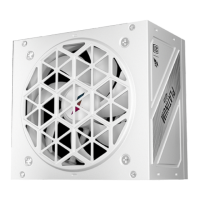
Before You Begin, ensure your system is powered off and unplugged from any power
source.
Step 1: Removing the Existing PSU (Skip if building a new system)
Step 2: Installing Your New PSU
Important Notes:
Use only the cables provided with your new PSU to ensure compatibility and safety.
Refer to your motherboard and GPU manuals for specific power requirements.
Store unused modular cables safely for future upgrades.
After installation, ensure all components are properly connected before powering on
your system.
1. Unplug the AC power cord from both the wall outlet and the current PSU.
2. Carefully disconnect all power cables from your components (GPU, motherboard,
drives, etc.).
3. Remove the old PSU from your case following your chassis manual instructions.
1. Verify the PSU's AC power cable is disconnected.
2. Mount the new PSU in your case using the provided screws.
3. Connect the main power cables:
Attach the 24-pin ATX cable to your motherboard.
Connect the CPU power cable (4-pin, 8-pin, or 4+4-pin) as required by your
motherboard.
4. Connect component power cables:
SATA power cables to SSDs, HDDs, and optical drives.
PCIe or 12V-2x6 power cables to your graphics card(s) if needed.
Peripheral (Molex) cables to any components requiring them.
5. Double-check all connections are secure.
6. Organize cables for optimal airflow, using cable management features in your case.
7. Connect the AC power cord to the PSU, but don't plug it into the wall yet.
INSTALLATION GUIDE
POWER SUPPLY
NGDP


 To Next Page
 Loading...