This document describes the 2.4G RF Gaming Mouse (Light Strike Wireless Gaming Mouse), Model: R70, a wireless gaming mouse designed for PC systems.
Function Description
The R70 is a 2.4G RF (Radio Frequency) gaming mouse utilizing Light Strike technology, indicating a focus on speed and responsiveness. It is designed for use with Windows XP/Vista/7/8/10 operating systems. The mouse is part of the "Bloody Gaming Family" and integrates with Bloody's software for advanced customization, particularly for FPS (First-Person Shooter) games.
Important Technical Specifications
- Connectivity: 2.4G RF Wireless.
- Charging: Micro USB port for charging.
- Battery: Features a Lithium battery.
- RF Safety: Operates at 2.4GHZ, deemed safe for human bodies, but caution is advised for users with cardiac pacemakers or other body auxiliary instruments.
- FCC Compliance: Complies with FCC radiation exposure limits for an uncontrolled environment and Part 15 of the FCC Rules, meaning it may not cause harmful interference and must accept any received interference.
Usage Features
Mouse Button Definitions:
The mouse features several buttons for various functions:
- L-Button: Left click.
- R-Button: Right click.
- Wheel and Middle-button: Scroll wheel and middle click.
- 4th Button: Additional programmable button.
- 5th Button: Additional programmable button.
- 1 mode (standard mode) button: Switches to standard mode.
- N mode (first gun model) button: Activates the first gun model (customizable via software).
- 3 mode (second gun model) button: Activates the second gun model (customizable via software).
- Micro USB hole (charging hole): Used for charging the mouse.
Pairing the Mouse:
- Plug the Bloody Series Dongle into a USB port on your computer.
- Open the "Bloody Wireless mouse pairing program."
- Plug the USB charge cable into your computer's USB port.
- Locate and plug the charge cable into the mouse's charge port within 30 seconds.
- The mouse will begin pairing.
- Once connected successfully, the mouse is ready for use.
Power-saving Management:
The mouse includes power-saving features managed via the system tray icon. Users can select "GUARD" to manage power.
- RF-Synchronize: An exclusive technology for stable wireless RF quality.
- Zero-Frequency Offset: A feature with pending patent.
- Exclusive Channel: Allows selection of a specific channel (1-10).
- RF Signal Detector: Displays signal strength.
- Strengthen Power: Enhances power.
- Power Saving Settings: Users can set minutes for power saving to start and choose to wake up the mouse by movement or click.
- Low Battery Notification: Software will display a low battery notification at the screen's right corner when the battery is low.
Gaming Mouse Software Introduction (Bloody - HeadShot Firearm Adjustments):
This software allows users to adjust firearm settings and save them to the mouse memory, particularly for FPS games.
- 5-Gun-Adjust Modes: Includes modes like [A-Burst], [B-Strafe], [C-Machine], [D-In_Game], and [M-Macro].
- In-Game Adjustments: The [D-In_Game] mode allows for gun adjustments during gameplay without exiting the game, enhancing firepower, ballistics, and accuracy for headshots.
- Workflow for Firearm Adjustments:
- Access "Armory" in the HEADSHOT program.
- Select a game folder.
- If the firearm is in Armory:
- Setup control keys (N or 3 button for L-key).
- Click "APPLY" to save settings to mouse memory.
- If the firearm is not in Armory:
- Import firearm data to Armory.
- Use 5-way gun-adjust to set up a new gun and save to Armory.
- In gameplay, press N/3 key; the wheel LED will change to green (N) or yellow (3).
- Press the left button to test the firearm. If not satisfactory, return to HEADSHOT for re-setup.
Maintenance Features
Charging the Mouse:
- Low Battery Indication: The wheel's LED will flicker (15 seconds) when the battery is low. Plug the USB cable into a PC's USB port to charge.
- Charging Indication: When connected for charging, the wheel's LED will show a red message.
- Full Charge Indication: Once fully charged, the wheel's LED will display a breathing light message.
Troubleshooting:
If the keyboard/mouse is not working:
- Ensure the keyboard/mouse is paired.
- Check if the battery power is full.
- Verify the Dongle (receiver) installation.
- Try another USB port.
Interference Avoidance:
- PC Iron Panel Interference: Avoid plugging the Dongle USB Ports near the iron panel of the PC to prevent interference.
- Metal Surface Interference: Avoid using the wireless keyboard/mouse on metal surfaces (iron, aluminum, copper) as they can shield radio frequency transmission, slowing response time or causing temporary failure.
- Electromagnetic Interference: If electromagnetic interference occurs, use an extend cable to reduce the distance between the Receiver and Mouse, improving signal quality.
Product Support:
Technical support is available at http://www.bloody.com, with a response time within 72 hours. All pictures and descriptions are for reference and subject to change without notice.

 Need help?
 General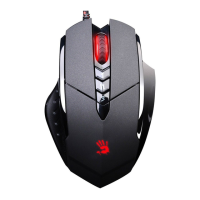

 To Next Page