12 13
PAIR
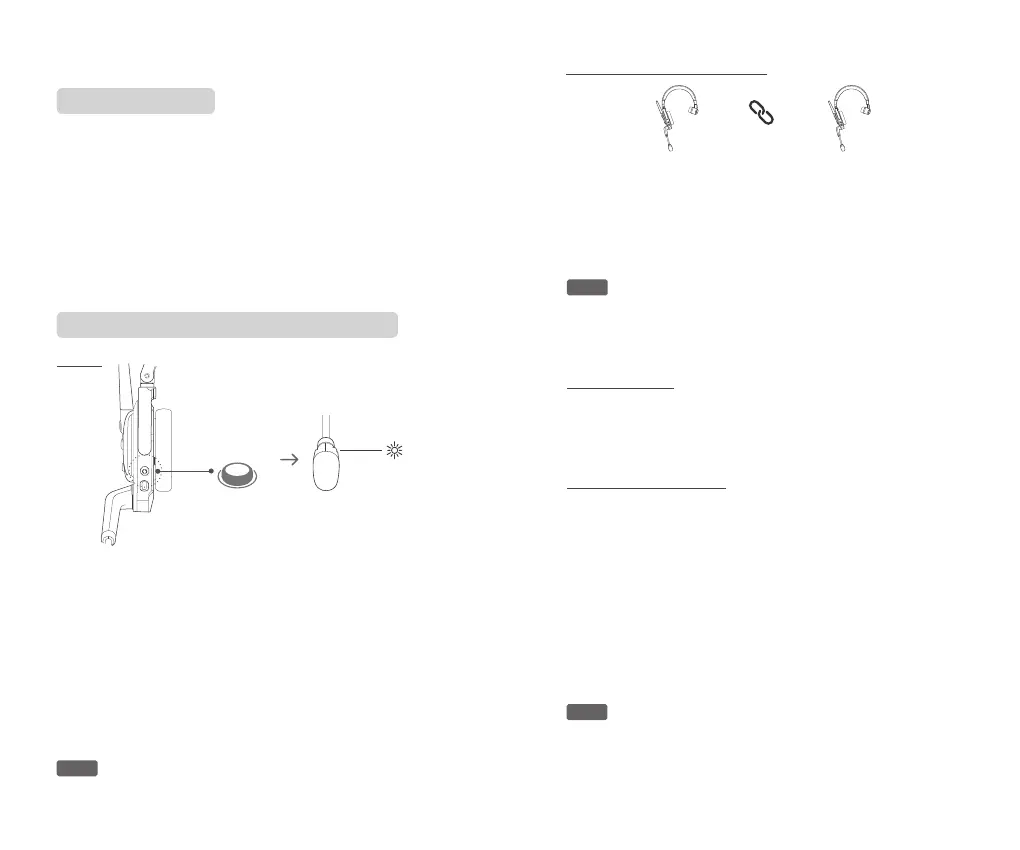
Fast green icker
The pairing mode will last for 120s. The headsets will automatically
exit pairing mode.If host/remote headsets are unable to pair up within
the time limit, follow previous guideline to restart pairing.
If your host headset has already memorized 8 remote headsets,
to replace the remote headsets, please follow the steps below to
clear the existing pairing memory.
Host headset × 1
Max
Remote headset × 8
6.FAQ
Connection drops
Pairing and host headset memory clearing
1.If the host headset was powered o, or the distance between host and
remote headsets is too far, the remote headsets will be disconnected
from the host, and the indicators on the remote headsets will turn into
slow green ickers and play “Disconnected” voice prompt.
2.When the remote headsets are disconnected from the host headset,
you can reconnect the headsets by powering on the host headset
or put the host and remote headsets back into the communication
distance, the remote headsets will automatically reconnect to the host
headset. Remote headsets’ indicator will stay on with green light and
will play “Connected” voice prompt.
1. Switch the power button on both the host and remote headsets to
“ON”.
2. Press and hold the pairing button on the host headset for 3 seconds
to enter pairing mode. The indicator will show fast green ickers, with
no prompt voice.
3. Press and hold the pairing button on remote headsets for 3 seconds
to enter pairing mode. The remote headsets will play “Pairing” voice
prompt, and the indicator will show fast green ickers.
4. If the pairing succeed, remote headsets will play “Pairing success”
voice prompt and the indicator will show slow green ickers.
5. Please press and hold the pairing button on the host headset for 3
seconds to exit pairing.
1. One host headset can connect and memorize 8 remote headsets at
the maximum. If your host headset's memory isn't fully used, you can
follow previous guideline to pair and add new remote headset(s).
2. A single remote headset can only store pairing information of one
host headset at a time. To pair it with a new host headset, please
follow the instructions in previous guideline to clear the remote
headset’s pairing memory and then pair it with the new host headset.
Memeorize pairing information
Pairing memory clearing
Pairing
Pairing overtime
Note: Please ensure you exit pairing mode before using Accsoon
CoMo for communication.
Note: If you have multiple Accsoon CoMo host and/or remote
headsets, follow previous guideline to arrange the pairing memory of
each host/remote group. Two seperate groups of Accsoon CoMo can
work in the same place without interference.
Note: You only need to execute the pairing memory clearing process
on the host headset. After you fully cleared the memory of the host
headsets, please follow previous guideline to pair up the host and
remote headsets, The new pairing information will beautomatically
memorizedafter successful pairing.
1. Switch your host headset power switch to “ON”.
2. Press and hold both the volume up “+” and down “-” button for
3 seconds. The host headset’s indicator willalternately ash red and
green lights, indicating that the host headset has entered the memory
clearing process
3. Once the pairing memory is fully cleared, the host headset’s
indicator will change toslow green ickers.


 To Next Page
 Loading...