
 Need help?
Do you have a question about the Acer One 7 and is the answer not in the manual?
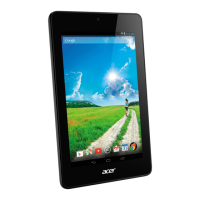
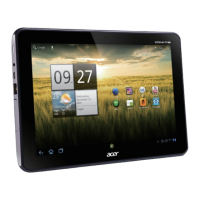
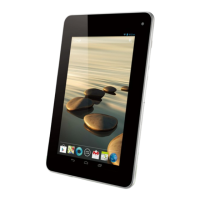
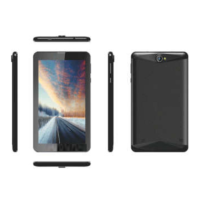
Visual representation of the complete tablet device.
Lists and describes the items included in the tablet's packing box.
Explains the functions of the power and volume keys on the tablet.
Describes the main menu screen and how to customize the wallpaper.
Provides steps to open and navigate through application programs on the tablet.
Details how to use the screen keyboard and select input methods.
Guides on how to connect the tablet to a Wi-Fi network.
Explains how to set up and use Bluetooth connectivity on the tablet.
Instructions for inserting a SIM card and making calls on the tablet.
Steps to connect the tablet to a 3G network for internet browsing.
The Acer One 7 is a versatile tablet designed for everyday use, offering a range of functionalities from basic navigation to advanced connectivity. This user manual provides a comprehensive guide to understanding and operating the device, ensuring a smooth and efficient user experience.
The Acer One 7 serves as a portable computing device, allowing users to access applications, browse the internet, make calls, and connect with other devices. Its core function is to provide a user-friendly interface for various digital tasks, supported by a robust operating system. The tablet is equipped with essential hardware components, including a display for visual interaction, physical keys for control, and internal systems for processing and connectivity.
Upon initial boot-up, the tablet guides users through the setup process. The device features a power key, which, when pressed for a long time, initiates startup or brings up shutdown options. During operation, a long press on the power key can also close the screen. A volume key allows for easy adjustment of the device's audio output.
The homepage interface is the central hub for all application programs. Users can customize this interface by setting wallpapers and arranging application shortcuts. Accessing applications is straightforward: users click the application program menu, select the desired app, and can exit by pressing the return key or the homepage key.
The Acer One 7 facilitates character input through an on-screen keyboard. When an input field is selected, the keyboard automatically appears. The tablet supports the default Android keyboard and allows for the installation of third-party input methods. Users can switch between input methods by clicking the keyboard icon in the status bar, which brings up an editing text menu. The on-screen keyboard includes standard features such as switching between capital and small letters, toggling between character and symbol/figure input modes, inserting spaces, executing carriage returns, and deleting characters to the left of the cursor.
Connecting to a Wi-Fi network is a key feature for internet access. Users can establish a Wi-Fi connection by navigating to the system settings from the homepage. After enabling Wi-Fi, the tablet automatically scans for available networks. Users then select their desired network, input the password if required, and click "Connection." The device also offers an "Advanced Wi-Fi setting option" for more detailed configurations.
The Acer One 7 supports Bluetooth for wireless communication with other devices. To use Bluetooth, users go to the system settings and enable Bluetooth. The device's Bluetooth name can be customized. A "Detectability" function allows the tablet to be discoverable by other Bluetooth devices for a limited time (120 seconds by default). Users can scan for nearby Bluetooth equipment and connect to desired devices, with all discovered devices listed under the Bluetooth settings.
The tablet includes call functionality, requiring a SIM card to be inserted while the device is powered off. Once the device boots up and the network provider's mark appears in the notification bar, users can make or answer calls. The network signal strength is displayed in the bottom right corner of the information bar. For mobile data and network provider settings, users can refer to "Settings---SIMcard management."
For mobile internet access, the Acer One 7 supports 3G connectivity. Users can enable this by going to the system settings from the homepage, selecting "data usage," and then opening "Mobile data." Once mobile data is activated, users can browse the web.
The manual provides solutions for common issues, ensuring users can maintain their device effectively.
The device complies with FCC rules for Class B digital devices, designed to provide reasonable protection against harmful interference in residential installations. Users are advised to reorient or relocate the receiving antenna, increase separation between equipment and receiver, connect to a different circuit outlet, or consult a technician if interference occurs. Any modifications not explicitly approved by the manufacturer could void the user's authority to operate the equipment.
The Acer One 7 also meets government requirements for exposure to radio waves, with a Specific Absorption Rate (SAR) limit of 1.6 W/kg averaged over one gram of tissue. The device has been tested for body-worn operations with the back of the Tablet PC kept 0mm from the body. To maintain compliance with RF exposure requirements, accessories used should maintain a 0mm separation distance and should not contain metallic components.
This comprehensive guide ensures that users can effectively utilize and maintain their Acer One 7 tablet, addressing both operational aspects and potential troubleshooting scenarios.
 General
| Display Size | 7 inches |
|---|---|
| Display Resolution | 1024 x 600 pixels |
| RAM | 1GB |
| Rear Camera | 2MP |
| Front Camera | 0.3MP |
| Connectivity | Wi-Fi 802.11 b/g/n, Bluetooth 4.0 |
| Ports | Micro USB, 3.5mm headphone jack |
| Internal Storage | 16 GB |




 To Next Page