Verizon QuickGuides
TM
page 2 of 3
Links to verizon.com External Links
QA13_How_to_Upgrade_Your_FiOS_Router.pdf
For more information, visit verizon.com/support
or
@ VerizonSupport on Twitter
How to Upgrade Your FiOS Router
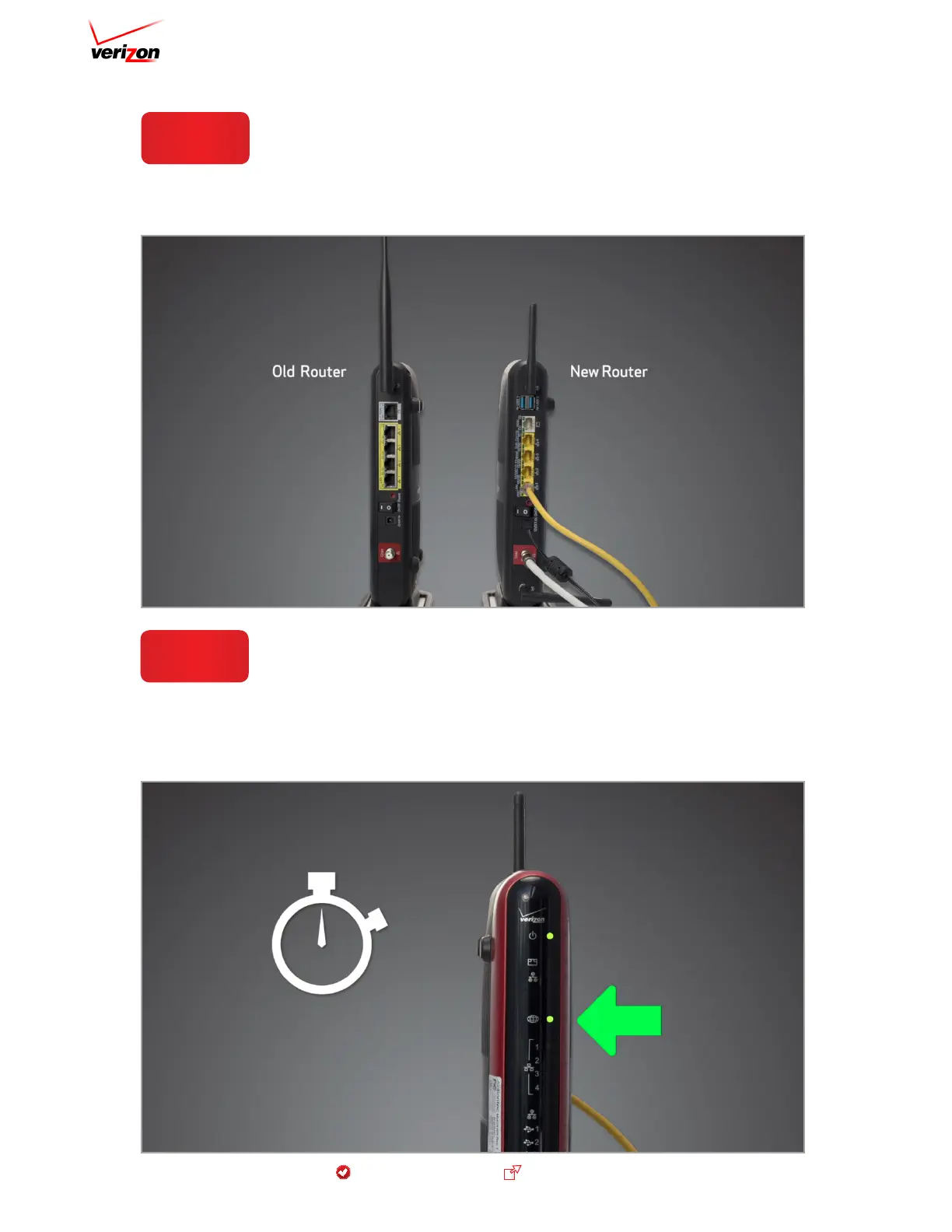
One at a time, disconnect all cables from the old router
and connect them to the new one. Be sure to use the power
supply that comes with the new router. And if there’s a
power switch on it, make sure it’s on.
Once you’ve connected the cables, wait about three to five
minutes. When the Internet light on your new router lights up
green or flashes, your new router is up and running. Any wired
devices should be working, and any wireless devices may now
be configured to connect.
Step 2
Step 3



 To Next Page