Acrobat 9 Pro PDF Accessibility Repair Workflow
PDF Accessible Repair with Adobe Acrobat 9 Pro
22 |
• Tag fillable form fields and their labels
• Add alternative text to figures and descriptions to form fields
• Fix the tagging of simple tables, and prepare complex tables for more advanced manipulation in the
logical structure tree
• Remove nonessential content, such as ornamental page borders, from the logical structure tree
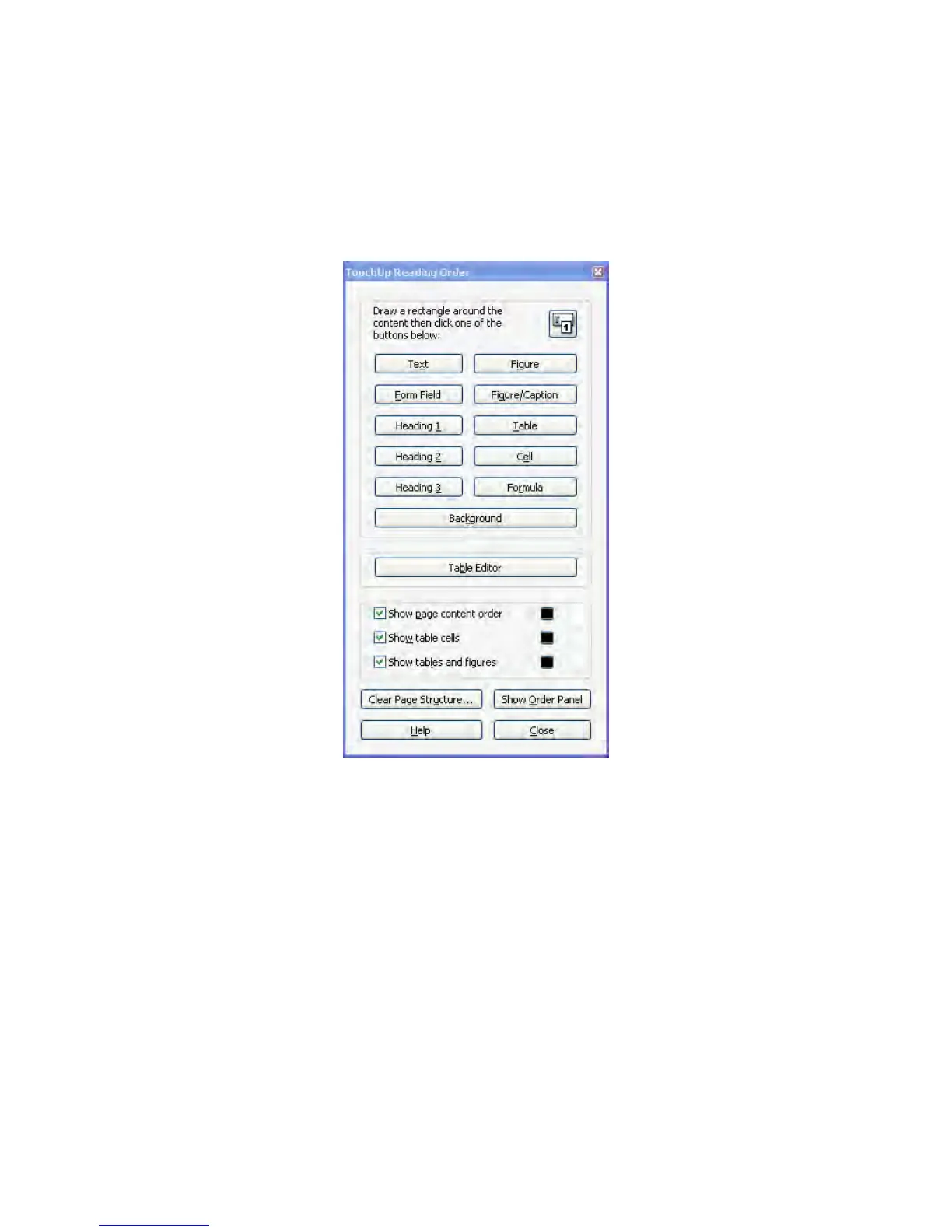
Figure 16 TouchUp Reading Order Dialog
Selecting the TouchUp Reading Order Tool
To select the TouchUp Reading Order Tool, do one of the following:
• Choose Advanced > Accessibility > TouchUp Reading Order (ALT + AAT)
• Choose Tools > Advanced Editing > TouchUp Reading Order Tool (ALT + TAG).
• Click the TouchUp Reading Order tool button in the Advanced Editing toolbar.
When you select TouchUp Reading Order, a dialog box opens that lets you see overlay highlights that show
the order of page content (See “Figure 17 Result of Selecting the TouchUp Reading Order Tool” on
page23)



 To Next Page