Troubleshooting Hosted 4500 Timeclocks
Make sure there are no spaces, special characters and mix case is used within the Timeclock
name and Description
Try Pinging Clock
If ping does not work, then, check for a green link light on the clock.
Delete clock not working and Setup a new clock, but make sure to set the clock back to
factory default and use new configuration sheet.
Delete current clock - Setup – TA – timeclock configuration – in Action column
next to clock to delete – Edit Timeclock – click on Delete button on bottom.
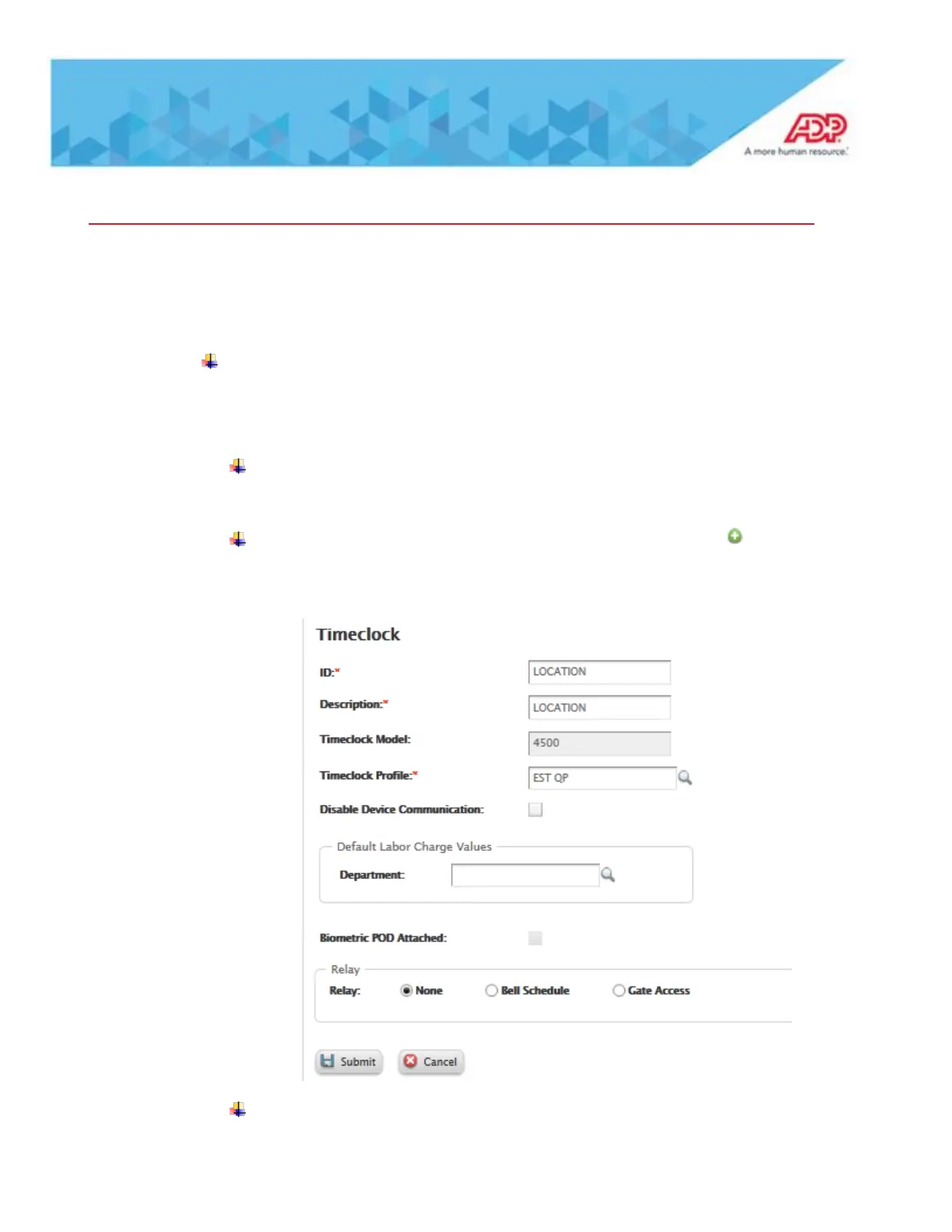
Create a new clock - TA – timeclock configuration – click on pick New
Timeclock 4500 – ID and description location name – all caps no spaces or other
characters and Timeclock profile is either EST QP or CST QP.
After creating new clock make sure to assign to Timeclock groups – “All
Clocks” (Setup – TA – timeclock groups – click on All Clocks – to add new



 To Next Page