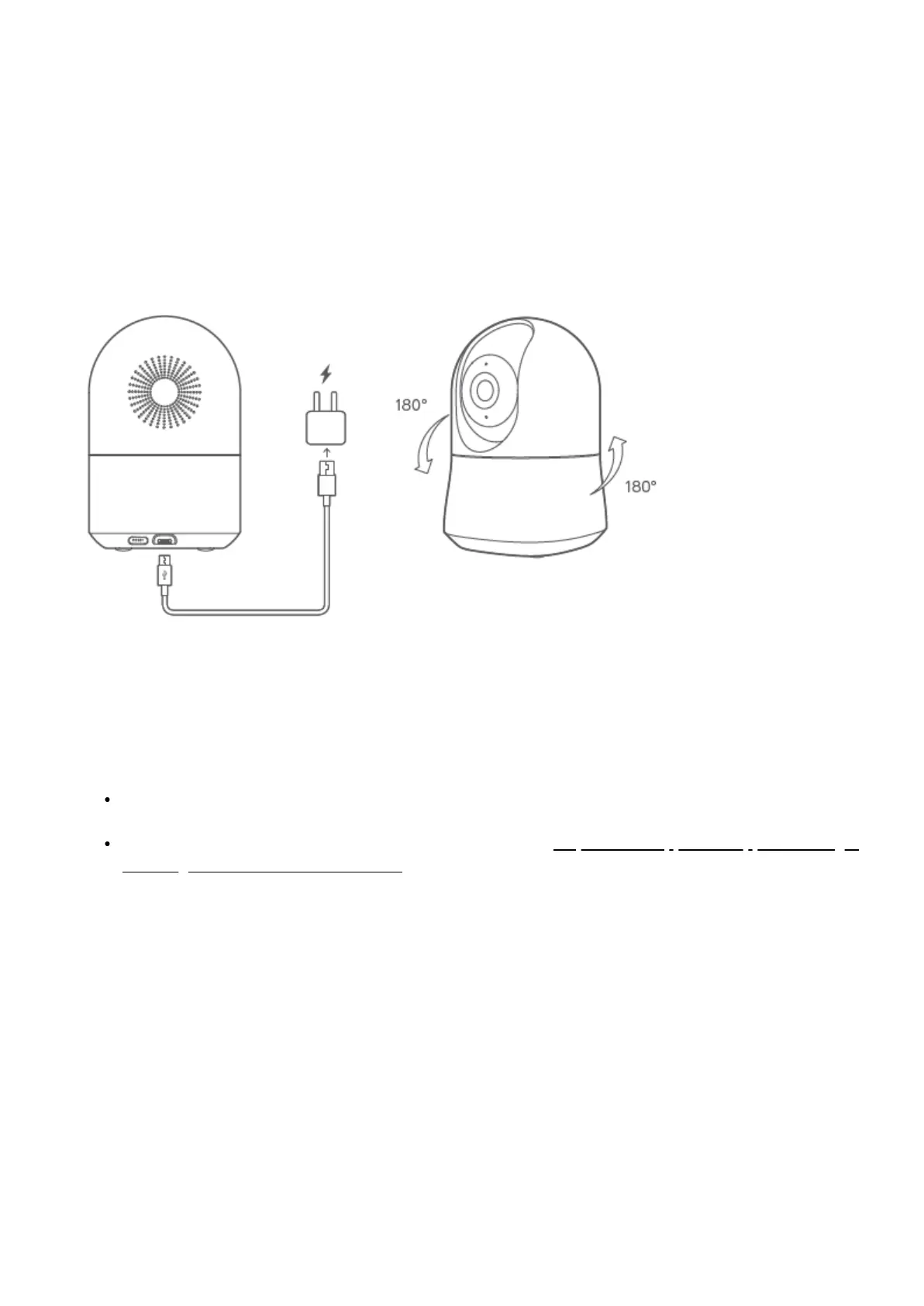
4. Avoid installing on appliances that generate vibration, such as refrigerators or air conditioners.
5. Avoid installing it near devices that emit strong radio waves as this may degrade wi-fi performance.
6. This product can be placed on a flat surface, such as a desk or table.
7. This product can be mounted on a wall or celling with supporting installation accessories.
8. This product do not rotate head over allowed range (-180⁰ ~ +180⁰).
Install your Aeotec Cam 360
Pair to SmartThings Connect
Before moving forward, make sure that you connect your phone to Wifi where device is used, and download an open
SmartThings App.
SmartThings is available to download on Android devices with at least 2GB of RAM, but works best with devices
running Android 7.0 or higher.
For iOS devices, you'll need to be running iOS 11 or later. Check https://itunes.apple.com/app/smartthings-
samsung-connect/ id1222822904?mt=8 for more details.
Through QR Code.
1. Open SmartThings Connect.
2. Tap Add (+)
3. Tap Device
4. Select "Scan QR code"
5. Scan the QR Code located on Aeotec Cam 360
1. If you are having issues, select "Add Device Manually"
2. Input Aeotec Cam 360 Serial Number.
6. Plug Cam 360 into any outlet within range of your WiFi Router.
7. Once SmartThings Connect discovers the device, choose its Room and Location.
8. Tap Next.
9. Select a WiFi Network for Aeotec Cam 360 and enter the security password.
Through Catalog.



 To Next Page