EasyManua.ls Logo

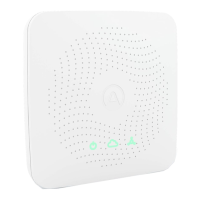
Airthings View Series - User Manual

Airthings View Series
16 pages
Print Icon
To Next Page IconTo Next Page
Loading...
COR7186-B View Series Universal Quick Start Guide.indd 1COR7186-B View Series Universal Quick Start Guide.indd 1 20/12/2021 17:4520/12/2021 17:45

Other manuals for Airthings View Series

Questions and Answers

  • Y
    yalexanderJul 28, 2025
    Why can't I find my Airthings View Measuring Instruments device in the app?
    • W
      William McmillanJul 28, 2025
      There are several reasons why you might not be able to find your Airthings View device in the app: * Ensure that Bluetooth is enabled on your smartphone. * If you're using an Android device, GPS location must be enabled for Bluetooth to function correctly. Enable GPS location on your Android smartphone. * Make sure your phone is close to the device (less than 1m / 3 ft) and search again, as wireless interference could be the issue. * The device may already be registered to another account. Try registering the device to the correct account.
  • R
    Robin CostaAug 11, 2025
    What to do if my Airthings View Measuring Instruments won't connect to WiFi?
    • E
      emily77Aug 11, 2025
      If you're having trouble connecting your Airthings View to WiFi, here are a few things to check: 1. Your View device can only connect to 2.4 GHz WiFi networks. Ensure you are connecting to a 2.4 GHz network. 2. If you have a dual-band router, make sure that the 2.4 GHz and 5 GHz bands have different names. 3. Verify that your router DNS settings are correct and that you are connecting to your primary network.

Summary

HOW TO SET UP

Download and Account Creation

Download the Airthings App and create a user account to start setup.

Prepare the Device

Remove the battery tab to activate the device for initial use.

Follow On-Screen Instructions

Follow the instructions provided within the app and on the device display.

Access Detailed Instructions

Scan the QR code or visit the website for more comprehensive setup guidance.

DAILY USE

Check Air Quality

Wave your hand in front of the device to perform an air quality check.

App Customization

Use the Airthings App to customize display settings and preferences.

Hub Functionality

Connect to WiFi and power via USB to utilize the Hub function.

Sensor Calibration Tips

CO2/VOC sensors need 7 days calibration; Radon needs 30-day monitoring.

Airthings View Series Specifications

General IconGeneral
SensorsRadon, Temperature, Humidity, CO2, VOCs, Pressure, Light
ConnectivityBluetooth, WiFi
App CompatibilityiOS & Android
Accuracy after 7 days±10%
Temperature Measurement Range0°C to 50°C (32°F to 122°F)
Humidity Measurement Range0% to 100%

Related product manuals