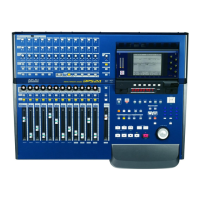
4. Yous PC should automatically detect the DPS24 and open the New Hardware Wizard.
5. Choose the option in the New Hardware Wizard that allows you to specify the location of the driver files.
6. Ues the BROWSE function to locate the files expanded into the folder you created.
7. Click OK and next to install the drivers.
OS UPDATE FROM USB
1. Connect the DPS24 and PC with the USB cable.
2. Turn on the DPS24 and PC.
3. Press the DPS24's SETUP button, then the F6(OS) button.
4. Set “Upgrade from” to the USB port with Q1 knob.
5. Press the F5/F6(upgrade) button, then the F6(YES) button.
6. Wait for the OS to be loaded from the PC.
7. The OS Loader runs only using the MS-DOS Command prompt.
8. In the Command prompt window, switch to the folder you created. (eg. c:\DPS24)
9. Select the update type from the following. Normally select usbrom /v dps24.bin
#1. usbrom dps24.bin ------ (normal)
#2. usbrom /v dps24.bin ------ (update and checksum)
#3. usbrom /bootblock dps24.bin ------ (overwrite boot block)
Type in either of the above to execute the program.
10. Reboot the DPS24.
SERVICE MANUAL
10


 To Next Page
 Loading...