6
Using the VR Launcher
You can download VR photos, videos and games from the VR Store
or Lilstar, or watch streaming content in the launcher via Lilstar.
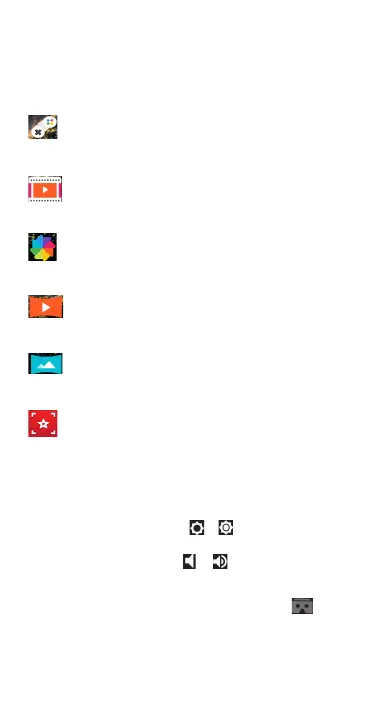
Games
Access and play all installed VR games. Supported games
will be added here automacally when installed.
Video
Watch your normal videos with your VR goggles.
Photo
View photos on your phone with the VR Launcher.
360 VR Video
Watch 360 videos that are just like being in the middle of
the acon.
360 VR Photo
View 360 photos that ll the complete virtual space
around you.
Lilstar
Access and experience the best 360° video content from
over 20 categories including Gaming, Travel, Outdoors,
Sports, Music and more.
VR Launcher Sengs
While in the VR Launcher, look down and to the right or le to
reveal and select sengs.
Brightness: Aim the pointer at the or and touch the SELECT
buon to darken or brighten the screen.
Volume: Aim the pointer at the or and touch the SELECT
buon to raise or lower the volume.
Look & Wait: This feature allows you to select an item by aiming
the pointer at it for 3 seconds. Aim the pointer at the for 3
seconds to turn this on or o.
Note: Not all VR applicaons and screens support Look & Wait.


 To Next Page
 Loading...