Internet allegro-packets.com
[ ]
Allegro 1 000 / 3 000 Allegro 200
LAN: DHCP client DHCP client
WiFi SSID: allegro-mm-xxxx allegro-mm-xxxx
WiFi WPA2 key: Allegro-MM Allegro-MM
WiFi web access: https://allegro/ or https://192.168.4.1 https://allegro/ or https://192.168.4.1
Web interface user name: admin admin
Web interface password: allegro allegro
IP KVM user name and password: ADMIN / ADMIN —
Allegro 1 000 / 3 000 Allegro 200
1 x Allegro Network Multimeter 1 x Allegro Network Multimeter
1 x Power supply 1 x Power supply
1 x Power cable 1 x Power cable
1 x Rack mount kit 1 x USB-Gigabit-Ethernet adapter
1 x WiFi USB adapter (already pre-installed) 1 x WiFi USB adapter (already pre-installed)
1 x Installation Guide 1 x Installation Guide
Allegro Network Multimeter
Installation Guide
This document describes the hardware installation and software configuration of the Allegro Network Multimeter.
Default Settings
Overview
The guide contains the following sections:
1. Package Content
2. Hardware Deployment
3. Device Start
4. Management Interface Configuration
5. IP KVM Interface
6. Configuration Reset and Automatic Firmware Update
7. Firmware Update Notification
8. Factory Reset
9. Additional Notes
1. Package Content
The Allegro Network Multimeter package contains the following items:
2. Hardware Deployment
2.1. Management Access (Control Plane)
Step 1: Connect power supply:
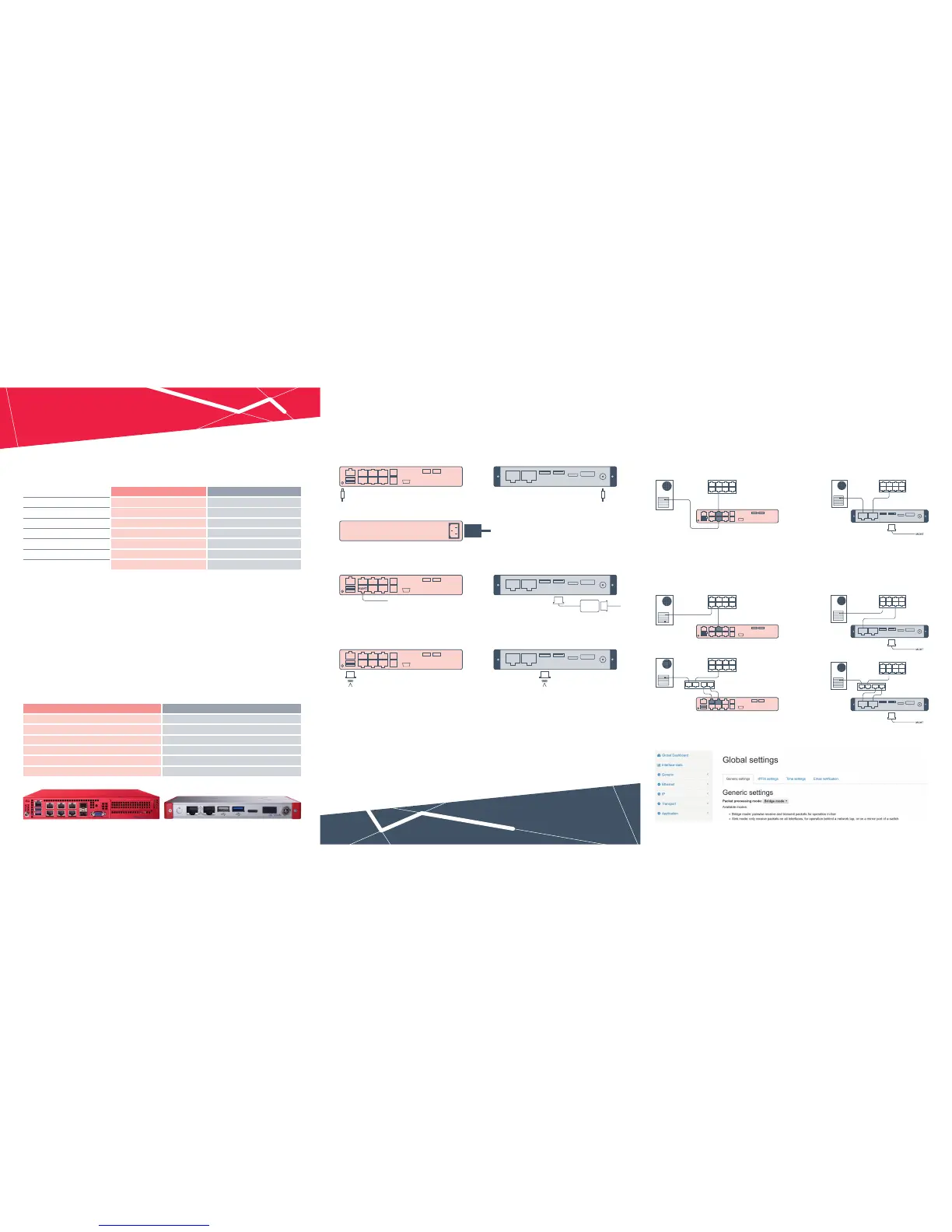
Allegro 1000/3000 (portable version): Allegro 200 (portable version):
Allegro 1200/3200 (rack version):
Step 2: Connect management LAN connection to the Connect management LAN connection to the
port labelled as „MGMT“ (the bottom left port): USB-Ethernet adapter and insert into any USB port:
By defult, the device will query n IP ddress vi DHCP dynmiclly from your network.
Alternative: Insert WiFi adapter to any of the two USB ports:
By default, the device will open an access point so other smartphones, tablets, or laptops can connect to the access
point and access the web interface.
During initial install, your network connected to the MGMT port assigns an IP address to the Network Multimeter
via DHCP. Later in the web configuration section, it is possible to configure a fixed IP or enable a DHCP server running
on that network interface. Also, the wireless device can be enabled to access the web interface as a WiFi client or
access point.
If access is not possible with the default configuration, a temporary IP address can be assigned: After booting,
connnect an USB keyboard to any of the USB ports and press "Shift+S". Now the IP address 192.168.0.1 is assigned
to the LAN interface and it is valid until power o. If this is already taken another address in the range from
192.168.0.1 to 192.168.0.10 will be used. You can check the current IP address on a connected monitor.
2.2. Network Measurement Installation (Data Plane)
The Allegro Network Multimeter analyzes all traffic going through any of network interfaces. It can be
deployed in the following setups:
1. Bridge mode:
Every pair of interfaces build a layer-2 bridge, Both interfaces build a layer-2 bridge, sending
sending all incoming traic to the corresponding all incoming traic to the corresponding interface:
interface. Each vertical pair of interfaces forms a bridge.
The interface number 1 only processes incoming
traic from a mirror port.
2. Sink mode:
Received packets will be processed, but not forwarded. Connect the network multimeter to a hardware tap by
connecting both tap ports to the device. Alternatively, a switch or router mirror port can be connected to any of
the device network interfaces:
Default behavior is the bridge mode, thus running as an in-line device. The other mode can be enabled within the
web interface after setup (menu „Settings → Global settings“):



 To Previous Page
 Loading...