Your Power Solutions Partner
For more information visit
www.alpha.ca
F-MKT-08 Rev 1.0 0470348-00 Rev B (07/2018)
Copyright © 2018 Alpha Technologies. All Rights Reserved. Alpha® is a registered trademark of Alpha Technologies.
Member of The Alpha Group™ is a trademark of Alpha Technologies.
Member of the Alpha Group
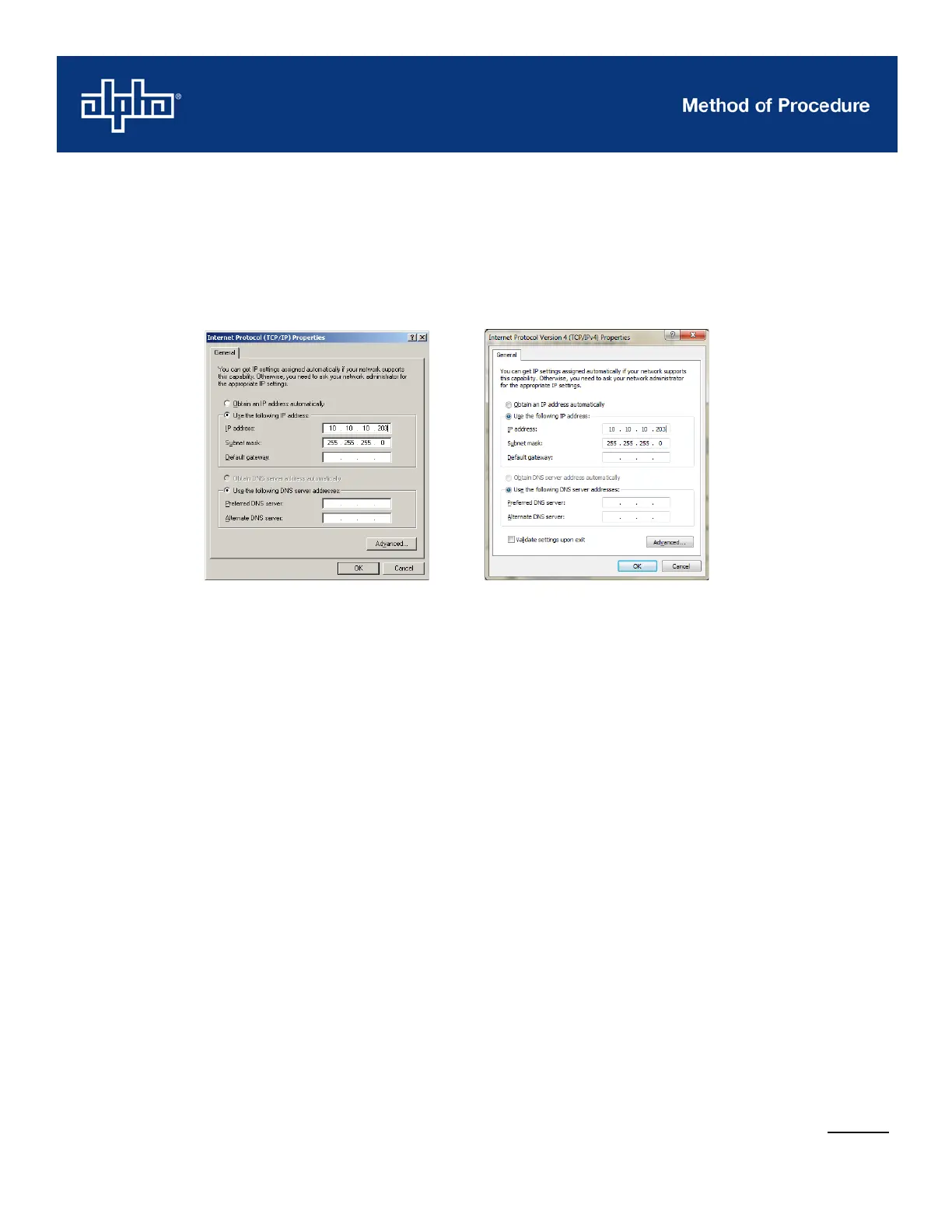
8. Select Use the following IP address.
To avoid duplicate IP addressing, change the Windows IP to a value one digit higher than the
controller’s IP address.
Windows XP: Windows Vista/7/10:
For example, if the controller is set up for the default IP (10.10.10.201) change the Windows IP
value to be 10.10.10.202 and Subnet Mask to be 255.255.255.0.
As a second example, if the controller is set up to a non-default IP such as 69.58.99.154, change
it to 69.58.99.155 and so on.
Leave the other fields blank, and click OK to accept the changes.
9. If the IP is configured to the default, launch Internet Explorer and type 10.10.10.201 into the web
browser or enter the IP address that is configured for the controller (not the adapter setting
configured in step 8). The username and password login window display.
If the login screen does not display, the IP may need to be reset. Refer to step one.
10. Enter your assigned username. The default password is 1234. If a username and password has
been configured, enter that username and password.


 To Next Page
 Loading...