15-EN
01GB04Setup.fm
ALPINE iLX-F2611E/iLX-F269E M3514725010 (EN)
[Connection] is selected on the Setup menu screen.
Connection Setup Menu screen
Setting items:
Bluetooth Information (page 15)
Set Bluetooth Device (page 15)
Auto Answer Bluetooth Incoming Call (page 15)
Apple CarPlay (page 15)
Displaying Bluetooth Information
[Bluetooth Information] is selected on the Connection Setup Menu
screen.
You can display the Bluetooth device name and device address of this
unit.
Setting item:
Bluetooth Information
Pairing the Bluetooth Device
[Set Bluetooth Device] is selected on the Connection Setup Menu
screen.
Search for Bluetooth compatible devices.
Setting item:
Set Bluetooth Device
1 Tou ch [Set Bluetooth Device].
The Bluetooth Setup screen is displayed.
• You can also display the Bluetooth Setup screen directly by
touching the [Bluetooth Settings] widget on the HOME screen.
2 Select this unit on the Bluetooth device.
A message about the device to be registered is displayed.
3 Tou ch [Yes].
The Bluetooth device is connected.
If you connecting to a smartphone, a message to download the
phonebook is displayed.
4 Tou ch [] (Audio) or/and [] (Hands-free) of the
device you want to connect from the list.
• You can register up to 5 Bluetooth compatible mobile phones.
• You can connect 1 Blutooth Device to each of Bluetooth Audio
mode and Hands-free mode.
• The Bluetooth registration process differs depending on the device
version and SSP (Simple Secure Pairing). If a 4 or 6 character Passcode
appears on this system, enter the Passcode on the Bluetooth device.
• If a 6 character Passkey appears on this device, make sure the same
passkey is displayed on the Bluetooth compatible device and touch
[OK].
• If all 5 devices have been registered, you cannot register a 6th device. To
register another device, you need to delete one of the other 5 devices
first.
Select one of 5 paired Bluetooth compatible devices that you previously
registered.
Tou ch [] (Audio) or [] (Hands-free) of the device you
want to connect from the Paired Device list.
• You can also change the connected device by touching the device name.
You can delete the information of a previously connected Bluetooth
compatible device.
1 Tou ch [] of the Bluetooth compatible device to delete
from the Paired Device list.
2 Tou ch [Yes].
•Touching [No] will cancel the setting.
Setting the Auto Connection
You can connect the last connected device automatically.
Set “Auto Connect” to [On] ().
Auto Answering Setup
You can set to answer an incoming call automatically.
Touch [ ] (Off) or [ ] (On) of “Auto Answer Bluetooth
Incoming Call”.
Apple CarPlay Setup
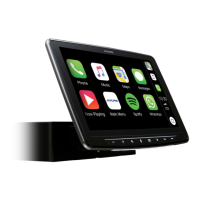
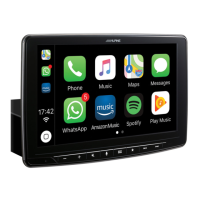
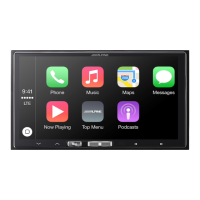
To use the Apple CarPlay (page 23), set “Apple CarPlay” to [On].
Touch [] (Off) or [] (On) of “Apple CarPlay”.
Connection (Bluetooth) Setup
Audio: Device is used as an Audio device.
Hands-free: Device is used as a Hands Free Device.
Setting the Bluetooth Device
Deleting a Bluetooth Device from the list
01GB00iLX-F2611EOM.book Page 15 Thursday, September 10, 2020 2:05 PM


 To Next Page
 Loading...