13-EN
Switching Sources
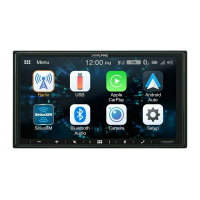
Switching Sources from the Menu screen
1 Press the (MENU) button.
The menu screen is displayed.
• You can also display the menu screen by touching the lower part of
the Audio source screen or by swiping upward.
Radio DAB USB/iPod*
1
HDMI*
1, 2
AUX*
2, 3
Bluetooth Audio*
1
Apple CarPlay Music/Google Play Music*
4
Radio
*1 When no USB flash drive/iPod/HDMI device/Smartphone/Bluetooth
compatible device is connected, this option is not available.
*2 The name set for “HDMI Setup (page 40)/AUX Setup” is displayed.
*3 When AUX is set to “Off,” this option is not available. (page 40)
*4 Available when Apple CarPlay is used/Android smartphone which
installed Android Auto App is connected.
To play Apple CarPlay music shall impact iPod source when an iPhone 5
or later is connected and vice versa. Refer to “Apple CarPlay Setup”
(page 40).
2 Touch your desired source in the Audio source selecting
area.
• In the menu screen, you can change the Audio source directly or change
the order in which sources change. For details, see “About the Menu
Screen” (page 16).
Operating the Function Button on the Audio/
Video Main Screen
Using the Function button on the Audio/Visual main screen.
To uc h [] to change to the Function mode.
Radio main screen example
Swipe to the right or left to change to the Function mode.
To close the Function mode, touch [].
• Depending on the Audio source, the Function mode displays from the
beginning.
The Audio source selecting area
Function mode



 To Next Page
 Loading...