Installation & Operation Guide Page 36 of 48
Before a Location can be created, a Bell Schedule (optional) and Terminal Validation list should be present.
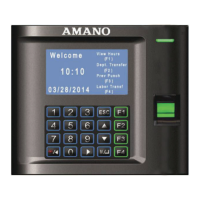
You may have to create a Location to communicate with your MTX-30 terminals. A Location enables Time Guardian to distinguish
and interact with the desired terminal(s). Only one terminal type can be used per Location. If you have more than one terminal type
[i.e, MTX-30 and MTX-15], you must have multiple Locations.
If you are configuring a direct connect serial MTX-30 terminal, you may have to determine the PC Comm port that the USB
CommStik is connected to and select it in Connection tab from the Locations screen. Check your windows device manager.
The window will open on the General tab with a default Location Name. It is recommended to use the “MTX-30 Default” name.
To create a new Location in Time Guardian for MTX-30 terminal:
Step 1. Click the Add button to create a new Location. You will be required to enter a unique Name [yellow required
field] that will be used to describe the area or site where a terminal or group of terminals is located.
Step 2. In the Description field, enter a brief description of the Location. This field is optional.
Step 3. In the Term Type field; select MTX-30.
Step 4. In the TZ (Time Zone) Offset field, select the time zone difference (if applicable) between the physical location
of your PC and the MTX-30 terminals. If same time, leave setings at 0.
Step 5. Output Path field - Please do not change this!
Step 6. If necessary, check the “Secondary Output File” box, and In the Output Path field, enter the path of the
secondary output file. Press the Browse button to navigate to the location of the secondary output file and
include complete output file name.
Step 7. Click on the Override DLS for DLS (Daylight Savings Time ) Settings override and enter the following only if
dates are wrong:
Start Date: The date that the DLS period will begin.
Start Time: The time of the day of the Start Date that the DLS period will begin.
End Date: The date that the DLS period will end.
End Time: The time of the day of the End Date that the DLS period will end.
Press the Reset button to Reset the DLS at the Terminal.
Step 8. From the Locations screen click on the Connection tab.



 To Next Page
 Loading...