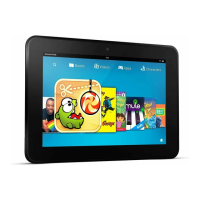
4. On your Fire tablet, navigate to Settings >
Accessibility > Switch Access and then set the toggle
to On."
5. Follow the step-by-step process. Choose the number
of switches to use, how to scan and the speed, and
assign your switches to the desired action."
A test is run on your setup to confirm that Switch Access
is working."
Guide to Using Switch Access for Fire
Tablet
Tips for using Switch Access to perform actions on your
device such as scroll, tap, page turn, and volume control."
Navigate backwards,
jump to home, or
show the App
Switcher.
Use the options in the Switch Access “Menu” located at the
top middle of the screen when scanning.
Access media
controls and change
volume.
Use the contextual Switch Access options in the top left of the
screen or in the Switch Access “Menu” during media playback.
Use the&Unlock&button at the top left of the screen.
Perform a secondary
action on an item.
Choose&Disable auto-select&from the Switch Access “Menu.”
Access items that
are low in the scan
order.
Use Point Scan mode, which is available in the Switch Access
“Menu.”Note:&Point Scan mode uses horizontal and vertical
cross-hair lines to choose a point on the screen to select.
Scroll through your
Fire tablet.
Activate your switch when the scrollable area is highlighted
and indicated with arrows at the edges.
Access notifications
& quick device
settings.
Use the options in the Switch Access “Menu.”
Turn pages in Kindle
e-books.
Use the contextual Switch Access options, which appear in
the top left of the screen when scanning is activated.


 To Next Page