Need help?
Do you have a question about the AML LDX10 and is the answer not in the manual?
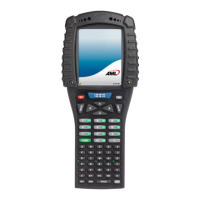
The AML LDX10/TDX20/M7225 mobile computers are versatile devices designed for communication with a computer via a USB connection, supporting both Serial over USB and Windows Mobile Device Connectivity (WMDC) methods. This document outlines comprehensive troubleshooting steps to address connectivity issues, ensuring seamless operation and data transfer.
These mobile computers are primarily designed to facilitate data collection and processing in various environments. Their core function involves capturing information and transmitting it to a host computer for further analysis or integration into larger systems. The choice between Serial over USB and WMDC communication methods offers flexibility, catering to different system configurations and user preferences. Serial over USB provides a direct, low-level communication channel, often preferred for its simplicity and robustness in certain industrial applications. WMDC, on the other hand, offers a more integrated and feature-rich environment for managing the device, including file synchronization, application deployment, and remote debugging, leveraging the Windows Mobile platform's capabilities. The device's ability to run DCSuite, a dedicated application, further enhances its functionality by providing a specialized interface for specific tasks, streamlining workflows and improving operational efficiency. The internal software architecture allows for the installation and management of various applications, making the device adaptable to a wide range of business needs, from inventory management to field service operations.
The user experience with the LDX10/TDX20/M7225 is designed for ease of use and efficient operation. When connecting to a computer, the device's communication method is a key factor. If the device is configured for WMDC, it will typically be recognized as a 'Microsoft USB Sync' device under 'Mobile devices' in the computer's Device Manager. This allows for straightforward synchronization and data exchange through the Windows Mobile Device Center. For users preferring Serial over USB, the device will appear under 'Ports (COM & LPT)' with an assigned COM port number, enabling communication through serial port emulation. The DC App on the computer plays a crucial role in managing these connections, allowing users to select the appropriate USB mode (WMDC Legacy or AML Serial USB) from its Sync tab. This flexibility ensures compatibility with different host systems and software configurations.
Navigating the device itself is intuitive. Users can access settings and applications by tapping on the 'My Device' icon on the desktop. The presence of 'DCSuite' or 'SuiteCommunications' shortcuts in the '\Windows\Startup' folder indicates the device's primary communication setup, guiding users through the appropriate troubleshooting paths. For instance, if 'DCSuite' is the sole shortcut, it signifies WMDC usage, prompting checks of WMDC services and drivers. If 'SuiteCommunications' is present, it points to Serial over USB, directing users to verify COM port assignments. The ability to manually convert the device's communication method from WMDC to Serial over USB, by deploying a 'SuiteCommunication.CAB' file, provides an advanced option for users who require a specific communication protocol or encounter persistent WMDC issues. This process involves copying the CAB file to the device's \Temp folder, installing it, and then configuring the DC App on the computer to use 'AML Serial USB' mode. This level of control empowers users to tailor the device's connectivity to their exact requirements.
Maintaining optimal connectivity and performance for the LDX10/TDX20/M7225 involves several key maintenance features and troubleshooting steps. When WMDC connectivity issues arise, a primary focus is on the Windows services related to mobile device connectivity. Specifically, the 'Windows Mobile-2003-based device connectivity' and 'Windows Mobile-based device connectivity' services need to be correctly configured. This includes setting their 'Log On' properties to 'Local System account' and ensuring 'Allow service to interact with desktop' is checked. The ability to stop and restart these services, particularly the Mobile-2003 service, is a critical maintenance action that can resolve many common connectivity glitches. This ensures that the underlying communication infrastructure is functioning correctly.
Driver management is another vital aspect of maintenance. If the device is displayed as an "unknown device" in Device Manager, it often indicates missing or corrupted drivers. The troubleshooting guide directs users to check for updates via Windows Update, specifically looking for 'Microsoft USB Sync' drivers. Installing these drivers is essential for the computer to correctly recognize and communicate with the mobile computer. Furthermore, if all software-based troubleshooting fails, the option to reload the device's firmware is provided, with instructions and firmware files available on the AML website. This is a more advanced maintenance procedure that can resolve deep-seated communication problems by restoring the device's core operating system.
For persistent Serial over USB issues, particularly when the device is seen as "unknown" in Device Manager, a physical reset mechanism is available. The device features a small reset button, accessible with a paper clip, which can help re-establish communication. After a reset, momentarily connecting and disconnecting the USB cable can prompt the computer to re-detect the device. The guide also suggests trying different USB cables and ports, or even an externally powered USB hub, to rule out hardware-related issues. These practical maintenance steps ensure that users have a comprehensive toolkit to diagnose and resolve connectivity problems, minimizing downtime and maximizing the operational lifespan of their AML mobile computers.
 General
| Wireless Connectivity | 802.11b/g |
|---|---|
| Expansion Slots | SD card slot |
| Operating Temperature | -10°C to 50°C (-10°C to 50°C) |
| Storage Temperature | -20°C to 60°C (-20°C to 60°C) |
| Barcode Scanner | Integrated 1D laser scanner |

 To Next Page