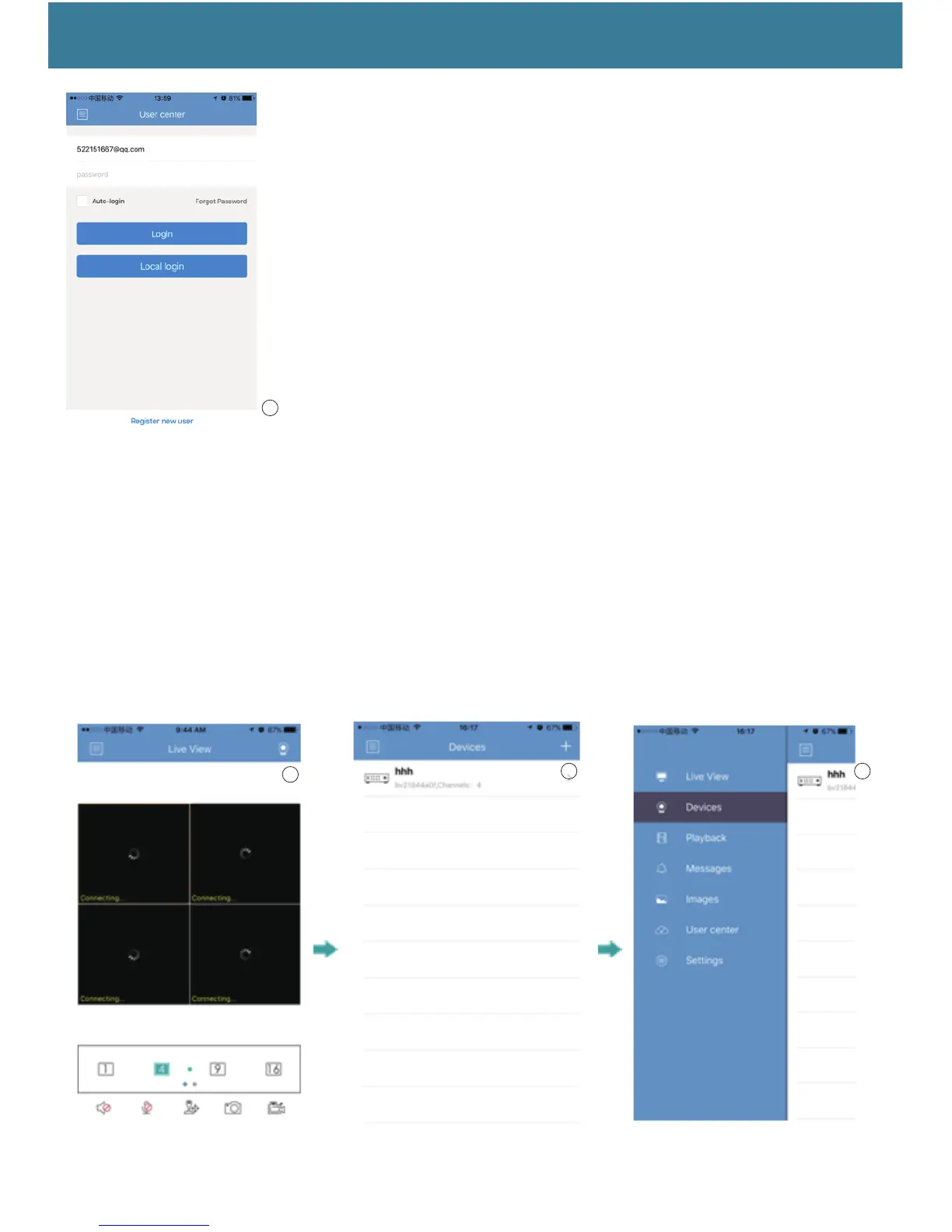
(2) I f you don’t want to register an account,you can ‘Local login’ button to
complete login directly.Show as picture 6.
4,Step Four :After the step three , you complete login the app,it shows as picture 7 or picture 8:click’ ’ and
it will show as picture 9,pls click ’Devices’ and it shown as picture 8,then click the ‘+’ as the picture 10 abd
picture 11 shown:
You only to do select Type as ‘GID’ , set Name by yourself, Channel as ‘8’ and Alarm as ‘Turn on ‘.shows
as picture 11.
Pls note : User name is ‘admin’ , it is default. The text edit box ‘password’ don’t need to enter anything, only
left it blank. And Then click the GID’s QR code to scan the QR QR code as the picture 3 Shown,the ‘UUID’ qr
code or you can enter a GID number,pls click the right button of the mouse,it shows the ‘Main Menu’ and click it,
pls see the picyure 12,picture 13,picture14, picture15.(Main Menu/info/Version)
Then you can see the Serial Number and enter it into your app and click ‘save’ to complete.
6
7
8 9


 To Next Page
 Loading...