USB Backup
BACKUP TO A USB DISK:
We strongly recommend that you make backups of your music library.
This application provides you with a very simple way to make incremental backup copies of your music les. ‘Incremental’ means that if you
add new music the Storage Backup app will only copy the new les. The backup is unencrypted, so you can remove the drive from the
Antipodes, attach it to another device, and copy from it.
For this reason there is no need for a Restore application. The les on your backup drive are easily and simply copied back onto the Antipodes.
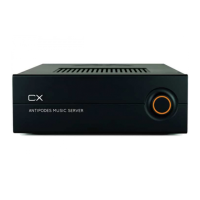
Connect an external USB drive to a spare USB port (but not a USB Audio port) at the back of your Antipodes. At the Antipodes Control Panel,
select the ‘Apps’ menu item, and then click on the ‘Storage Backup’ icon.
If this is the rst time you have connected the USB drive to the Antipodes for backup, make sure you do not need any les that are currently on
the drive, and click on the ‘Format USB drive’ button.
If you have backed up to this USB drive before do not format it and go straight to the step below to click on the ‘Backup to USB drive’ button,
and the process will only add new and changed les to the USB drive.



 To Next Page