Roon Local
SETUP ROON LOCAL PLAYBACK:
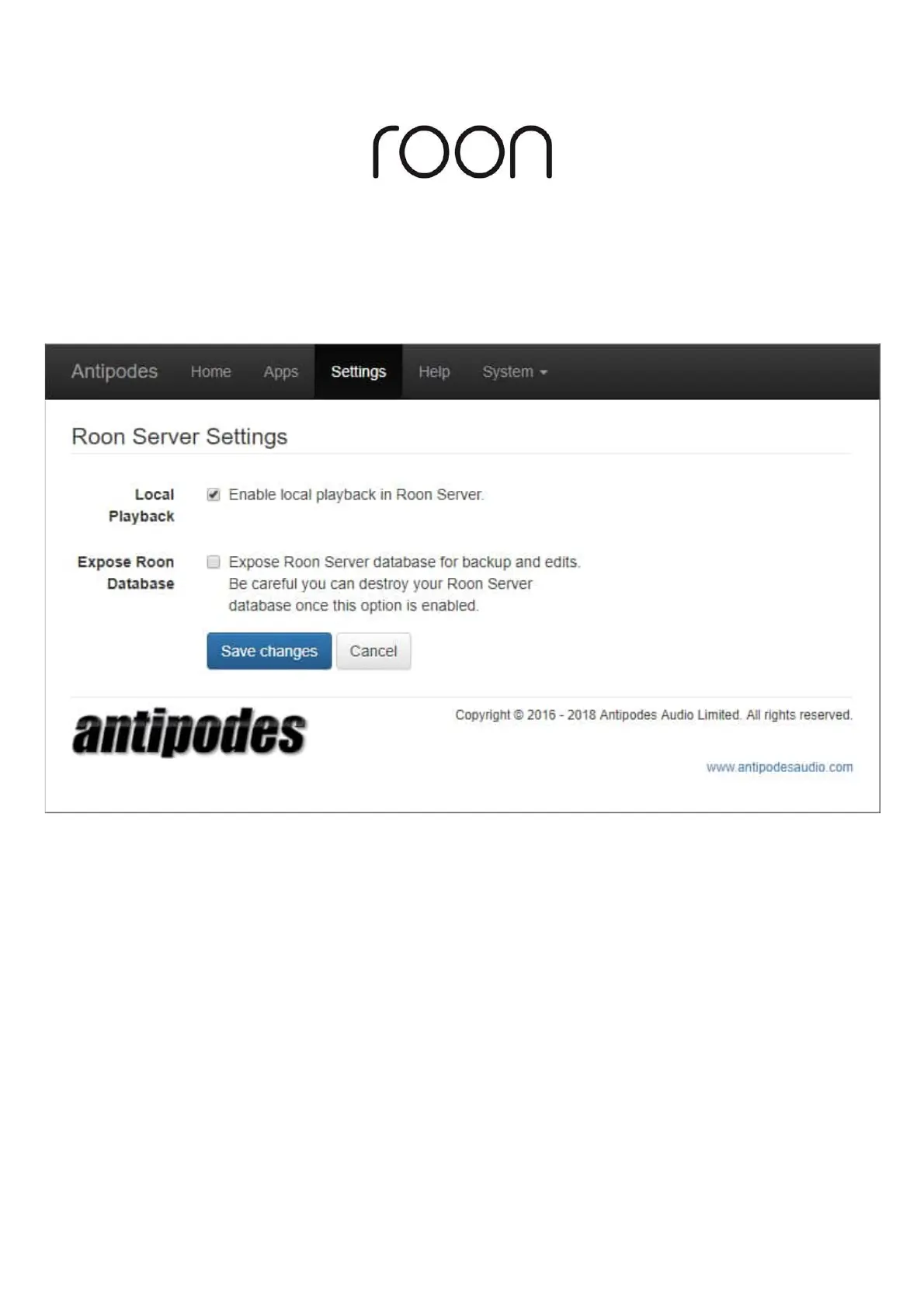
The simplest way to play music with Roon Server, is to play ‘Local’. In the Antipodes Control Panel, select the Settings Menu, and then click on
the Roon Server icon.
Click to enable local playback and then on ‘Save changes’.
Roon Server will enable all compatible outputs on the Antipodes.
Setting Up Roon Server
Roon Server is pre-installed on your Antipodes, but the next steps require you to install Roon on the device you intend to use as a remote
control. For a PC go to roonlabs.com to download the application. For a tablet or smartphone, go to the app store for your device and search
for ‘roon’.
Once downloaded, open it and follow the steps to setup Roon on the remote control device. Note that with an Antipodes music server you do
not need to enter a location for your music library during the Roon setup, because it has already been preset for you.
While installing Roon on your remote device, you can select the Antipodes that you intend to use for Roon Server. We recommend that you then
make the following 3 setup alterations to Roon Server.
– DSP Settings
If you intend to use DSP for resampling/transcoding, then to tap into all of the power of your server, you should turn ‘Parallelize Sigma-Delta
Modulator’ on. To optimise sound quality, an Antipodes server runs the CPU at around 50% of its full speed. To deliver high power without
compromising sound quality, you can use all of the CPU cores for the task by setting this option to ‘Yes’.


 To Next Page
 Loading...