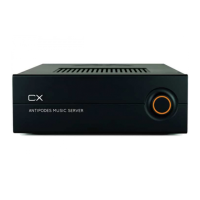
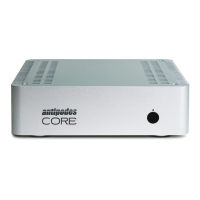
Connect your USB optical drive to any of the blue ports of a CX or EX, or any of the USB ports on earlier models, but do not connect to the USB
Audio output ports.
To rip a CD just insert the CD (label up) into the Antipodes, and wait until the CD ejects. The software has a time-out period where the disc may
eject before the CD is completely ripped. This is a safety precaution in case you leave a very dicult CD in the tray and leave it for a long
period, which might result in damage to the ripper. If the disc ejects before completing the rip you can re-insert the disc to continue/complete
the rip.
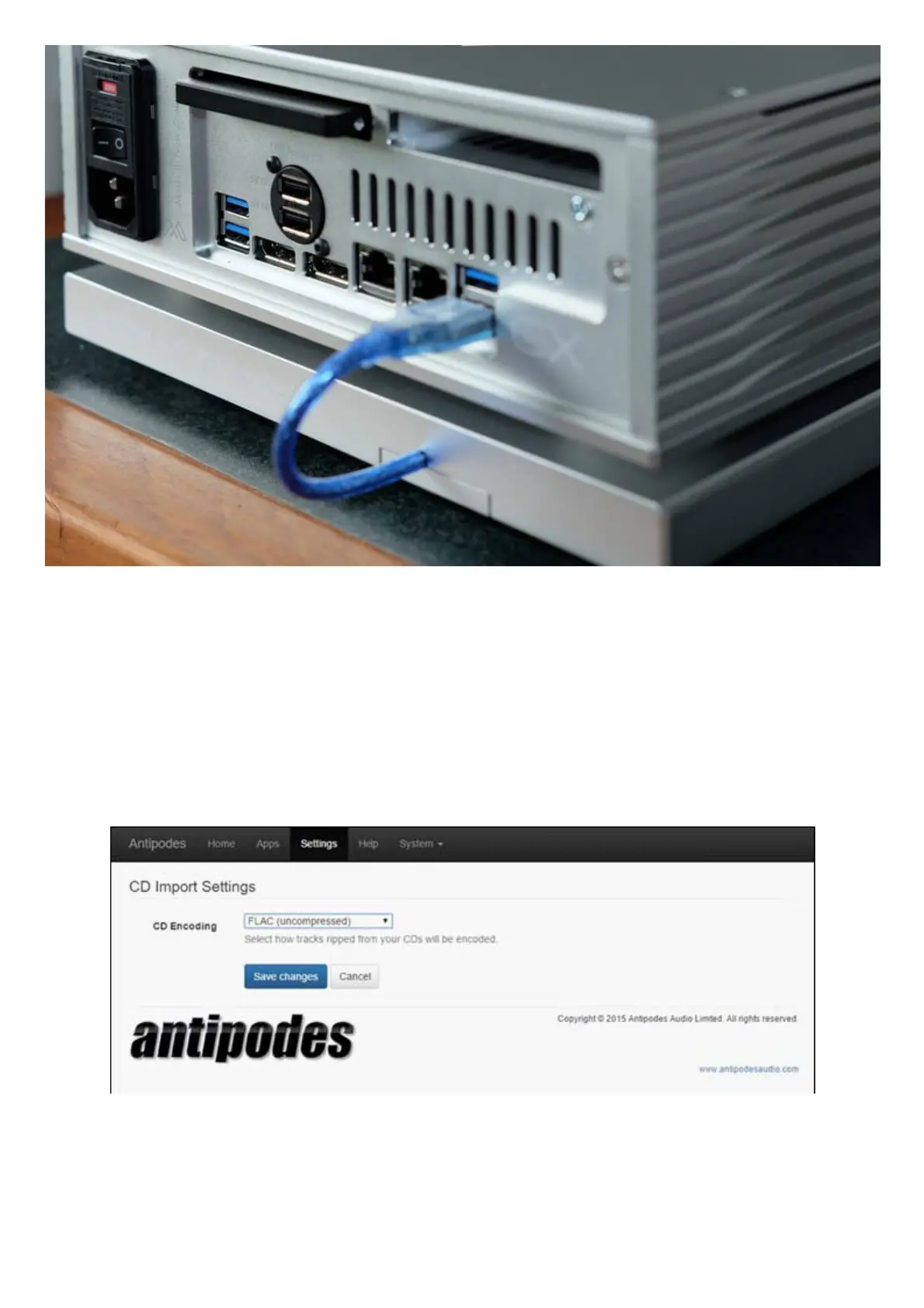
You can also specify whether music is ripped to compressed FLAC (to save space), or uncompressed FLAC (to optimise playback sound
quality – and we highly recommend you use this setting). To change this setting, click on ‘Settings’ menu in the Antipodes Control Panel and
then click the CD Import icon. At the screen below, select the FLAC compression setting and then ‘Save Changes’.
Some Antipodes music servers have integrated rippers, but you can add an Antipodes P1 Platform to add auto-ripping to a CX or EX. You can
also add your own USB CD optical drive to use the CD Import application, simply by attaching it to a spare USB port.
To observe the ripping progress, click on ‘Apps’, then on the ‘CD Import’ icon.


 To Next Page
 Loading...