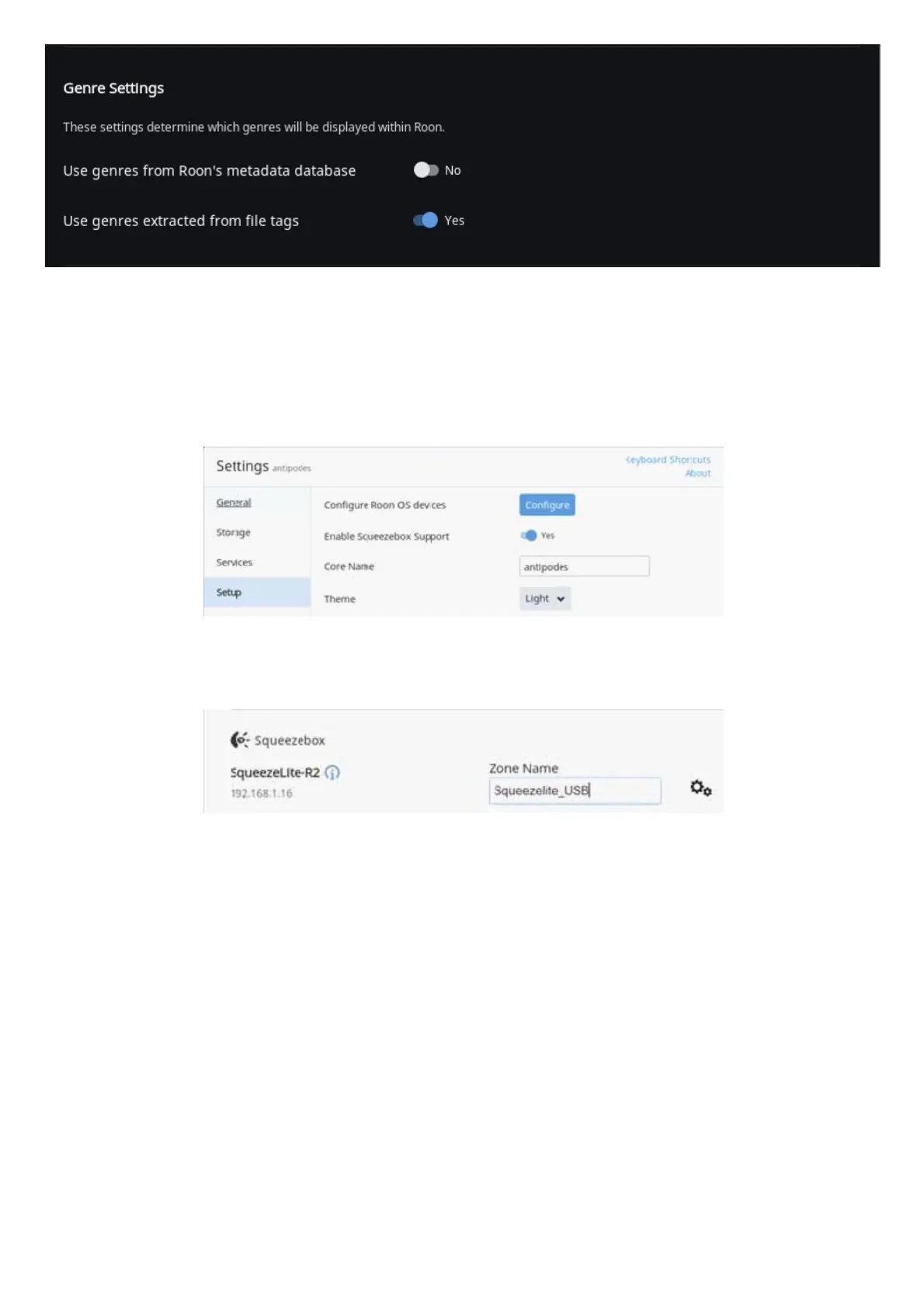
We nd that most of our customers want to use the Genres already setup in their music les, because they have carefully organised their
library by setting genres that make sense to them. The default is to use Roon’s genres, and you can simply change to using the Genres in your
music les by making the settings shown above.
Setting Up Squeezelite
In Roon Remote go to Settings/Setup and set ‘Enable Squeezebox Support’ to ‘Yes’.
Finally, in Roon Remote, go to Settings/Audio. Under Networked you should see a Squeezebox device. Click ‘Enable’, enter a Zone Name and
you will then be able to select the Squeezelite audio zone and play music through the Squeezelite player.
You can also use Squeezelite with Roon Server on the same Antipodes or on an Antipodes you are using as a renderer. Go to
Settings/Squeezelite, set the ‘Audio Device’ setting to the correct output, and click ‘Save Changes’.
Roon Ready sounds a little better than Squeezelite, and the Roon DSP feature set is reduced, but you may wish to use Squeezelite if your DAC
has a rmware bug described in this post. The Squeezelite renderer is stable despite the bug due to latency differences.
To use Roon with Squeezelite, you must delete the Squeezebox Server app if it is installed on your Antipodes. Go to Apps/Software Manager,
click the ‘Installed Apps’ tab, locate the Squeezebox Server icon, and click ‘Delete’.
You can now use Roon Remote to play music.



 To Next Page