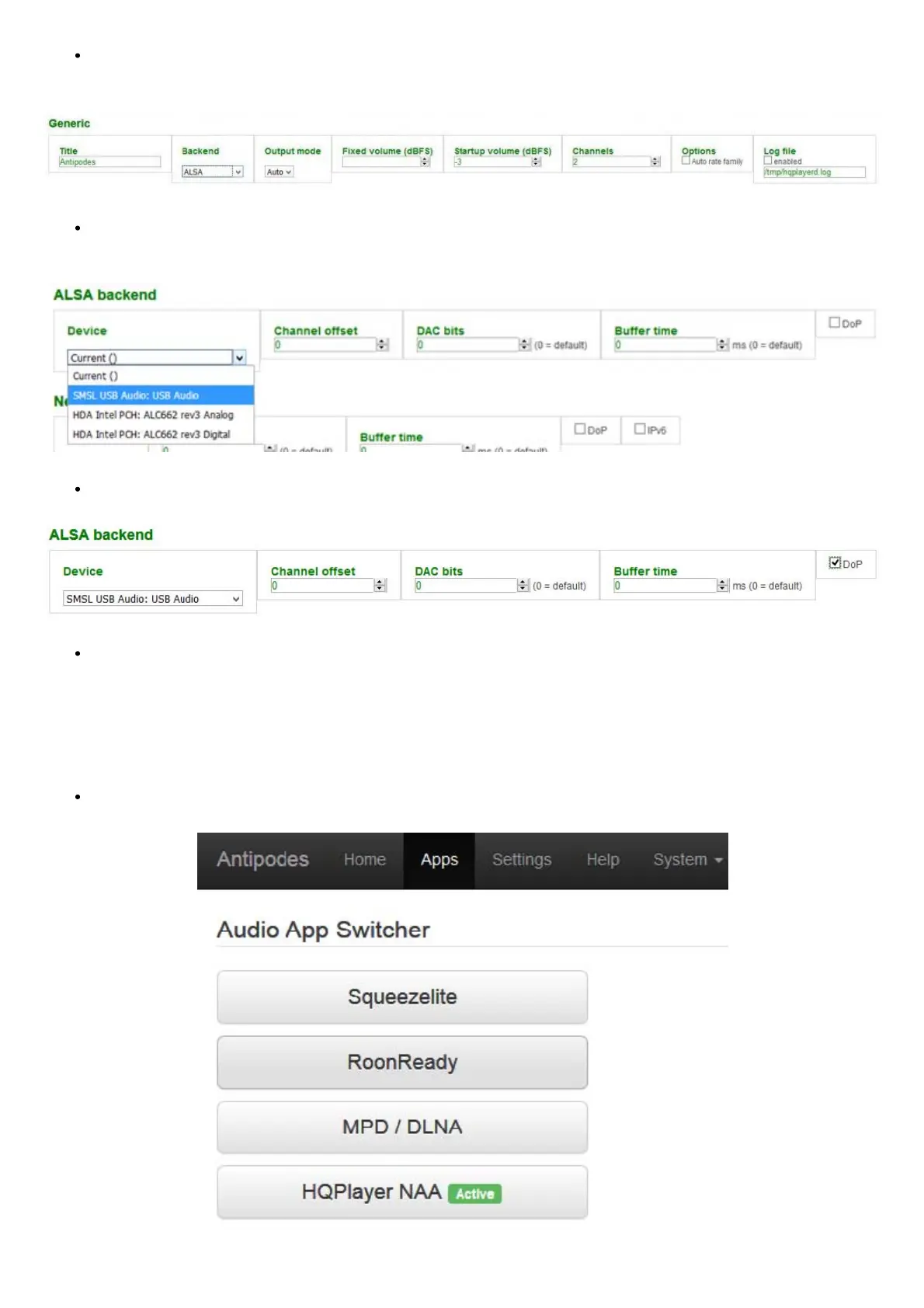
On the HQPlayer conguration screen in the rst line, under the Generic heading, enter the hostname of your Antipodes in the Title box.
In the Backend box click the selection arrow and select ‘ALSA’. Then click ‘Apply’.
Under the ALSA Backend heading in the Device box click the selection arrow. You should see a line that represents the DAC (see 3.
above):
Select that option and also select the DOP option if appropriate for your DAC:
Finally, go to the bottom of the page and click ‘Apply’. This completes the basic HQPlayer Server conguration for using the ALSA
option.
How to set up HQPlayer Server on an Antipodes to play via NAA
You will use the NAA option when HQPlayer Server is running on a different Antipodes from the one to which the DAC is connected, for
example HQPlayer Server running on a CX and HQPlayer NAA running on an EX or DX3.
Go to Apps/Audio App Switcher and click HQPlayer NAA so that is shows as ‘Active’:



 To Next Page