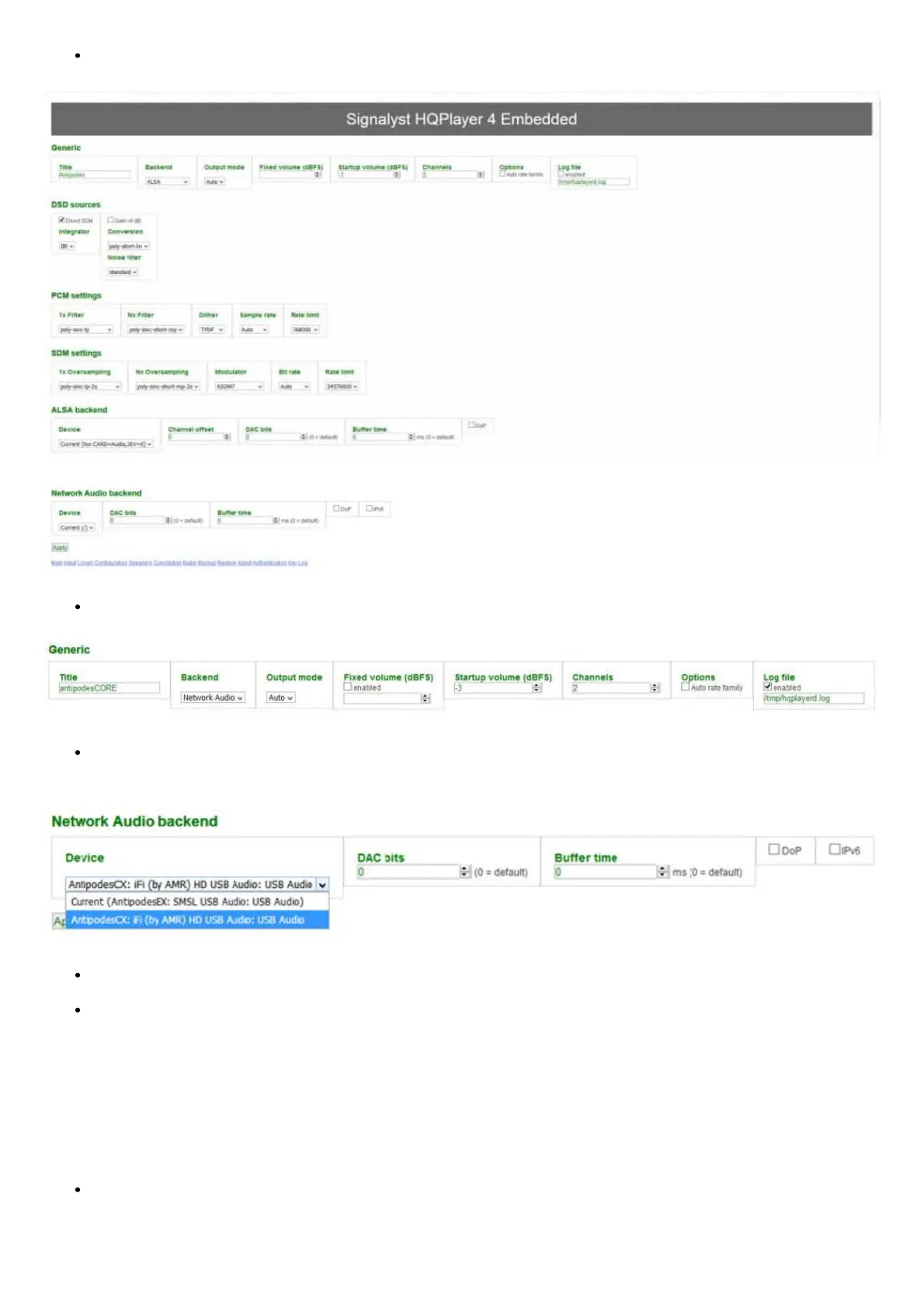
Open the HQPlayer conguration screen (as shown in 4c above):
In the Backend box click the selection arrow and select ‘Network Audio’. Then click ‘Apply’.
Under the Network Audio Backend heading in the Device box click the selection arrow. You should see a line that represents the DAC
that is connected to the Antipodes,in this example an iFi DAC:
Select that option and also select the DOP option if appropriate for your DAC.
Finally, go to the bottom of the page and click ‘Apply’. This completes the basic conguration for using the NAA option.
How to set up Roon to work with HQPlayer Server
You can set up Roon to play through HQPlayer Server rather than through Roon Ready.
You can use either the HQPlayer ALSA or NAA options for playback. You should understand that under the ALSA option HQPlayer ‘owns’ the
USB output on the Antipodes and you cannot use the Audio App Switcher to switch to Roon Ready. However if you use the NAA option you can
switch between NAA and Roon Ready.
If you have selected the NAA Backend option in HQPlayer Server go to Apps/AudioApp Switcher on the Antipodes to which the DAC is
connected and click the HQPlayer NAA option so it shows as ‘Active’:


 To Next Page