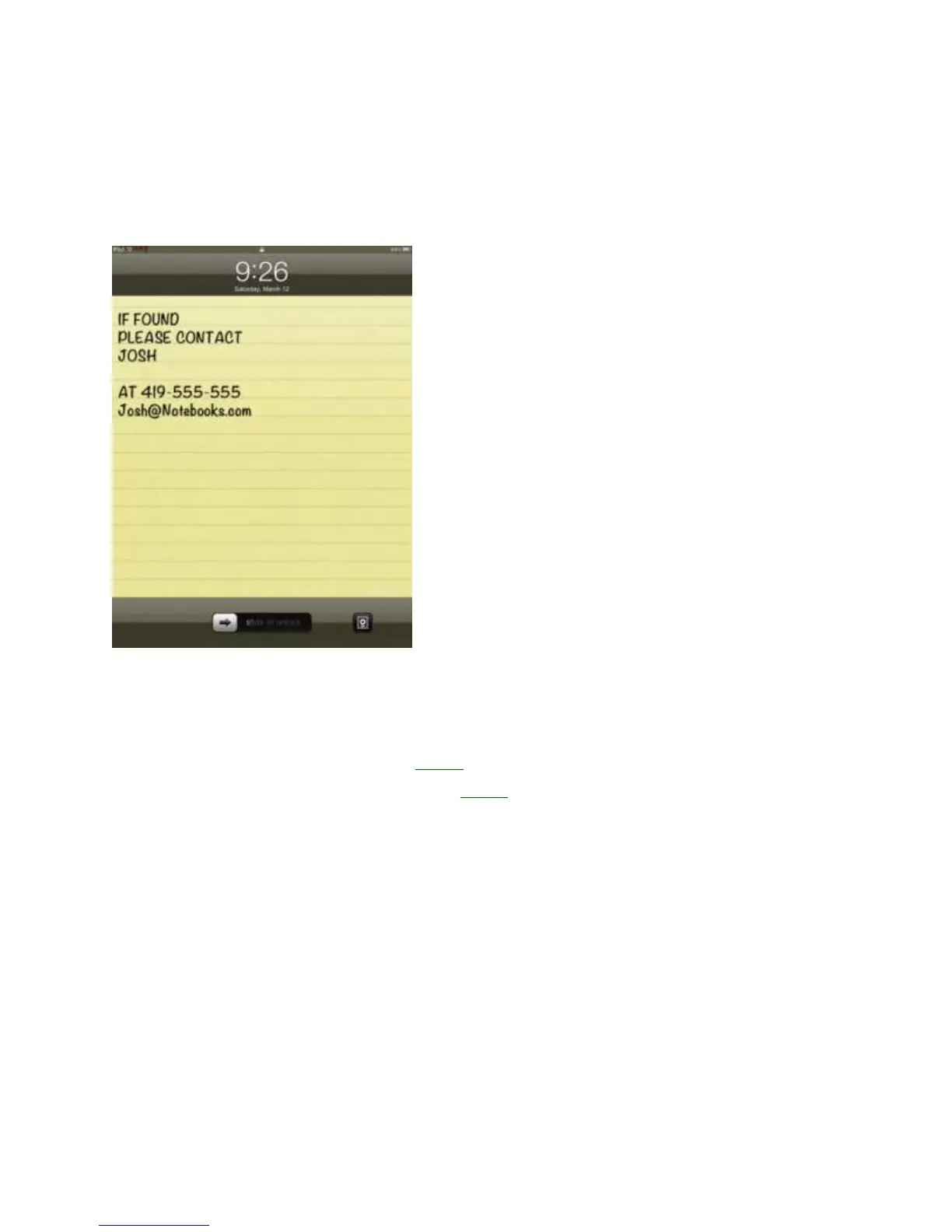
Create an If Found Lock-screen Message – 1 minute
If you are prone to leaving your iPad 2 laying around, you should change the lock-screen so
that it has your contact information on it. This will make it easy to get your iPad back if it is
lost. You may also have better luck with this tip if you add a reward.
How to Setup an If Found Message on the iPad 2:
1. Open the iPad Notes app.
2. Type a short message with your phone number and email including reward info.
3. Take a screenshot of it by holding the power button and home button at the same
time.
4. Open the Photo app.
5. Open the screenshot you just took.
6. Tap on the image, choose the action icon in the upper right.
7. Choose “Use as Wallpaper.”
8. Zoom in or out and move the image until it is where you want it to be.
9. Tap “Use as Lock-screen.”
If you want to get more advanced you could upload an image to a free photo editor like
Picnik and add your information to a picture.



 To Next Page