(C) Home Button. One of only four buttons on the device, and the only one on the front of the iPad, the
Home button primarily acts as an escape option, though it can also help you manage your apps.
When you’re in an app, pressing the Home button will return you to your Home screen, where all your
apps are located.If you double-press the Home button, you’ll pull up the multitasking shelf, which allows
you to see recently running apps and access device shortcuts. If you’re already on your Home screen,
pressing the Home button will send you to the Spotlight search screen; if you have multiple Home
screens, pressing it will take you back to the first page. When the device is off, you can wake it up by
pressing the Home button once; a double press while the device is awake and locked will bring up
your iPod controls.
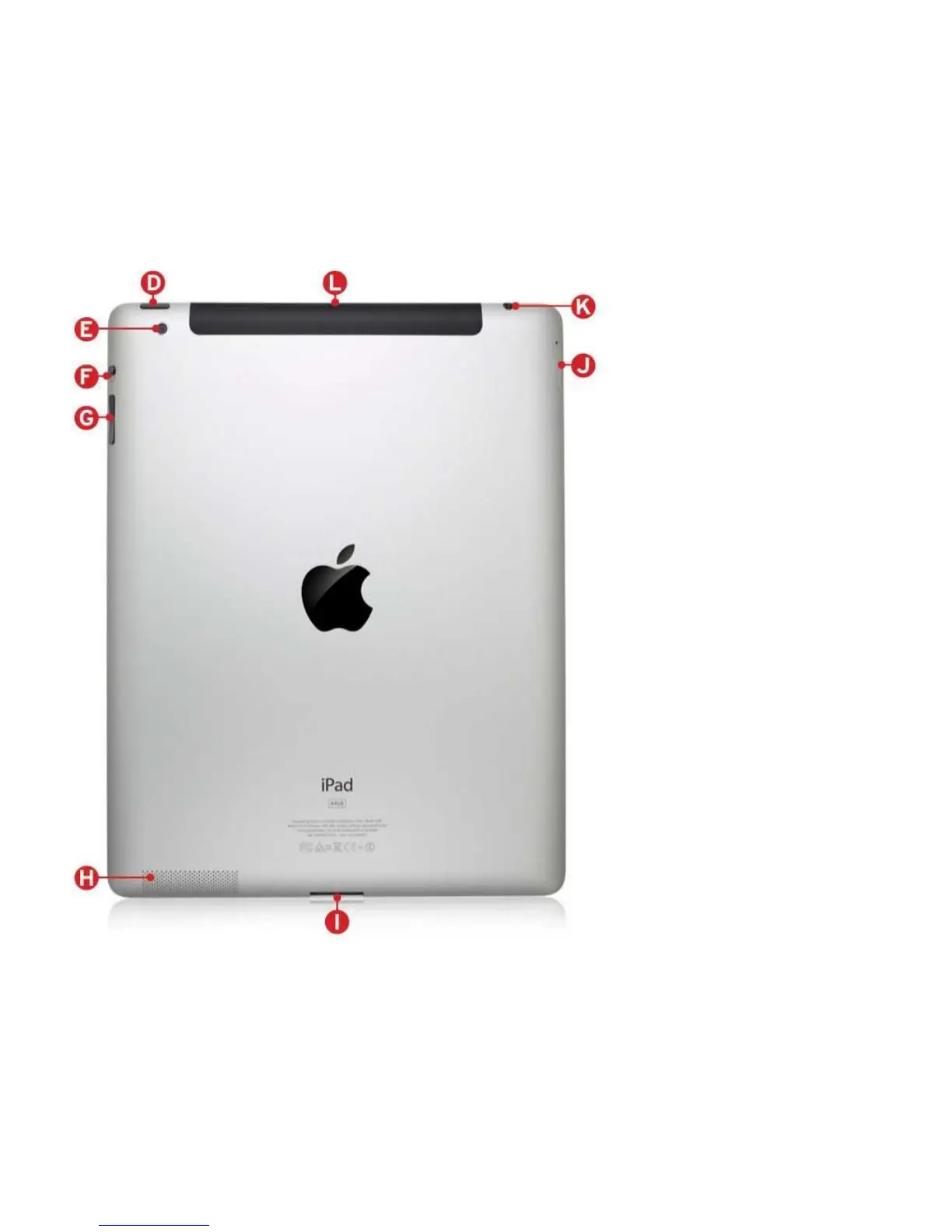
(D) Sleep/Wake and On/Off Button. Located on the top right of the iPad 2 is the Sleep/Wake button.
When your iPad is on, you can press this button once to put it to sleep. To wake the iPad up, press the
button again, and slide your finger across the lock slider at the bottom of the touchscreen to unlock it. To
turn the iPad off completely, hold the Sleep/Wake button down for a few seconds, until the Slide To
Power Off slider appears. To turn the iPad back on, press and hold the Sleep/Wake button until the
Apple Logo appears.
(E) Back Camera. The second of the iPad 2’s cameras is located along the back of the device, in the
upper left corner. This 0.7-megapixel camera shoots 720p HD video and 720-by-960-pixel stills, and can
be used for FaceTime conversation, quick movie-making, or a still shot or two. The software offers a



 To Next Page