Leave a message. If no one answers your call, tap Leave a Message. You can also
choose to cancel the call or try calling back.
Want to call again? Tap FaceTime to see your call history in the left panel. Tap Audio or
Video to refine your search, then tap a name or number to call again. Tap to open the
name or number in Contacts.
Delete a call from call history. Tap FaceTime to see your call history on the screen.
Swipe to the left, then tap Delete to delete the name or number from your call history.
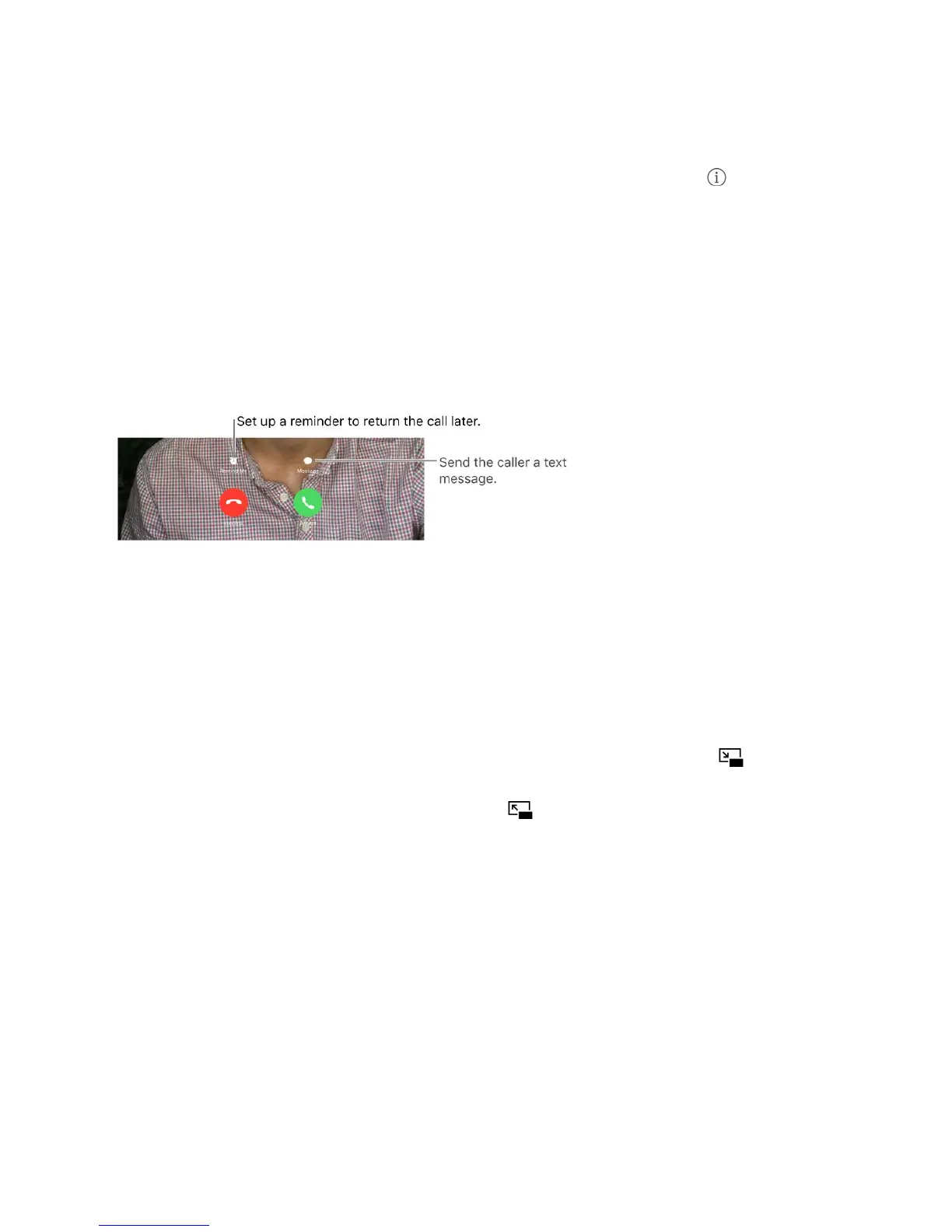
Canʼt take a call right now? When a FaceTime call comes in, you can answer, decline, or
choose another option.
Ask Siri. Say something like: “Make a FaceTime call.”
See the whole gang. Rotate iPad to use FaceTime in landscape orientation. To avoid
unwanted orientation changes, lock iPad in portrait orientation. See
.
Manage calls
Multitask with Picture in Picture. (iPad Pro, 6th generation iPad, iPad Air and later,
iPad mini 2 and later) When using FaceTime, press the Home button or tap . Your
video screen scales down to a corner of your display so you can see the Home screen
and open other apps. To return to the video, tap in the small video window. For more
information, see .
Juggle calls. FaceTime calls arenʼt forwarded. If another call comes in while youʼre on a
FaceTime call, you can either end the FaceTime call and answer the incoming call, decline
the incoming call, or reply with a text message. You can use call waiting with FaceTime
audio calls only.
Use call waiting for audio calls. If youʼre on a FaceTime audio call and another call
comes in, you can decline the call, end the first call and accept the new one, or put the
first call on hold and respond to the new call.
Change the screen
orientation
Picture in Picture



 To Next Page