go to the .
Note: Apps and services that send or receive data over a cellular network may incur
additional fees. Contact your carrier for information about your iPad service plan and
fees.
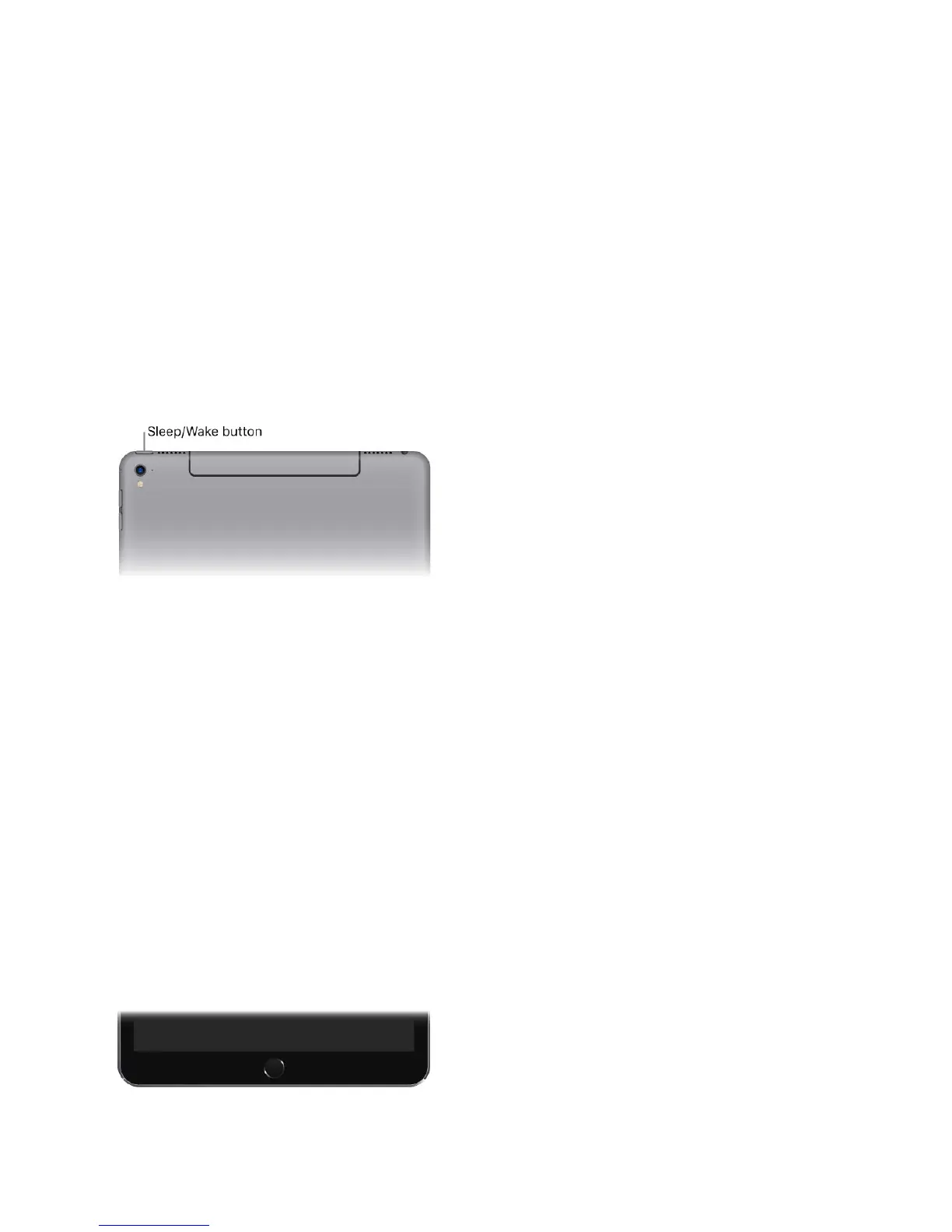
Sleep/Wake button
Use the Sleep/Wake button to turn on or wake iPad, lock it, or turn it off. Locking iPad
puts the display to sleep, saves the battery, and prevents anything from happening if you
touch the screen. You can still listen to music and adjust the volume using the buttons on
the side of iPad, and you can receive FaceTime calls, text messages, alarms,
notifications, and other updates.
iPad locks itself automatically if you donʼt touch the screen for a minute or so. To adjust
the timing, go to Settings > Display & Brightness > Auto-Lock.
Turn on iPad. Press and hold the Sleep/Wake button until the Apple logo appears.
Turn off iPad. Press and hold the Sleep/Wake button until the slider appears onscreen,
then drag the slider.
Wake iPad. Press the Sleep/Wake button. From the wake screen you can check
notifications and recent app activity, take photos, and more. For more information, see
.
Home button
The Home button takes you to the Home screen, where you can tap an app to open it.
The Home button also provides other convenient shortcuts.
Unlock iPad. Press the Home button, then enter the passcode if required.
iOS Feature Availability website
Lock screen



 To Next Page