iTunes, available from the
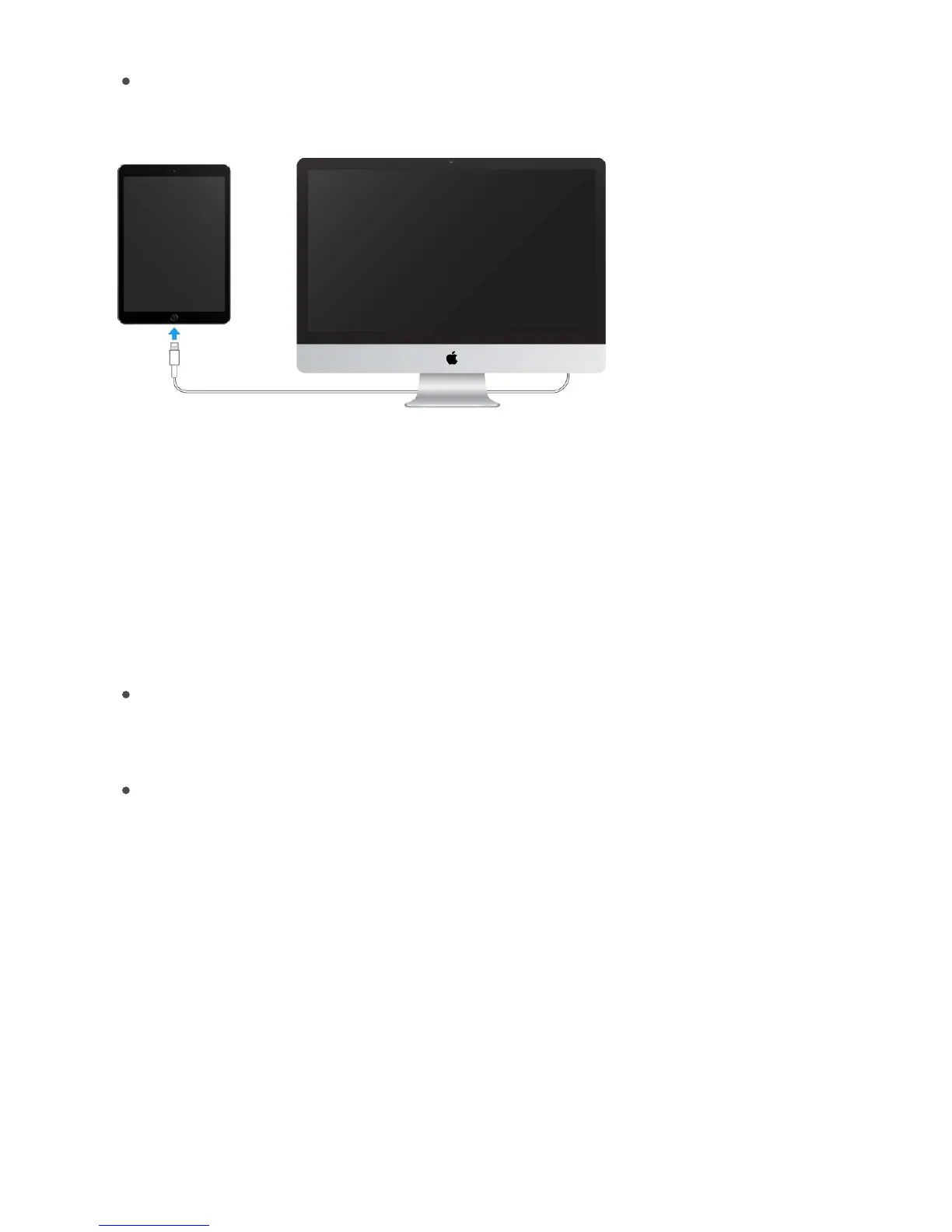
Connect iPad to your computer. Use the included Lightning to USB Cable.
Unless iPad is actively syncing with your computer, you can disconnect it at any time.
Look at the top of the iTunes screen on your computer or on iPad to see if syncing is in
progress. If you disconnect iPad while itʼs syncing, some data may not get synced until
the next time you connect iPad to your computer.
Manage content on your iOS devices
You can transfer information and files between iPad and your other iOS devices and
computers, using either iCloud or iTunes.
iCloud stores your photos and videos, documents, music, calendars, contacts, and
more. It all gets pushed wirelessly to your other iOS devices and computers, keeping
everything up to date. See .
iTunes syncs music, videos, photos, and more between your computer and iPad.
Changes you make on one device are copied to the other when you sync. You can
also use iTunes to copy a file to iPad for use with an app, or to copy a document
youʼve created on iPad to your computer. See .
You can use iCloud or iTunes, or both, depending on your needs. For example, you can
use iCloud to automatically keep your contacts and calendars up to date on all your
devices, and use iTunes to sync music from your computer to iPad.
You can also manually manage content from iTunes in the iPad Summary pane. To add
songs and videos, choose a song, video, or playlist from your iTunes library then drag it
to iPad in the iTunes sidebar. This is useful if your iTunes library contains more items than
can fit on iPad. See the Apple Support article
.
iTunes download website
iCloud
Sync with iTunes
Sync your iPhone, iPad, or iPod touch with
iTunes using USB



 To Next Page