Lock the screen orientation. Swipe up from the bottom edge of the screen to open
Control Center, then tap .
The Lock Orientation icon appears in the status bar when the screen orientation is
locked.
On iPad models with a side switch, you can also set the Side Switch to lock the screen
orientation instead of silencing sound effects and notifications. Go to Settings > General
then, under “Use Side Switch to,” tap Lock Rotation.
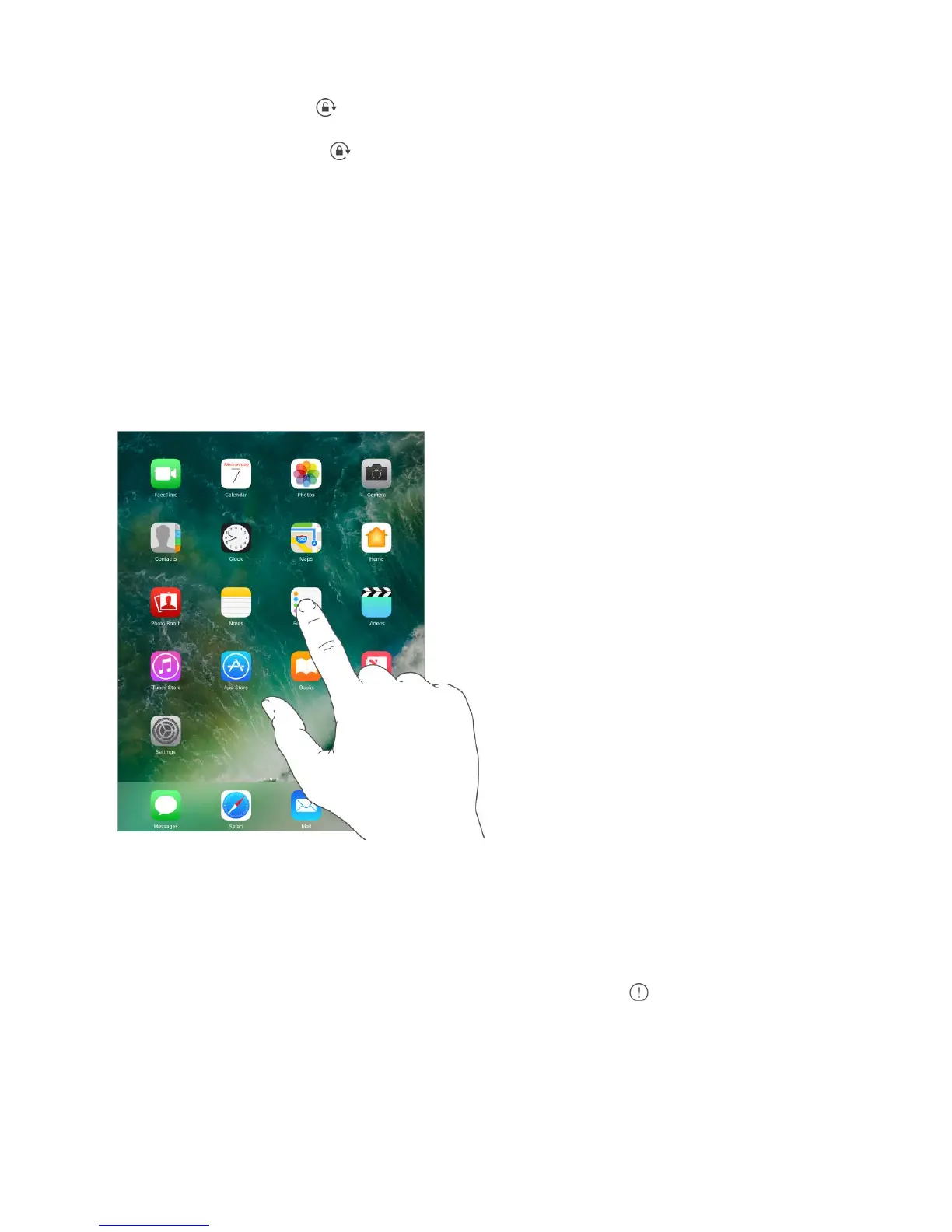
Home screen
Tap an app to open it.
Press anytime to return to the Home screen. Swipe left or right to see
additional Home screens.
Some apps may include a badge on their Home screen icon, to let you know how many
new items await—for example, the number of new email messages. If thereʼs a problem—
such as a message that couldnʼt be sent—an exclamation mark appears on the badge.
On a folder, a numbered badge indicates the total number of notifications for all the apps
inside.
the Home button



 To Next Page