Change the keyboard layout. Go to Settings > General > Keyboard > Keyboards, select
a keyboard, then choose a layout.
For more information about your keyboard, see the Apple Support article
.
Keyboard layouts
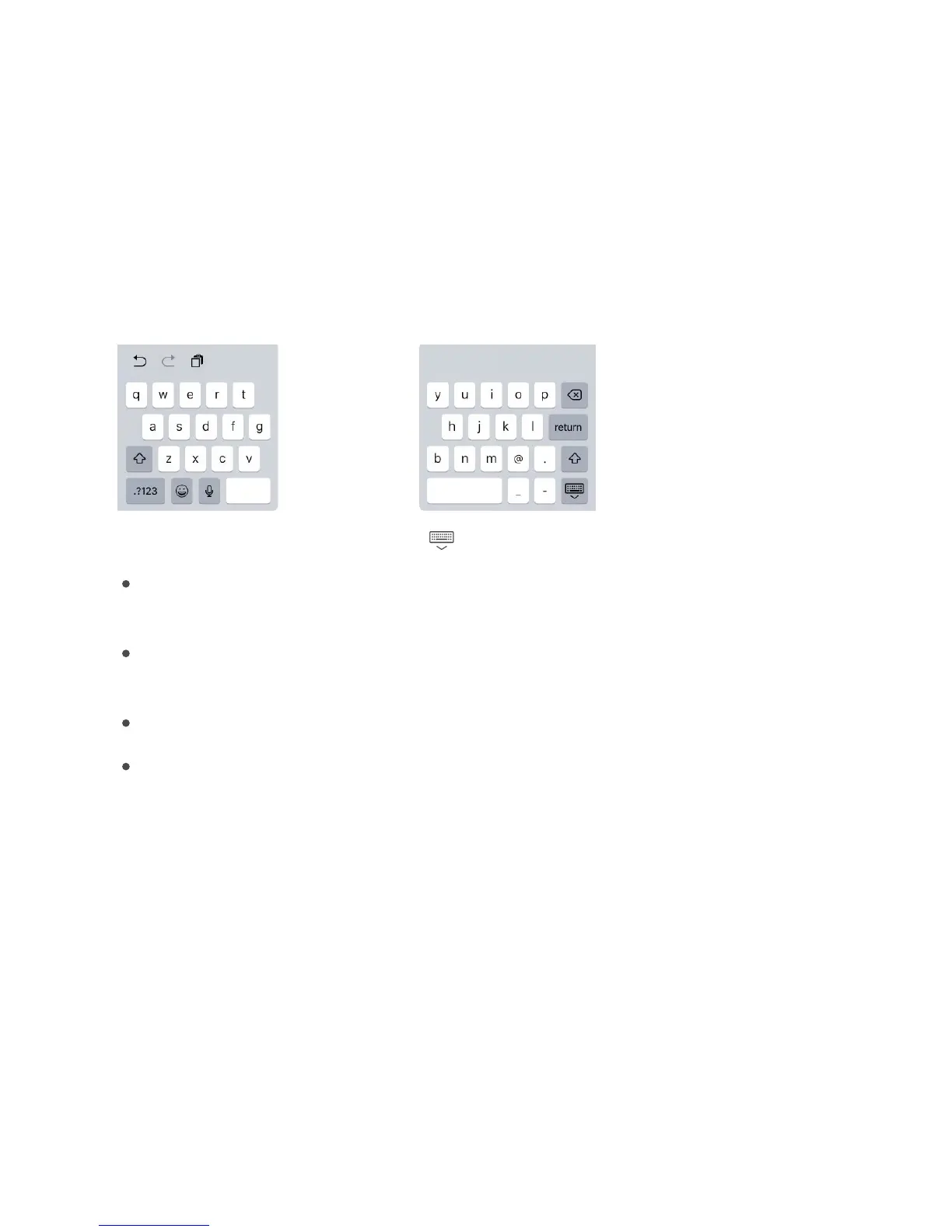
You can type with a split keyboard thatʼs at the bottom of the screen, or undocked and in
the middle of the screen.
Adjust the keyboard. Touch and hold , then:
Use a split keyboard: Slide your finger to Split, then release. Or spread the keyboard
apart from the middle using two fingers.
Move the keyboard to the middle of the screen: Slide your finger to Undock, then
release.
Return to a full keyboard: Slide your finger to Dock and Merge, then release.
Return a full keyboard to the bottom of the screen: Slide your finger to Dock, then
release.
Turn Split Keyboard on or off. Go to Settings > General > Keyboard > Split Keyboard.
Note: The split keyboard option is not available on iPad Pro (12.9-inch).
iPad Pro Smart Keyboard
Use iPad Pro Smart Keyboard to hold your iPad Pro in just the right position—for typing,
watching movies, drawing, and more. Attach the keyboard to the Smart Connector on the
side.
Get help with
the keyboard on your iPhone, iPad, or iPod touch



 To Next Page