Set up Apple Pay. Go to Settings > Wallet & Apple Pay, then tap Add Credit or Debit
Card. The first time you add a card to Apple Pay, you may be prompted to use the card
you use with iTunes. Then tap Next on the following screen, and position iPad so that
your card appears in the frame.
The card issuer determines if your card is eligible for Apple Pay, and may ask you for
additional information to complete the verification process. See the Apple Support article
.
You can add up to eight credit and debit cards, including store cards.
Note: If you sign out of iCloud (in Settings > [your name]), all the credit and debit cards
you added to Apple Pay on iPad are removed. You can add the cards again the next time
you sign in to iCloud.
Manage Apple Pay settings. Go to Settings > Wallet & Apple Pay. You can:
Set your default card.
Specify the shipping address and contact information for purchases.
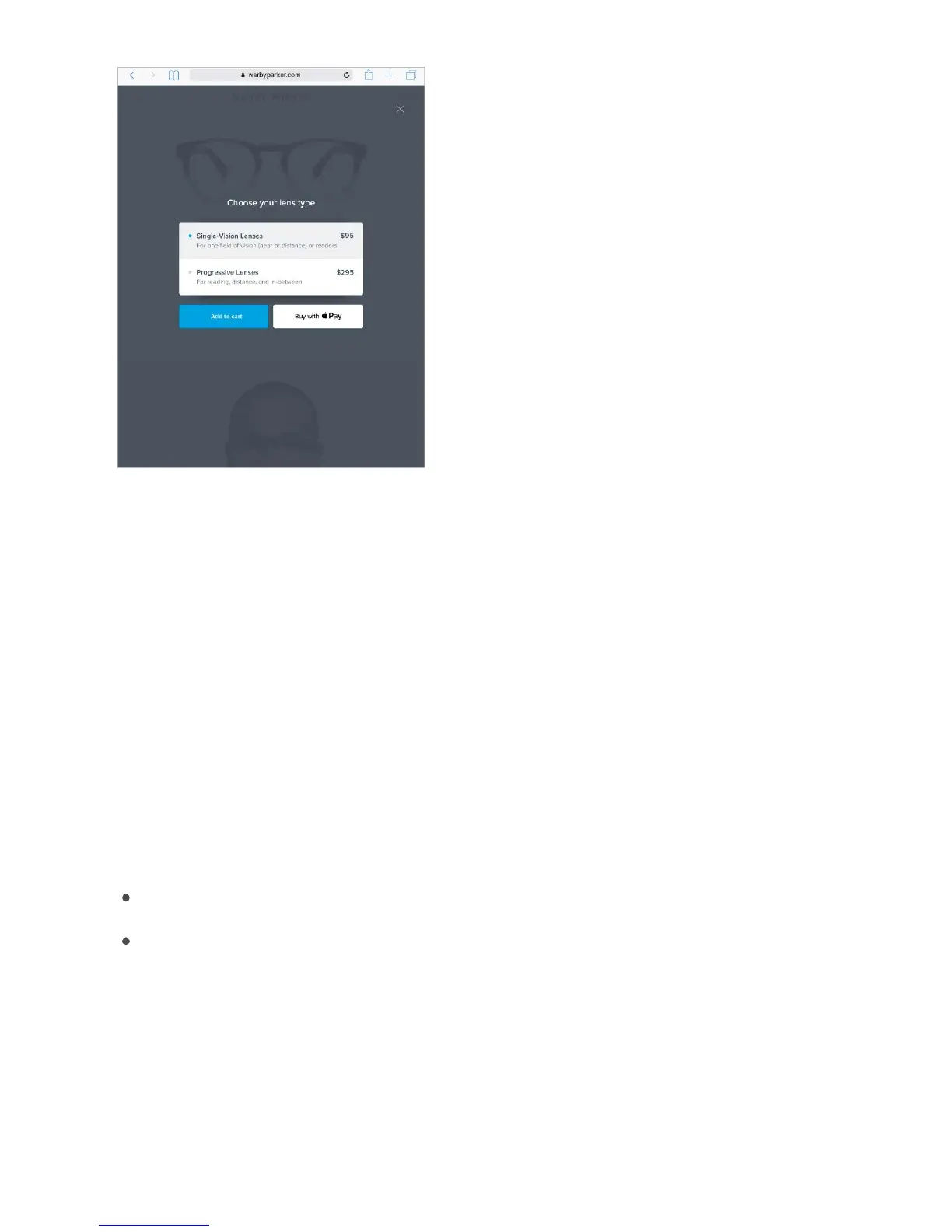
Pay within an app or on a website. During checkout, tap the Apple Pay or Buy with
Apple Pay button, then review the payment information. Make any changes to the
shipping and billing information, or choose a different card. Then, use Touch ID or your
passcode to complete the payment.
Apple Pay participating banks



 To Next Page