Focus on content. Tap at the left end of the address field. If you donʼt see the icon,
Reader isnʼt available for the page youʼre looking at.
Share just the good stuff. To share just the article text and a link to it, tap while
viewing the page in Reader.
Return to the full page. Tap in the address field again.
Privacy and security
Adjust Safari settings to keep your browsing activities to yourself and protect yourself
from malicious websites.
Keep a low profile. Go to Settings > Safari, then turn on Do Not Track. Safari asks
websites you visit not to track your browsing, but beware—a website can choose not to
honor the request.
Control cookies. Go to Settings > Safari > Block Cookies. To remove cookies already on
iPad, go to Settings > Safari > Clear History and Website Data.
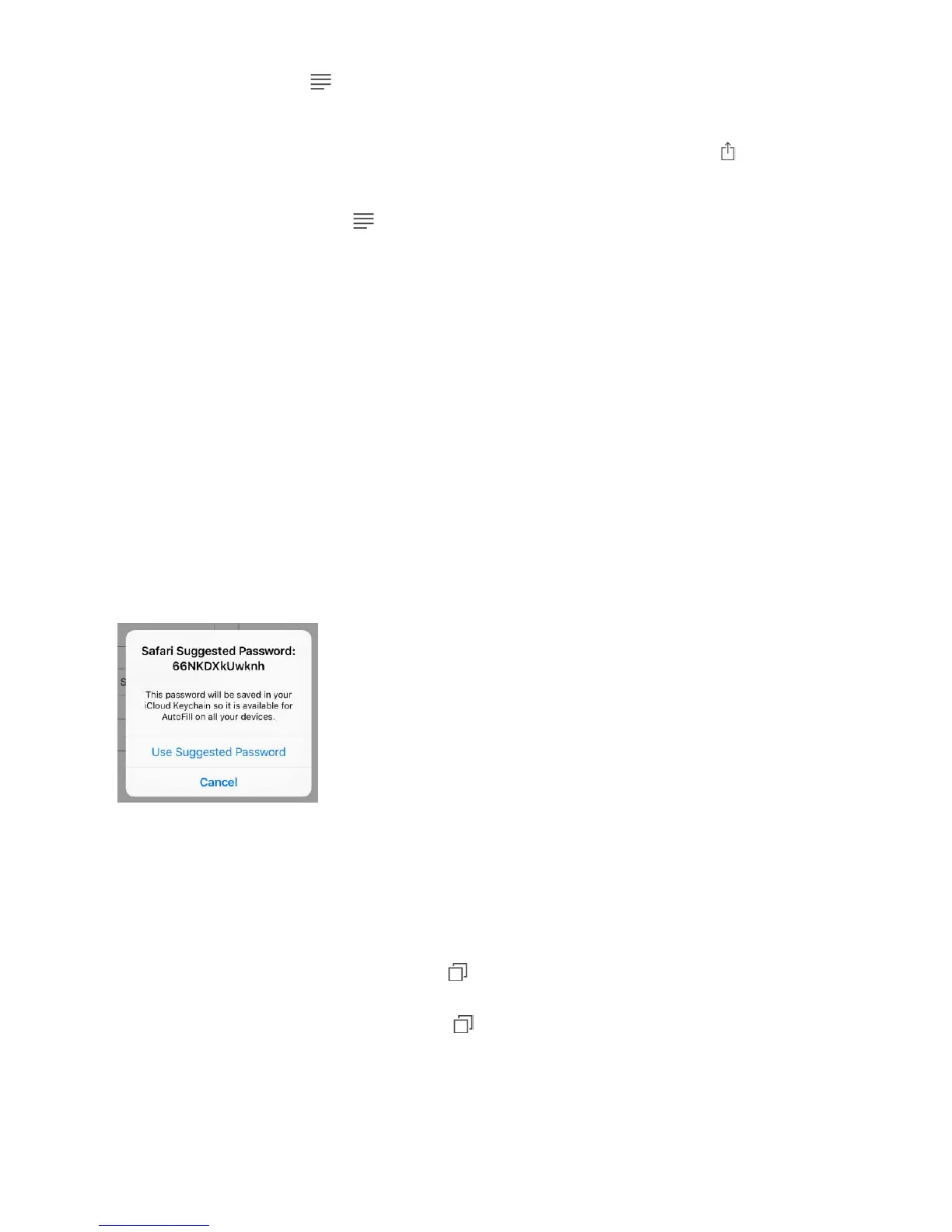
Let Safari create and store secure passwords for you. When creating a new account,
tap the password field, tap Suggest Password, then tap Use Suggested Password.
View your saved passwords. Go to Settings > Safari > Passwords, then enter your iPad
passcode or use Touch ID.
Erase your browsing history and data from iPad. Go to Settings > Safari > Clear
History and Website Data.
Visit sites without making history. Tap , then tap Private. Sites you visit arenʼt added
to History on iPad and donʼt appear in the list of tabs on your other devices. To hide the
sites and exit Private Browsing Mode, tap , then tap Private again. The sites reappear
the next time you use Private Browsing Mode.
Watch for suspicious websites. Go to Settings > Safari, then turn on Fraudulent
Website Warning.



 To Next Page