96
|
Chapter 13
What You’ll Be Using
To use bookmarks with Safari, you need to use the following:
> An Internet connection
(Wi-Fi or 4G)
The Safari app
The Settings app
Using the History Window
As you browse the Internet, Safari automatically keeps track of each website that
you visit and stores each address in a History list going back the past week. Now
if you remember visiting a particular site but don’t recall how you found it, just
visit the History window, find the website’s name, and tap on its name to view that
website.
Revisiting a Website Stored in the History Window
When you start typing in Safari’s address or search bar, items from your history
(and your previous searches) will automatically show up. To view your complete
History, follow these steps:
1. From the Home screen, tap Safari. The Safari screen appears.
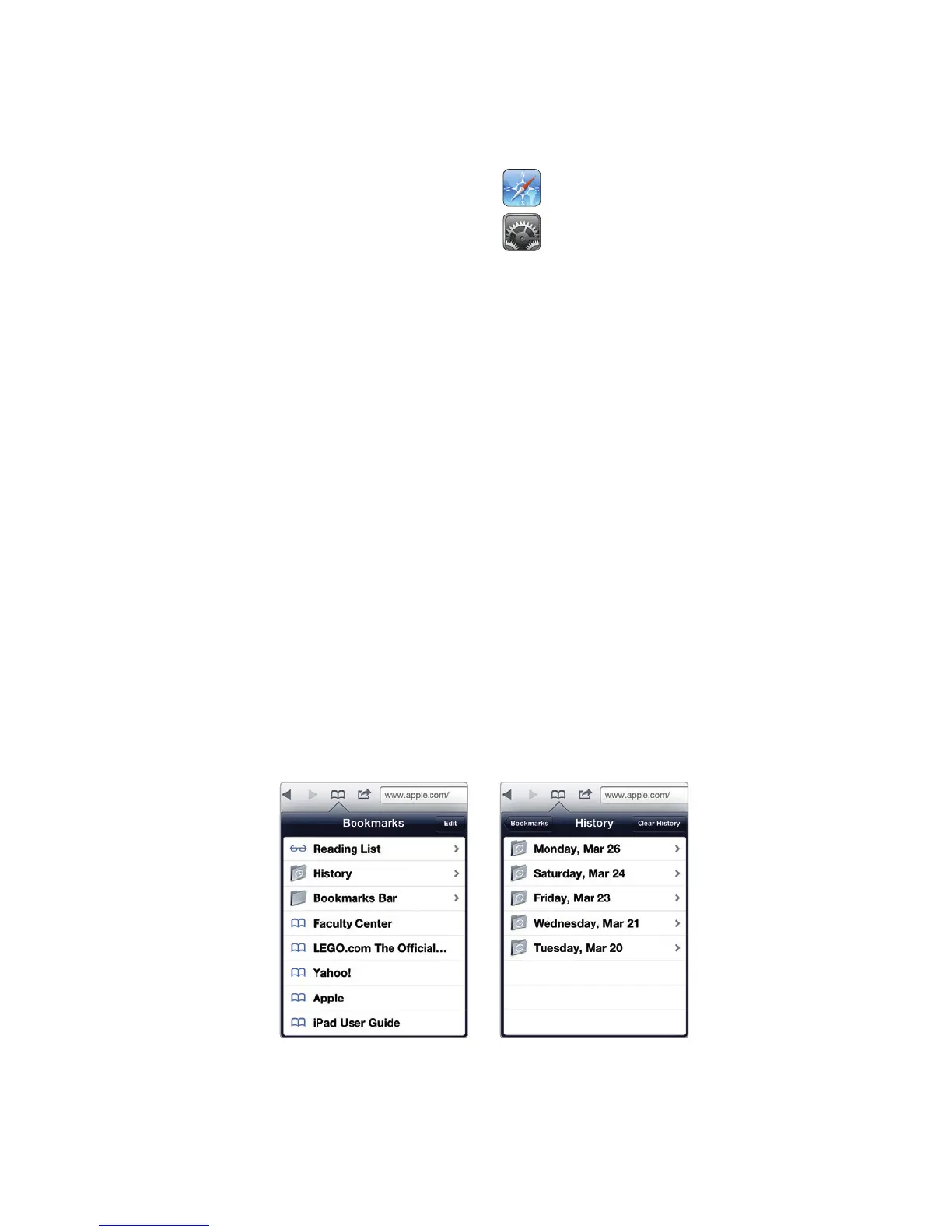
2. Tap the Bookmark icon (it looks like an open book). A Bookmarks window
appears, as shown in Figure13-1. It lets you find a previously viewed or saved
website address.
3. Tap History. The History window lists all the websites you’ve recently visited,
including those viewed in the past week, as shown in Figure 13-2.
4. (Optional) Tap one of the day folders, such as a folder labeled Friday or
Monday, to view the website addresses you visited on that particular day.
5. Tap a website to view that site.
FIGURE 13-2: The History
window
FIGURE 13-1: The Book-
marks window



 To Next Page