Setting Up an Email Account
|
107
Modifying and Deleting an Email Account
After you’ve set up an email account, you may later need to change it or delete it
altogether. To modify an email account, follow these steps:
1. From the Home screen, tap Settings. The Settings screen appears.
2. Tap Mail, Contacts, Cal-
endars. The Mail, Contacts,
Calendars settings screen
appears.
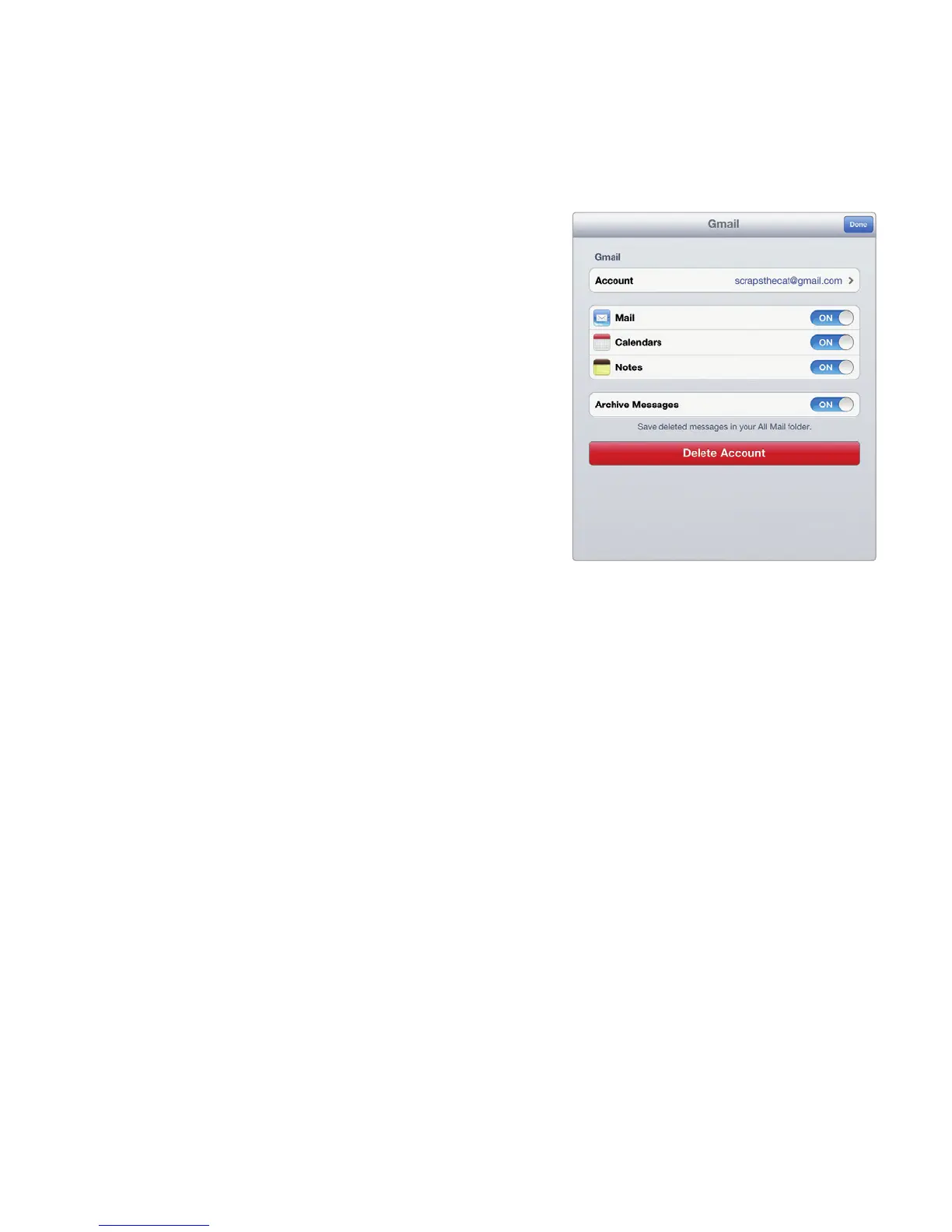
3. Tap the email account you
want to modify. A window
pops up, as shown in Fig-
ure14-7, which displays the
features you can turn on or off,
such as Calendars or Notes.
4. (Optional) Tap Account to
change settings such as your
password or mail server infor-
mation. Then tap Done when
you’re finished.
5. (Optional) Tap the big red
Delete Account button to
remove the email account
from your iPad. Tap Done
when you’re finished.
Additional Ideas for Setting Up and
Customizing Email Accounts
Since you can set up multiple email accounts, consider creating one account for
work and a second one for personal use. That way, you won’t accidentally send a
flippant message about your vacation to your boss or a serious message about
work to your nine-year-old nephew.
After you’ve set up one or more email accounts, consider customizing your
signature to display or advertise your website, your business, or your own unique
skills. For example, your signature could publicize your line of work.
If email is important to you, you can read and write messages on your iPad
and never lose contact with anybody. Now all you have to worry about is giving out
your email address only to those people you trust. Otherwise you’ll risk getting
overrun with unsolicited messages.
FIGURE 14-7: Tap Account to change
your name or update your email
password.



 To Next Page