Reading, Organizing, and Sending Email
|
117
To search for a messages stored in an email account, follow these steps:
1. While using the Mail app, tap a folder that contains the messages you want
to find. A list of messages appears.
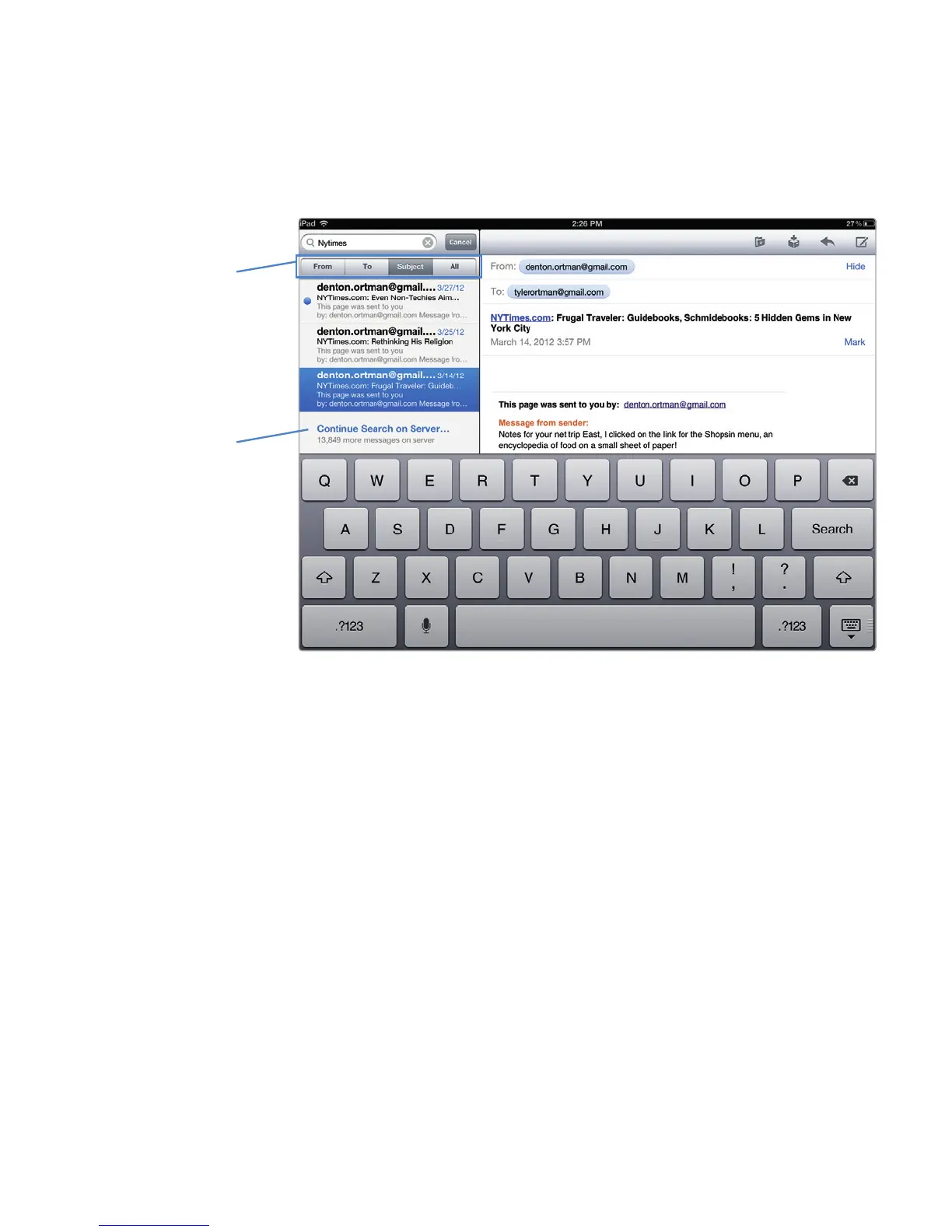
2. Tap the Search field. The virtual keyboard appears along with From, To, Sub-
ject, and All tabs, as shown in Figure 15-9.
3. Tap the From, To, Subject, or All button at the top of the folder window.
4. Type a word or phrase. As you type, the folder window displays only those
messages that match your search criteria.
5. Tap the message you want to read.
Viewing Multiple Email Accounts
If you have set up two or more email accounts, you can choose to view messages
within one account or view all of your messages at once. To view all your messages,
follow these steps:
1. From the Home screen, tap Mail. The Mail screen appears, displaying what
you last viewed.
2. Tap the Back button that appears in the upper-left corner of the screen to
display the Mailboxes left panel.
FIGURE 15-9: As you type in the Search field, all nonmatching messages
disappear from view.
Tap here to find
older messages.
Restrict your search
to the From, To,or
Subject fields, or
even search the
entire contents of a
message with All.



 To Next Page