128
|
Chapter 16
8. (Optional) Check the Automatically include checkbox, and select an option
like all unwatched in the first pop-up menu. Then choose all shows or
selected shows in the episodes of second pop-up menu.
9. (Optional) If the Automatically include checkbox is clear, you can click each
TV show and individually select episodes from that show.
10. Click Apply to start transferring your selected TV shows to youriPad.
Synchronizing Photos
The iPad can take pictures on its own, but you can transfer the digital photos you’ve
already taken onto your iPad, too. Synchronizing your photos between your iPad
and your computer also gives you a backup of any photos taken with your iPad.
To synchronize photos, follow these steps:
1. Connect your iPad to your computer with the USB cable, and run the iTunes
program on your computer.
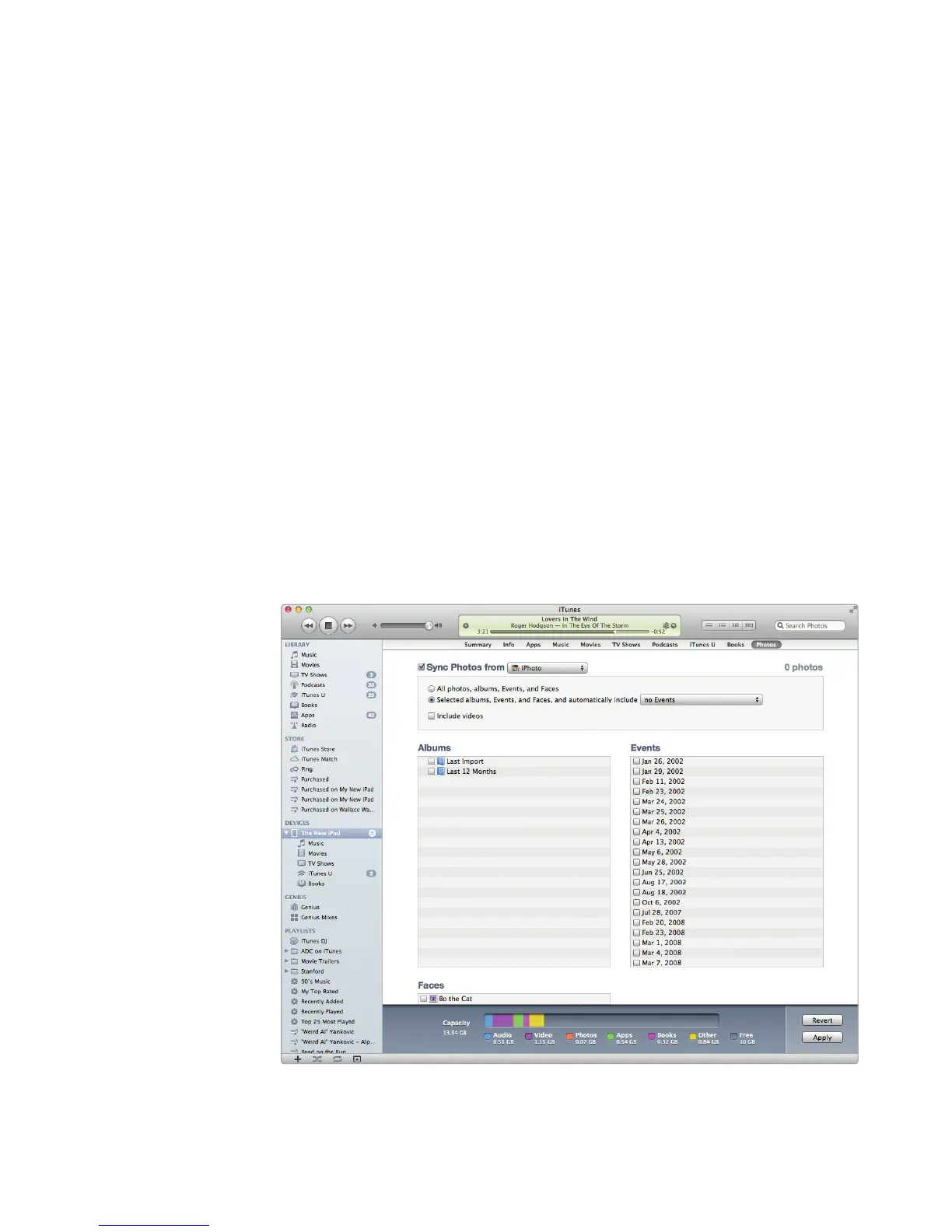
2. Choose your iPad in the sidebar, and then click the Photos tab. The Photos
screen appears, as shown in Figure 16-6.
3. Check (or uncheck) the Sync Photos from checkbox.
4. Click the Sync Photos from pop-up menu, and choose a program to syn-
chronize your photographs (such as iPhoto or Photoshop Elements) or a
folder where you store your photographs on your computer (such as the
Pictures folder).
FIGURE 16-6: The Photos tab lets you synchronize pictures with
youriPad.



 To Next Page