130
|
Chapter 16
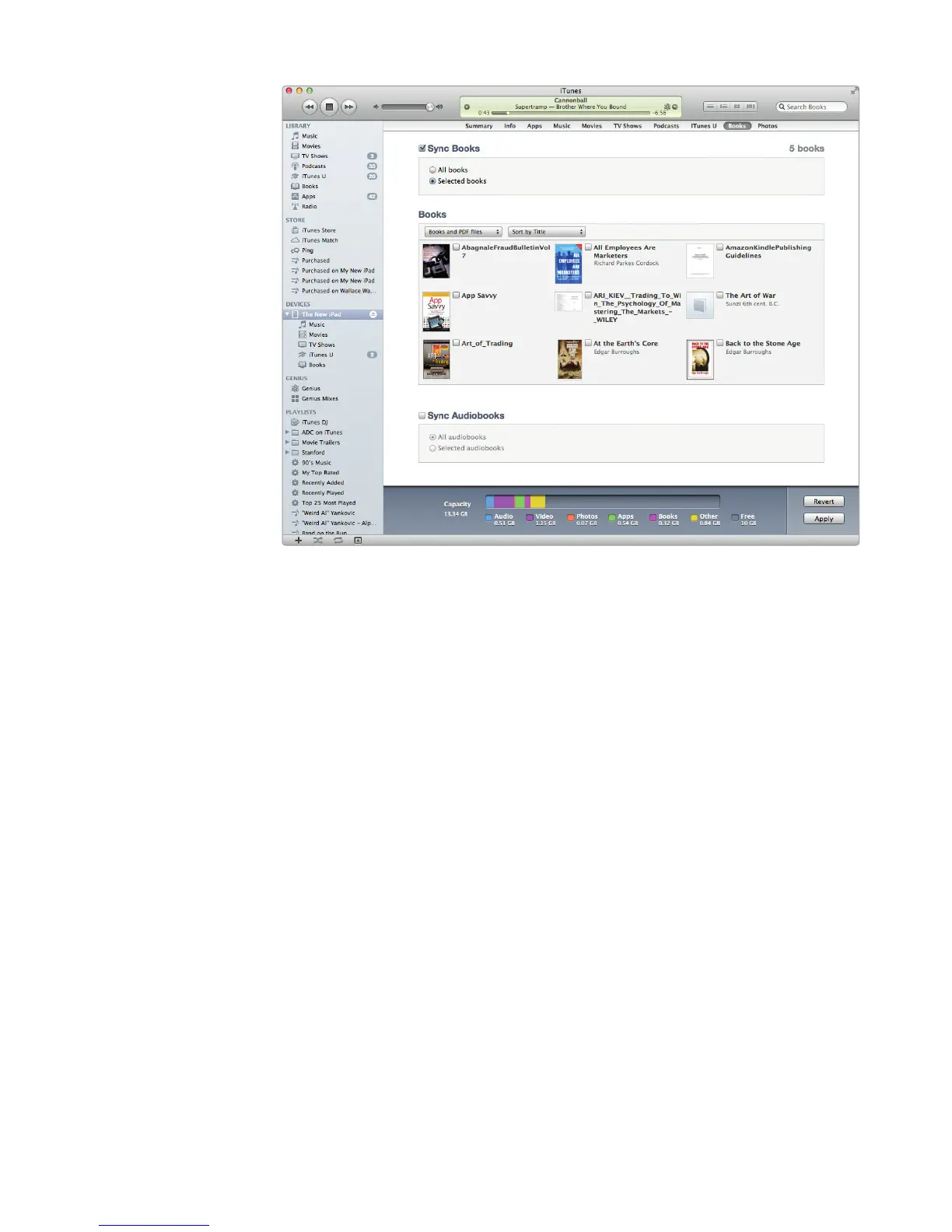
3. Check (or uncheck) the Sync Books checkbox.
4. Click the All books or Selected books radio button. (Choosing the Selected
books radio button allows you to select EPUB, iBooks, and PDF books
individually.)
5. (Optional) Click the pop-up menu under the Books heading and choose
Books and PDF files, Only Books, or Only PDF files.
6. (Optional) Click the second pop-up menu and choose Sort by Title or Sort
by Author.
7. (Optional) If you chose the Selected books radio button, check the check-
boxes of the books you want to transfer.
8. (Optional) Check (or uncheck) the Sync Audiobooks checkbox, and clickthe
All audiobooks or Selected audiobooks radio button. (If you choose the
Selected audiobooks radio button, you’ll be able to select audiobooks
individually.)
9. Click Apply to start synchronizing your EPUB, iBooks, and PDF files and
audiobooks with youriPad.
Converting Files to EPUB Format
If you have non-EPUB or non-PDF documents (such as Microsoft Word .doc/.docx
files) that you want to store on your iPad, you have several choices. You can use the
iWork app to open and view these files, or you can convert the file to the EPUB file
FIGURE 16-7: The Books tab lists all the available EPUB, iBooks, and
PDF book files stored on your computer.



 To Next Page