132
|
Chapter 16
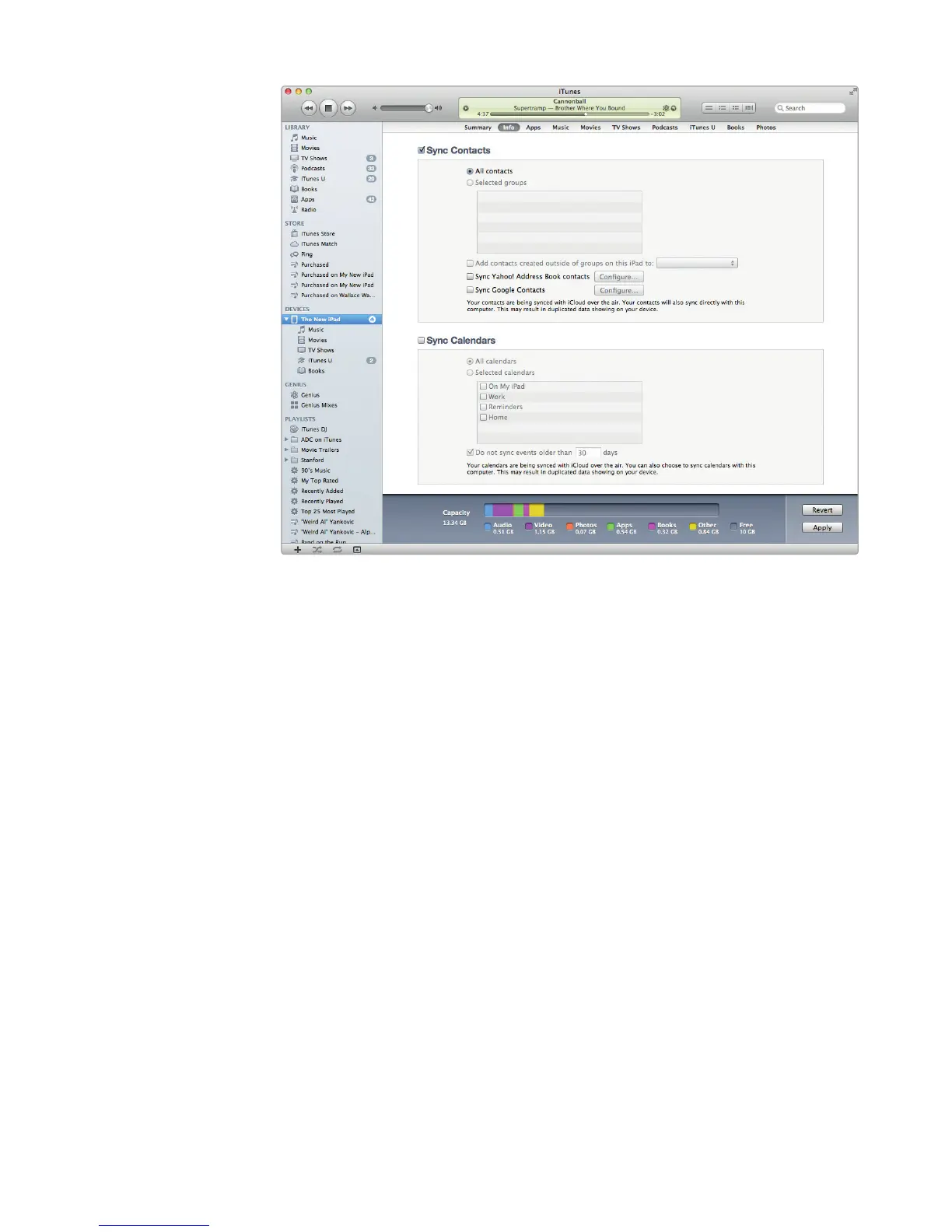
5. (Optional) Check the Add contacts created outside of groups on this
iPad checkbox. Then use the pop-up menu to define which group to store
these contacts in.
6. (Optional) Check the Sync Yahoo! Address Book contacts checkbox. Then
click Configure.
7. (Optional) Check the Sync Google Contacts checkbox. Then click
Configure.
8. Click Apply.
Synchronizing Appointments
Appointments can help keep you on schedule so you know where you have to be
and when. On the iPad, all this information is stored in the Calendar app. If you’re
using a Mac, this information is synchronized into your iCal program. If you’reusing
a Windows computer, this contact information is synchronized into Microsoft
Outlook.
Q NOTE: If you’re synchronizing appointments between your iPad and your
computer through iCloud or an email provider like Gmail, then you don’t
need to manually synchronize appointments through iTunes, so you can skip
these steps.
FIGURE 16-8: The Info tab lets you choose the contact information to
synchronize with your iPad.



 To Next Page