4
|
Chapter 1
play music, read books, check your calendar, or browse your list of contacts. As its
name suggests, airplane mode is perfect for when you’re in an airplane and can’t
risk having your iPad interfere with the airplane’s navigation systems.
If you know you won’t need to use your iPad for a lengthy period of time, you
might as well turn it off to keep it from running down its battery.
In this chapter you’ll learn how to turn on your iPad, put it to sleep, put it in
airplane mode, and shut it off completely.
What You’ll Be Using
To turn an iPad on and off, you need to use the following:
> The Sleep/Wake button
The Settings app
Turning On Your iPad
When your iPad is off, you can turn it on by following these steps:
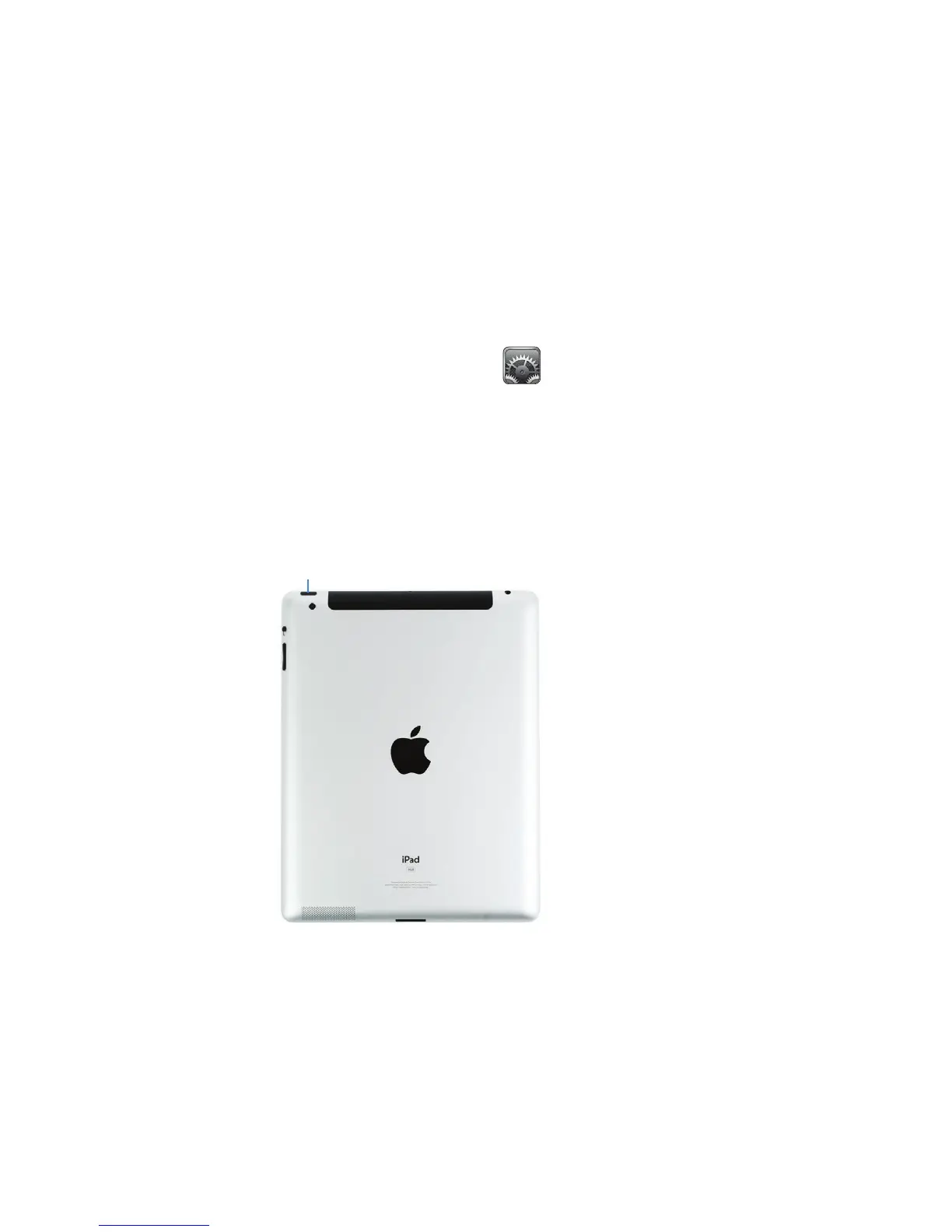
1. Hold down the Sleep/Wake button at the top of your iPad, as shown in Fig-
ure 1-1, until the Apple logo appears on the screen.
Q NOTE: If you see a blank screen after pressing the Sleep/Wake button, your
iPad may not have enough power to start.
2. Wait a few seconds until the Home screen appears. This tells you that your
iPad is now on.
FIGURE 1-1: The Sleep/Wake button
is located on the corner of theiPad.
Sleep/Wake



 To Next Page