Using Maps
|
239
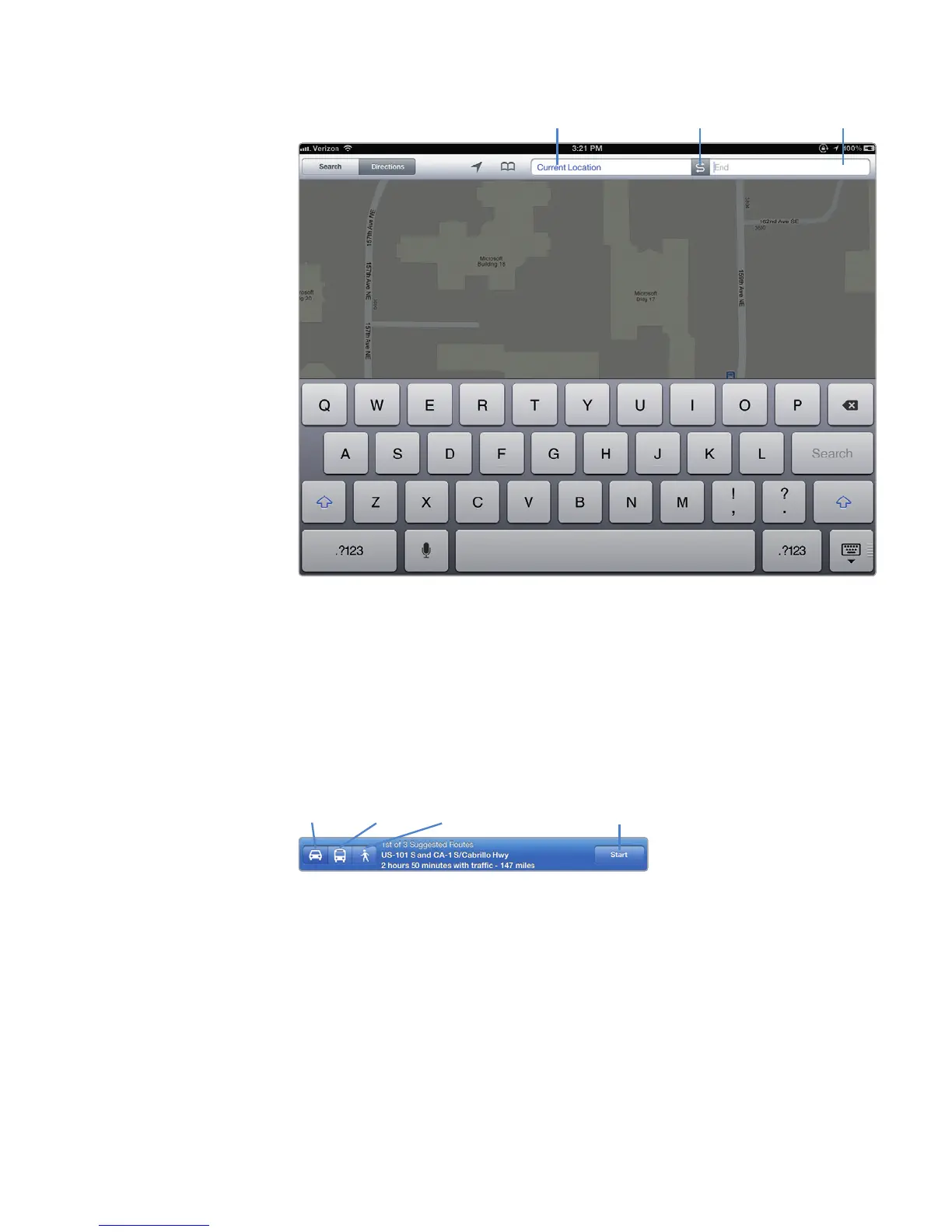
3. Tap the End text field. If you tap the Reverse icon (the squiggly arrow between
the Start and End fields), you can reverse your starting and ending points.
4. Type an address, and tap the Search key on the virtual keyboard. The map
displays your ending destination and shows how long it will take to drive
there from your current location, as shown in Figure 27-13.
5. (Optional) Tap the Bus icon that appears at the bottom of the screen. Mass
transit directions appear.
6. (Optional) Tap the Person icon that appears at the bottom of the screen.
Walking directions appear.
7. Tap Start to get directions. To view step-by-step directions, tap the Left or
Right arrow icons that appear on the blue bar, as shown in Figure27-14. The
map will zoom to each turn.
FIGURE 27-12: The Start and End fields define the starting and ending
points for directions.
Start End
Reverse
directions
FIGURE 27-13: Choose the kind of direc-
tions you want and then tap Start.
Driving Transit Walking
Tap here to get
your directions!



 To Next Page