Using Maps
|
241
Getting Directions from the InformationIcon
When the map displays a location with a red pin (such as after searching for
a specific type of business like a pizza place or supermarket, as explained in
“Searching for Types of Places” on page 236), you can get directions to that loca-
tion by tapping the location’s Information icon, which appears as a lowercase letter
i inside ablue circle.
To get directions using the Information icon, follow these steps:
1. From the Home screen, tap Maps. The Maps screen appears.
2. Tap the Bookmarks icon and tap a name in the Contacts window. Or tap the
Search field, and type a business that you want to find, such as supermarket
or gas. A red pin appears on the map, along with the name of a person or
business, and the blue Information icon. Tap the Information icon.
3. Tap Directions To Here. A blue bar appears at the bottom of the map, let-
ting you choose driving, mass transit, or walking directions. Tap one of these
choices, and tap Start.
Getting Directions for an Address Stored in the Contacts App
Rather than type an address, it’s often easier to take advantage of an address
stored in your Contacts app. To get driving directions to an address stored in the
Contacts app, follow these steps:
1. From the Home screen, tap Maps. The
Maps screen appears.
2. Tap the Directions button in the upper-left
corner of the screen.
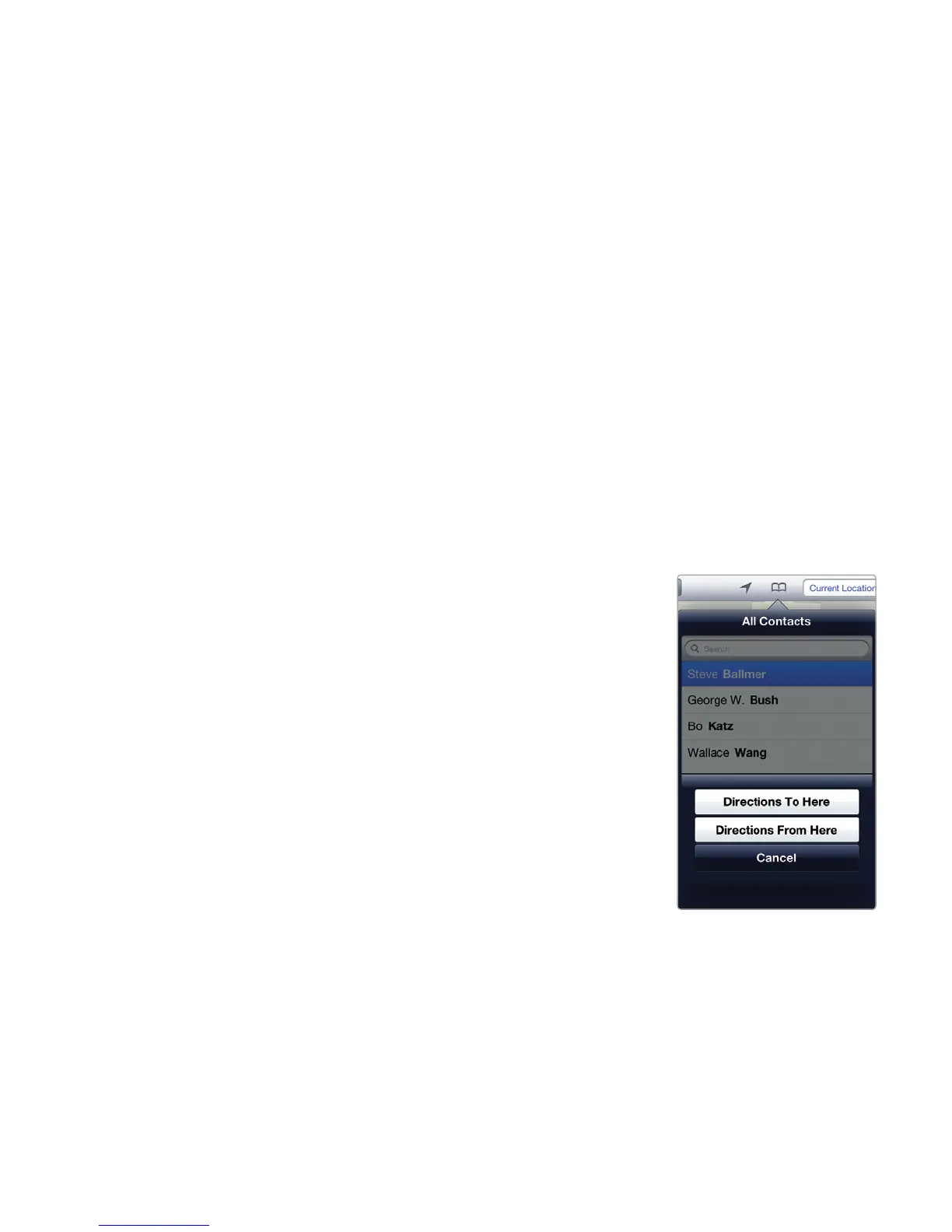
3. Tap the Bookmarks icon. An All Contacts
window pops up.
4. Tap a name that has a street address stored.
A window appears that displays buttons
labeled Directions To Here, Directions From
Here, and Cancel, as shown in Figure 27-16.
5. Tap Directions To Here. A blue bar appears
at the bottom of the map, letting you choose
driving, mass transit, or walking directions.
Tap one of these choices, and tap Start.
FIGURE 27-16: Using a
contact’s address to
getdirections



 To Next Page