24
|
Chapter 4
What You’ll Be Using
To learn how to control your iPad’s user interface, you need to use the following:
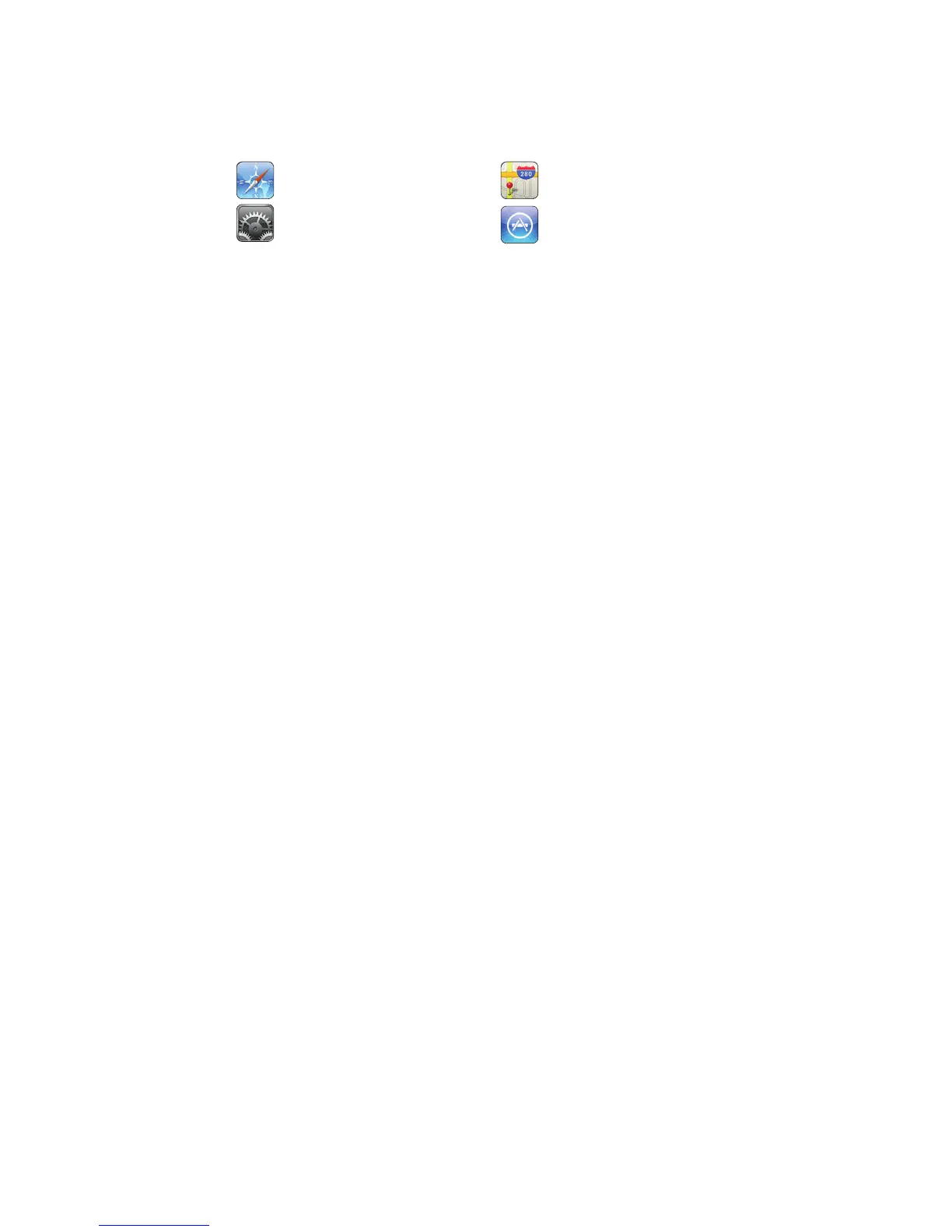
The Safari app The Maps app
The Settings app
The App store
Using the Multi-Touch Screen
The Multi-Touch screen functions as both a display and a user interface that you
can control with your fingertip. These are the three main touch commands:
> Select (tap)
> Scroll (drag)
> Zoom (pinch or double-tap)
Q NOTE: The Multi-Touch screen lets you tilt the iPad vertically (portrait mode)
or horizontally (landscape mode) to make it easy to view data. No matterhow
you tilt your iPad, the Tap, Drag, Pinch, and Double-Tap touch commands work
the same.
Using the Select Command
The simplest command is Select, which lets you touch an item that you want to
select. To use the Select command, point at an icon or button, press it lightly,
and then lift your finger off the screen. When done correctly, the Select command
involves nothing more than a quick tap on the screen. This Select command is
called tapping throughout the rest of this book.
Q NOTE: The Multi-Touch screen works only when it detects your fingertip
touching the screen. If you tap the screen with your fingernail or while wear-
ing gloves, the Multi-Touch screen won’t recognize this physical contact.
To see how the Select command works, follow these steps:
1. Press the Home button. The Home screen appears, showing all the apps
available on your iPad.
2. Tap any icon, such as the Calendar. Your chosen app appears on the screen.
3. Press the Home button. Notice that your iPad displays the Home screen
once more.
Using the Scroll Command
Sometimes an app might need to display more information than can comfortably
fit on the screen. When this happens, you can view multiple screens by choosing
between two different scrolling commands: Controlled Scroll and Quick Scroll.



 To Next Page