Using Dictation and Keyboard Shorcuts
|
47
Trying Your Shortcut
After you’ve created a shortcut, you may want to try it out by following these steps:
1. From the Home screen, tap Notes. The Notes screen appears.
2. Type your shortcut acronym such as ty. Your iPad displays your complete
phrase.
3. Press the spacebar. The iPad types out your complete phrase automatically.
4. Press the Home button.
Deleting Your Shortcut
After you’ve created a shortcut, you may eventually want to delete that shortcut.
You can delete a shortcut either by swiping or by tapping the Edit button by fol-
lowing these steps:
1. From the Home screen, tap Settings. The Settings screen appears.
2. Tap General. The General settings screen appears.
3. Tap Keyboard. The Keyboard settings screen appears.
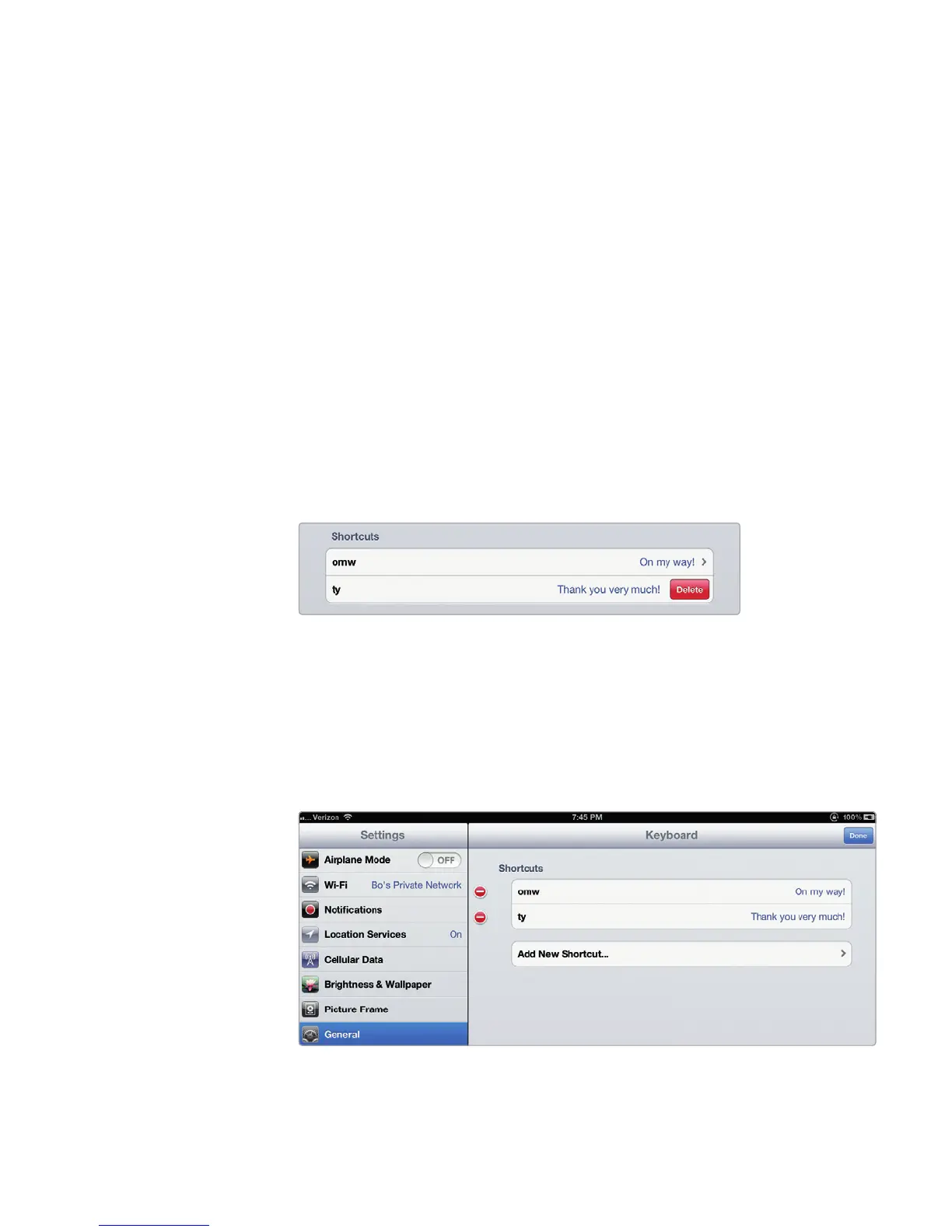
4. Swipe your shortcut left or right. A red Delete button appears, as shown in
Figure 6-5. One way to delete a shortcut is to tap this Delete button.
5. Swipe your shortcut to the right to hide the Delete button.
6. Tap Edit in the upper-right corner of the screen. The Keyboard settings
screen displays your shortcuts, as shown in Figure 6-6.
7. Tap the white dash inside the red circle that appears to the left of your short-
cut. A red Delete button appears.
FIGURE 6-5: Swipe to delete a shortcut.
FIGURE 6-6: Tap the red minus sign to delete a shortcut.



 To Next Page