17
Getting Started with Apple iOS Devices
Using and Producing Courses with iTunes U Course Manager
Educators can create full courses and publish them on iTunes U using iTunes U Course
Manager, a web-based tool accessible from a web browser. Students then have access
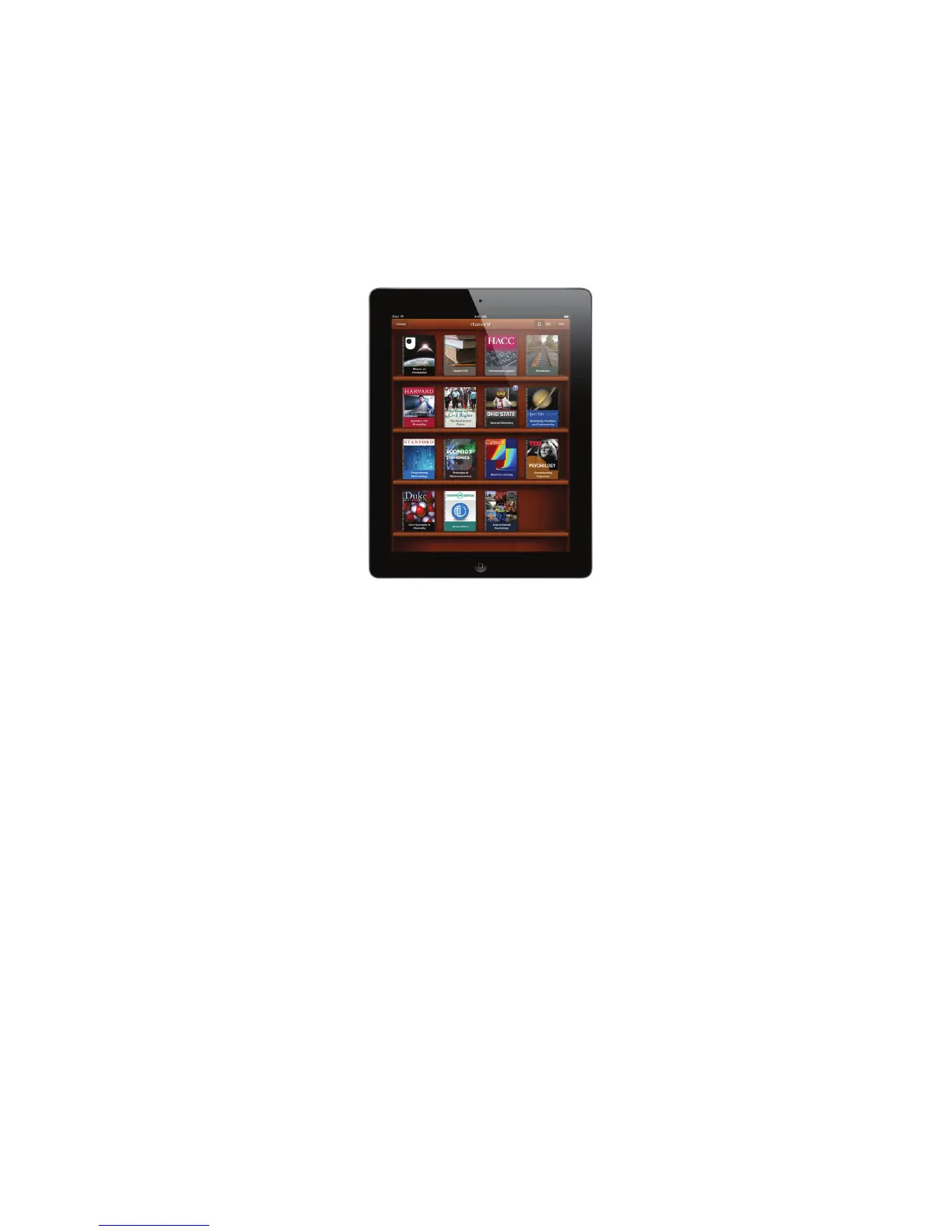
to all course materials through the iTunes U app on iPad or iPod touch. Courses can
feature audio, video, books, apps, websites, and other content. Students can review
these materials at any time, from just one location. And they can keep track of the
class assignments and check them o when they’re complete.
If your K–12 school district is an iTunes U provider, you can create your own courses
and then distribute them to your students and anyone else via iTunes U.
Locating Content
You can search for and use iTunes U content with the iTunes U app on iPad or iPod
touch or with iTunes on a computer. The iTunes U app is free from the App Store.
To locate and download resources in iTunes U on iPad or iPod touch:
1. If you don’t already have the iTunes U app, download it from the App Store.
2. From the Home screen, tap iTunes U. (If the Library is displayed, tap Catalog at the
upper right.)
3. From this screen, you can browse featured content, see the most popular downloads
in specic categories, or browse additional content by category or provider. To look
for a specic item, tap Search and type a word in the Search eld at the top of the
screen, then tap Search on the keyboard.
4. Tap an item once to preview it.
5. To download content, tap the item, tap the Free button, and then tap to download.
To locate and download resources in iTunes U on a computer:
1. Open iTunes, then click iTunes Store (below Store in the sidebar).
2. Click iTunes U at the top of the iTunes Store window to go to the main iTunes U
page. (If you don’t see iTunes U, enlarge the window by dragging the resize control
in the bottom-right corner of the window.) Press and hold iTunes U in the navigation
bar to view categories of content, or click an option in iTunes U Quick Links, Top
Charts, or “More on iTunes U.” To learn more about iTunes U, click “An Introduction
to iTunes U” under Learn More.



 To Next Page