22
Getting Started with Apple iOS Devices
Numbers provides a exible canvas to create spreadsheets that also include tables,
charts, text, images, and even videos.
And with Pages, you can write all sorts of documents, such as reports, essays, and
newsletters, right on your iOS device. You can add photos from the Photos app, correct
spelling and look up words in a dictionary without leaving Pages, and format your
documents with a tap.
These apps include many options for sharing les. You can send and receive les via
email, copy les to and from any standard WebDAV server, and transfer les between
your iPad or iPod touch and computer through iTunes. Connecting the iPad or iPod
touch to a presentation device—such as a projector or television monitor—makes
presentations and other les produced with these apps incredibly portable. For more
information, see “Accessories for iPad and iPod touch” later in this guide.
With Keynote, Numbers, and Pages, you can also open and revise presentations,
documents, and spreadsheets on iPad or iPod touch that were created with iWork or
Microsoft Oce applications on a Mac. Open and edit Pages and Word documents in
Pages on your iOS device, PowerPoint and Keynote presentations in the Keynote app,
and Excel and Numbers spreadsheets in the Numbers app. Or you can use iWork on a
Mac to edit les created on your iOS device.
Creating Content on a Mac for Use on an iOS Devices
You and your students can also use classroom Mac computers to create a variety of
education content for use on iOS devices. Produce Multi-Touch books using iBooks
Author on the Mac and view them on iPad. Create multimedia projects, such as video
or audio podcasts, using the iLife suite of applications. And you can use the applications
in Apple’s iWork productivity suite to produce narrated presentations or interactive
documents.
Producing Multi-Touch Books with iBooks Author
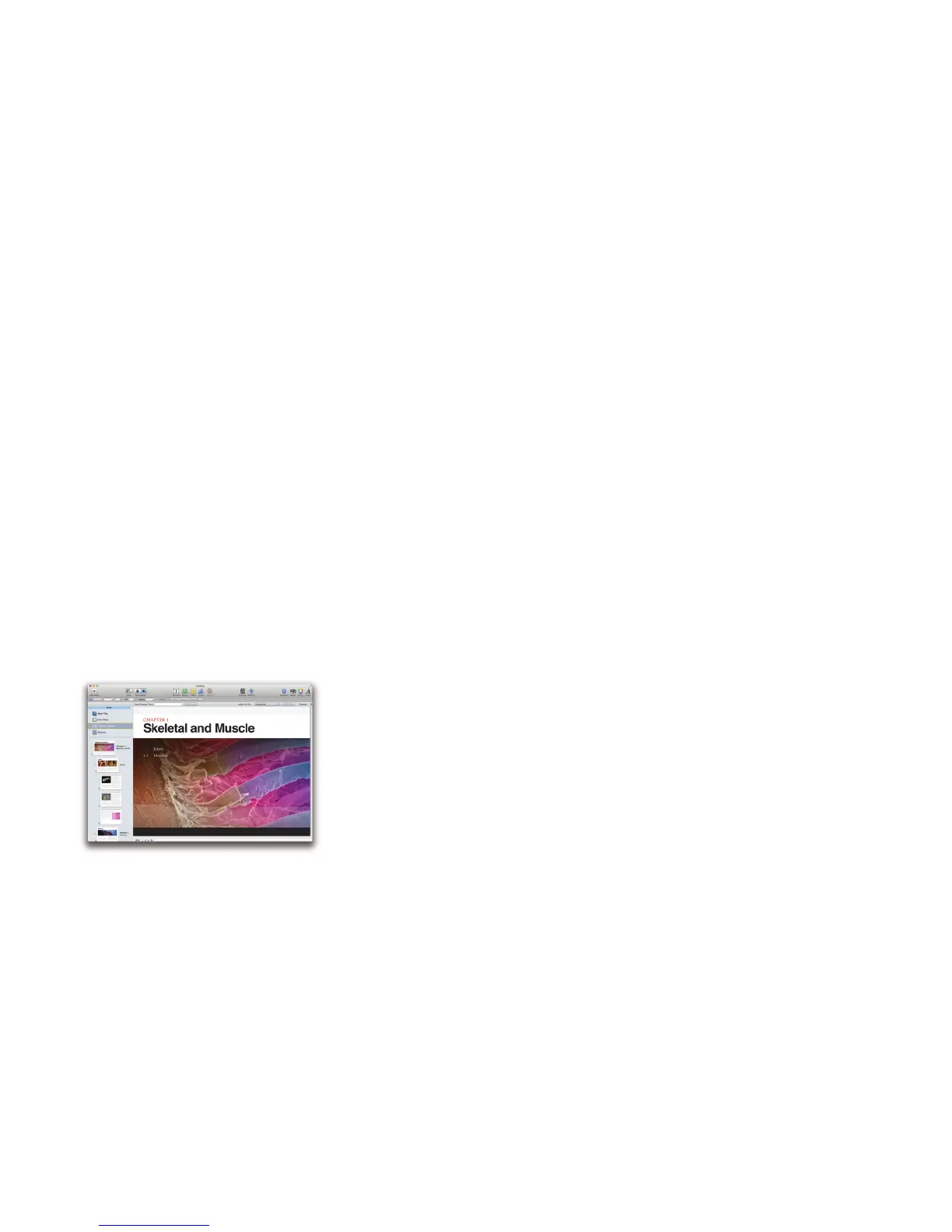
It’s easy to create and publish great Multi-Touch books for iPad using iBooks Author,
a free app available from the Mac App Store on the Mac. There are so many possibili-
ties—you might want to create a book with background information for a unit, test
review materials, lab instructions, or a class collection of short stories, artwork, and
movies. Students could use iBooks Author to share a journal about a piece of literature
or to present all of their lab reports with images, graphs, and movies of their ndings.
To get started with iBooks Author, choose from a collection of Apple-designed
templates, each of which comes with a number of page layouts, including a table of
contents and a glossary. You can then customize any of the templates.
Add text by typing or by dragging a word-processing document to the book—iBooks
Author automatically ows the text into the pages of the book and retains any format-
ting and styles from the document.
Books come to life with interactive objects that are added with widgets. For example,
you can add a photo gallery to a page—a sequence of images that readers can swipe
through, each with its own caption. Add review questions—either multiple choice or
drag-to-target questions—to gauge understanding. You can also use widgets to add
movie or audio les, Keynote presentations, interactive images (complete with labels,
panning, and zooming), 3D images, and web-linked data.
In addition to Multi-Touch widgets, you can add other images and digital les, tables,
charts, and shapes. Create a glossary of terms along with images and related terms.



 To Next Page