27
Getting Started with Apple iOS Devices
Using iTunes on a Computer to Add Content
The rst time you connect iPad or iPod touch to a computer, Setup Assistant appears
and guides you to name the device and select sync settings. You can set iTunes to
sync music, books, podcasts, iTunes U content, other audio les, movies and TV shows,
apps downloaded from the App Store, photos, contacts, notes, calendars, email account
settings, and web page bookmarks.
You can adjust sync settings whenever the device is connected to a computer. With
the automatic syncing option, you can choose to sync all your content whenever
the device is connected to the computer or have iTunes sync just some of it, such as
particular playlists, apps, or photo albums. The manual syncing option lets you select
the specic items you want to sync when the device is connected to the computer.
How you choose to set up syncing will vary depending on how you manage the iOS
devices in the classroom. (See “Managing iOS Devices and iTunes for Student Use”
earlier in this guide.) For example, if you sync a classroom set of iPad or iPod touch
devices using an Apple iPad Learning Lab or Apple iPod Learning Lab, you may want
to sync them automatically with selected content. Students who are assigned their
own devices might want to manually select items to sync from a class computer. This
section provides an overview of the syncing options in the settings panes in iTunes.
To set up iPad or iPod touch for syncing:
1. Connect the iPad or iPod touch to your computer and open iTunes (if it doesn’t
open automatically).
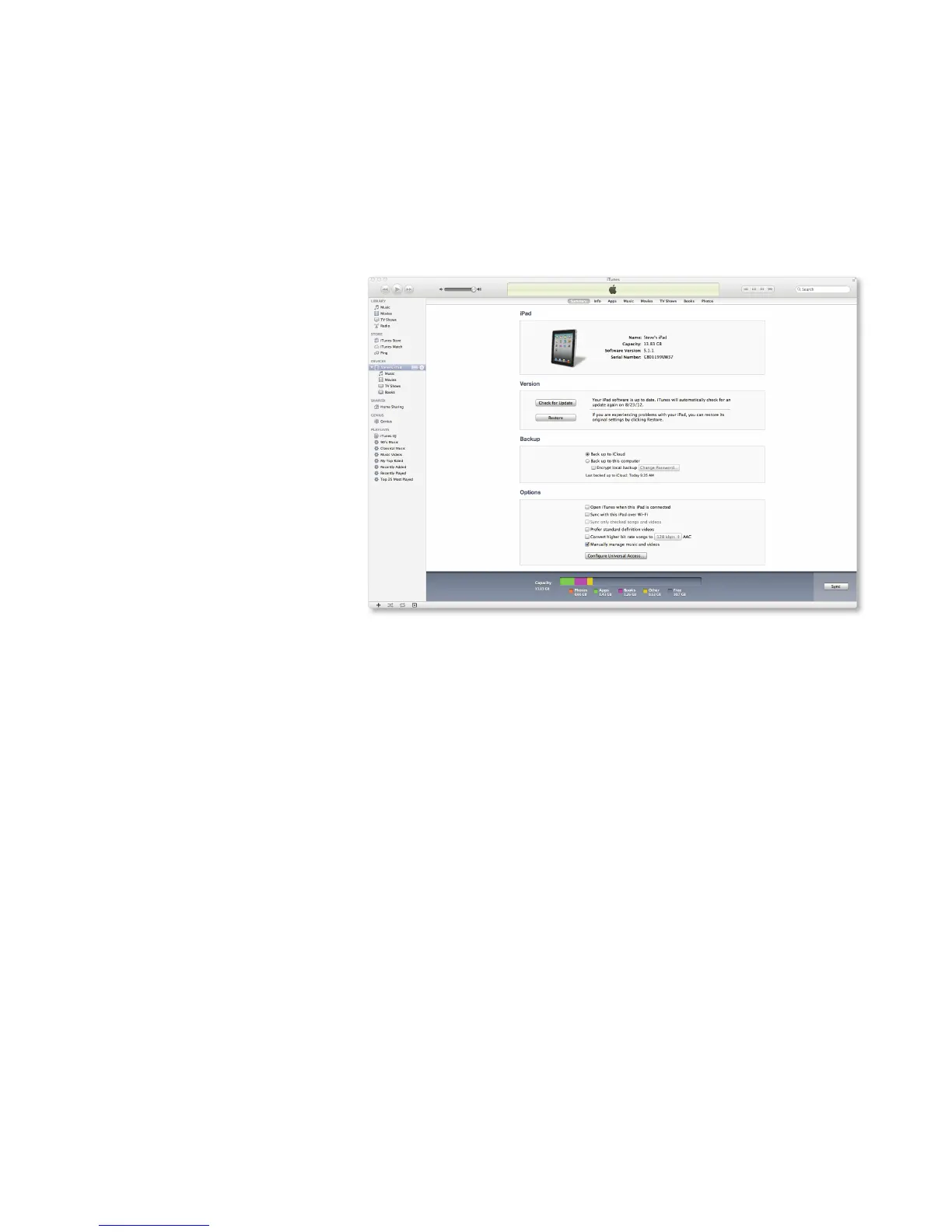
2. In iTunes, click the iPad or iPod touch icon under Devices in the left sidebar.
3. Click the Summary button if the Summary pane isn’t already open.
4. Select syncing options in the Summary pane:
• Select the option to have iTunes open automatically when the device is connected
if you want iTunes to open and sync the device automatically whenever you connect
it to the computer. Deselect this option if you want to sync only by clicking the
Sync button in iTunes or if you want to manually manage content.
• Select “Sync only checked songs and videos” if you want to sync only selected
items in the computer’s iTunes library.



 To Next Page