4
Getting Started with Apple iOS Devices
About iOS Devices and iTunes for Education
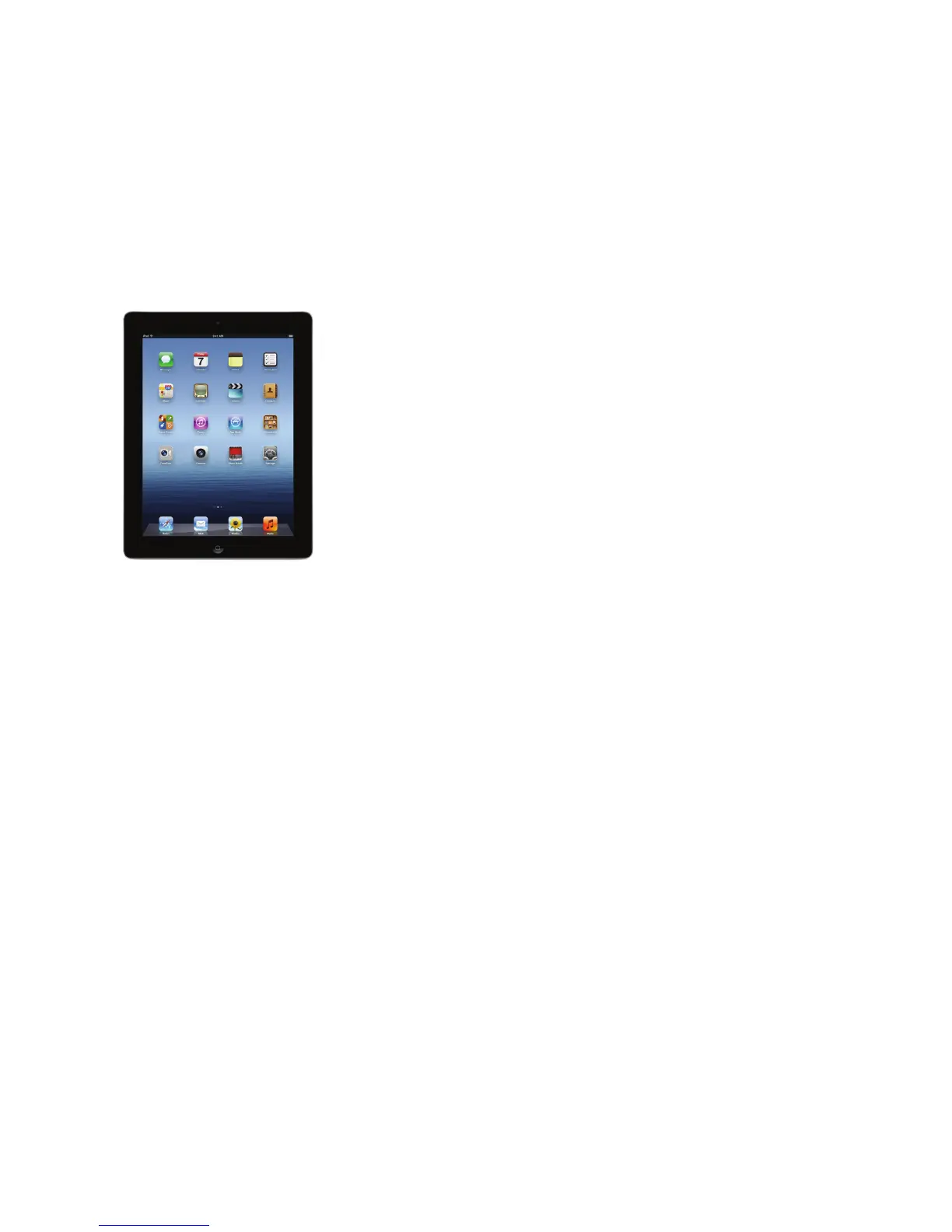
As many educators have discovered, iPad and iPod touch are easy-to-use iOS devices
with a variety of classroom uses. (They’re called iOS devices because they use the Apple
iOS operating system.) Students use iOS devices to interact with educational apps,
watch educational videos, listen to audio recordings or podcasts, view primary source
images, read textbooks and other course materials, and do research online.
With the apps on iPad and iPod touch, you and your students can send and receive
email, take notes, make to-do lists, keep calendars and contact les, and much more.
And the tens of thousands of education apps available for download from the App
Store expand learning even more. Students can be highly engaged in viewing the
stars, learning a language, reviewing math facts, practicing vocabulary and grammar
skills, learning about historical events, and much, much more.
With iPad 2 and later and iPod touch (4th generation), students can also take photos,
use FaceTime for video calls, and make HD movies on the go with the built-in camera,
then use the iMovie app to edit them. With Keynote, Pages, and Numbers (available
from the App Store), they can create presentations, many types of documents, and
spreadsheets. And they can browse, edit, and share their photos with the iPhoto app.
iPad and iPod touch make it easy to copy and paste from app to app, such as text from
a web page to a note. You can even connect the devices to a TV or projection device
with an added accessory (see “Accessories for iPad and iPod touch” later in this guide)
to display slide presentations and other content. And when you connect an iPad to
an HDTV or projector with the Apple Digital AV Adapter or Apple VGA Adapter (sold
separately), video mirroring allows the class to see everything on your iPad display.
It’s easy to load les, apps, photos, songs, and video content onto iPad and iPod touch.
You can download media and apps directly to your device with a Wi-Fi connection.
Or you can connect directly to a Mac or PC using the dock connector on the bottom
of the iPad or iPod touch and the included USB cable. Then you can use iTunes to
organize your content, sync (copy les onto the device), and recharge quickly.
This guide focuses on the capabilities of iPad and iPod touch (note that the features
discussed pertain to iOS 5 as well as iPad 2 and later). If you have the rst version of
iPad, some features won’t apply, such as Camera, FaceTime, Photo Booth, iMovie, and
ubiquitous video mirroring.
If you’re determining whether to use iPad or iPod touch with your students, evaluate
your students’ needs and your plans for using the devices. For example, the smaller
size of iPod touch may be an advantage for learning on the go, younger students with
smaller hands, or language acquisition. Or you might choose iPad when students will
benet from the larger screen size or need to create more content.
For detailed information about iPod touch specications, including hard drive size,
battery duration, and included accessories, visit www.apple.com/ipod. For detailed
information about iPad specications, visit www.apple.com/ipad.
Overview



 To Next Page