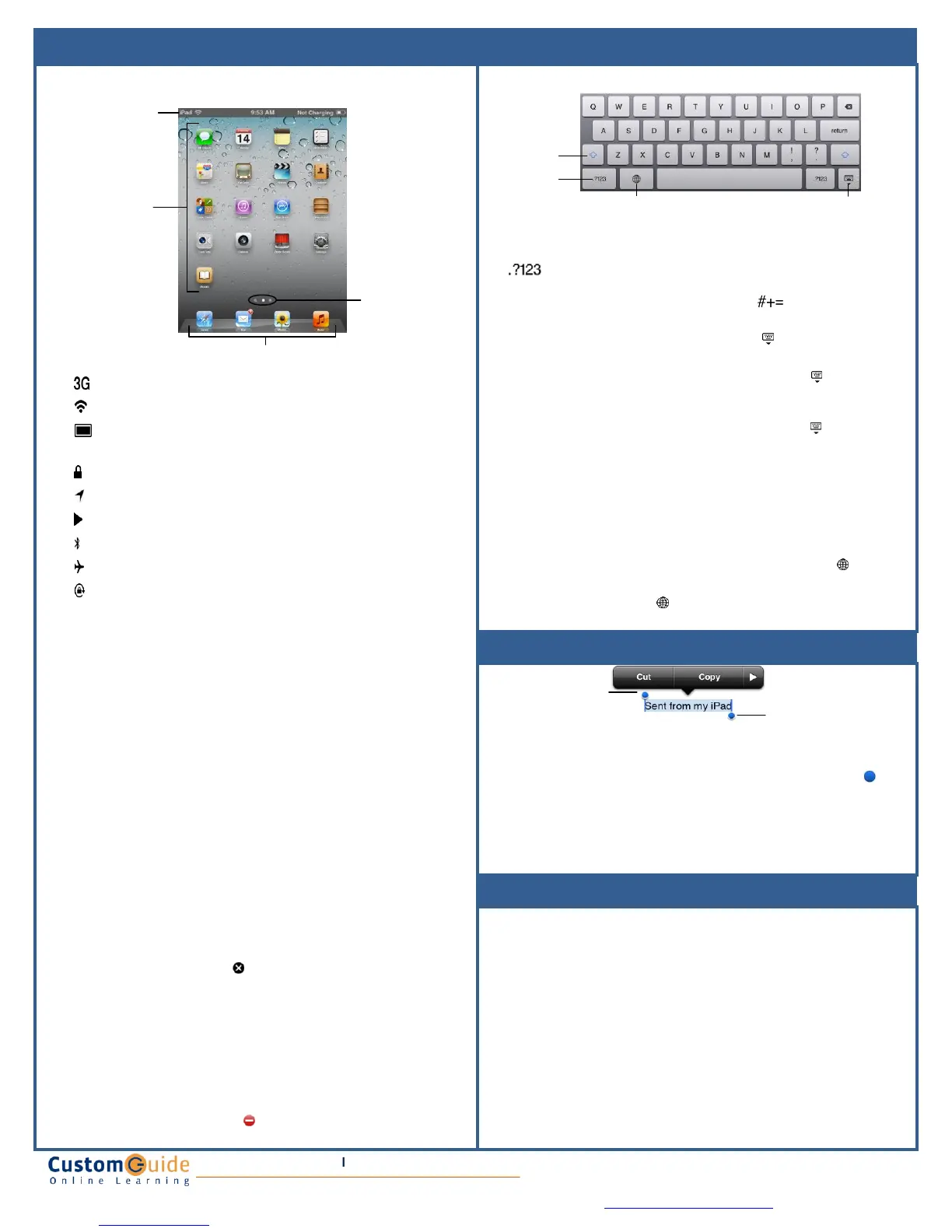
• View Status Information: The Status Bar displays status information for
your iPad, visible in all apps and on the Home Screen.
• Open an App: Each app is represented by its icon. Simply tap an app
icon with your finger to open the app.
• Navigate Between Home Screens: Each Home Screen is represented
as a dot, with the active Home Screen represented as the brightest dot.
Tap and drag anywhere on the Home Screen to move left and right
between Home Screens.
• Rearrange the Home Screen: Tap and hold your finger on an app icon
until app the icons begin to wiggle. Drag the app icon to a new location
on the Home Screen, or to the side of the Home Screen to move it to
another Home Screen, than release it. Press the Home button when
you’re finished moving app icons around.
• Add an App to the App Dock: App icons and folders in the dock at the
bottom of the Home Screen will be available across all of your Home
Screens. The dock can hold up to six apps and/or folders. Drag an app
or folder icon onto the dock while rearranging to add it to the dock.
• Create an App Folder: Folders can hold up to 20 apps each. To create
a folder, drag one app icon onto another and hold until a folder is
created. Then, drag the app icon into the folder and release.
• Delete Apps: Tap and hold your finger on an app until the icons begin to
wiggle. Tap the Delete button ( ) that appears in the upper-left corner of
the icon to delete an app from your iPad. Apps that are included as part
of iOS cannot be deleted.
• Switch Between Apps Quickly: Press the Home button twice
quickly to reveal the Multitask Bar. Recently-used apps will be displayed
here. Tap an app icon in the Multitask Bar to go back to that app.
• Close Apps: Returning to the Home Screen from an app doesn’t close
the app, just suspended in memory. To completely close an app, bring
up the Multitask Bar, tap and hold an app icon until the icons begin to
wiggle, then tap the Quit button ( ) that appears in the upper-left corner
of the icon.
• Insert Numbers & Punctuation: Tap the Numbers & Punctuation key
( ) to change the on-screen keyboard .to the Numbers &
Punctuation keyboard, which displays numbers as well as commonly-
used punctuation such as : ; ( ). Tap the Symbols key ( ) to change
the keyboard to the Symbols keyboard, with more options such as # % <
> .
• Hide Keyboard: Tap the Hide Keyboard key ( ) to hide the on-screen
keyboard.
• Split Keyboard: Tap and drag the Hide Keyboard key ( ) upwards to
undock the keyboard from the bottom of the screen and split it into two
parts, making it easier to type with your thumbs while holding your iPad
with two hands. Tap and drag the Hide Keyboard key ( ) back down to
the bottom of the screen to dock and merge the keyboard.
• Insert Accented Characters: Tap and hold a letter to display a popup
of accented or alternate versions of that character.
• Enable International Keyboards: Tap the Settings app icon, then tap
the International button in the General settings pane. Tap the
Keyboards button, then tap the Add New Keyboard button. Select a
language from the list to add that keyboard.
• View International Keyboards: Tap the International key ( ) to
switch between any international keyboards you have set up. Tap and
hold the International key ( ) to display a popup menu so that you can
switch directly to your desired international keyboard.
beginning ofSelection dot at end
selectionof selection
• Select Text: Tap and hold your finger over a word until it is highlighted.
If you want to select multiple words, drag the blue selection dots ( ) to
the beginning and end of the text you want to select.
• Copy Text: Select the text you want to copy, then tap the Copy button
in the popup that appears.
• Paste Text: Tap and hold where you want to paste text, then release
after a second and tap the Paste button.
• Join a Wi-Fi Network: Tap the Settings app icon, then tap the Wi-Fi
button in the left pane. Make sure that the Wi-Fi switch is set to On, then
tap the name of the Wi-Fi network you want to join. If the network is
secure, enter the security key or password, then tap the Join key.
• Join a 3G Network: Tap the Settings app icon, then tap the Cellular
Data button in the left pane. Turn the Cellular Data switch to On. If you
haven’t set up a 3G data account yet, you will need to enter your
personal information, select a data plan, enter your billing information,
and agree to a purchase and license agreement.
• Enable Airplane Mode: Tap the Settings app icon, then turn the
Airplane Mode switch in the left pane to On. While Airplane Mode is
enabled, wireless radios (Wi-Fi, 3G, GPS, and Bluetooth) are disabled.
Turn the Airplane Mode switch to Off to turn the wireless radios back on.
©2012 CustomGuide
cheatsheet.customguide.com|Phone 888.903.2432
o The iPad is currently connected to a 3G network.
o The iPad is currently connected to a Wi-Fi
network.
o Displays the iPad’s battery status, accompanied
by the percentage of batter charge remaining.
o The iPad is currently locked.
o The iPad is using location services to determine
your location.
o The iPad is currently playing audio.
o The iPad is connected to a Bluetooth device.
o The iPad is in Airplane Mode, disabling all of the
wireless radios.
o The iPad’s screen orientation is locked.


 To Previous Page
 Loading...


